> ## Documentation Index
> Fetch the complete documentation index at: https://support.myapps.ai/llms.txt
> Use this file to discover all available pages before exploring further.
# MeshCraft
> Generate 3D models from text or images using advanced AI technology.
# MeshCraft: AI-Powered 3D Model Generation
Transform your ideas into stunning 3D models using cutting-edge AI technology with MeshCraft!
## Overview
MeshCraft is a powerful AI-driven tool that allows you to generate 3D models from text descriptions or images. This innovative platform offers a seamless way to bring your creative visions to life in three dimensions, suitable for game development, animation, virtual reality, and more.
Generate intricate 3D models from detailed text descriptions.
Transform 2D images into fully-realized 3D models with ease.
Fine-tune your models with various settings like seed, texture size, variability, and creative modes.
Download your models in various industry-standard formats (GLB, FBX, USDZ, ZIP).
## How to Use MeshCraft
Follow these comprehensive steps to create your 3D model:
Choose between **IMAGE TO 3D** or a text-based type (like GENERAL, OBJECT, ANIMAL, HUMAN) from the **Select Type** dropdown.
* For **IMAGE TO 3D**: Upload an image file.
* For text-based types: Enter a text prompt (or multiple prompts depending on the type).
Configure the available parameters based on your selected type (see Input Parameters section below).
Click the **Generate 3D Model** button. The AI will process your input and settings to create your 3D model.
### Image to 3D Mode
This mode allows you to generate a 3D model directly from a 2D image.
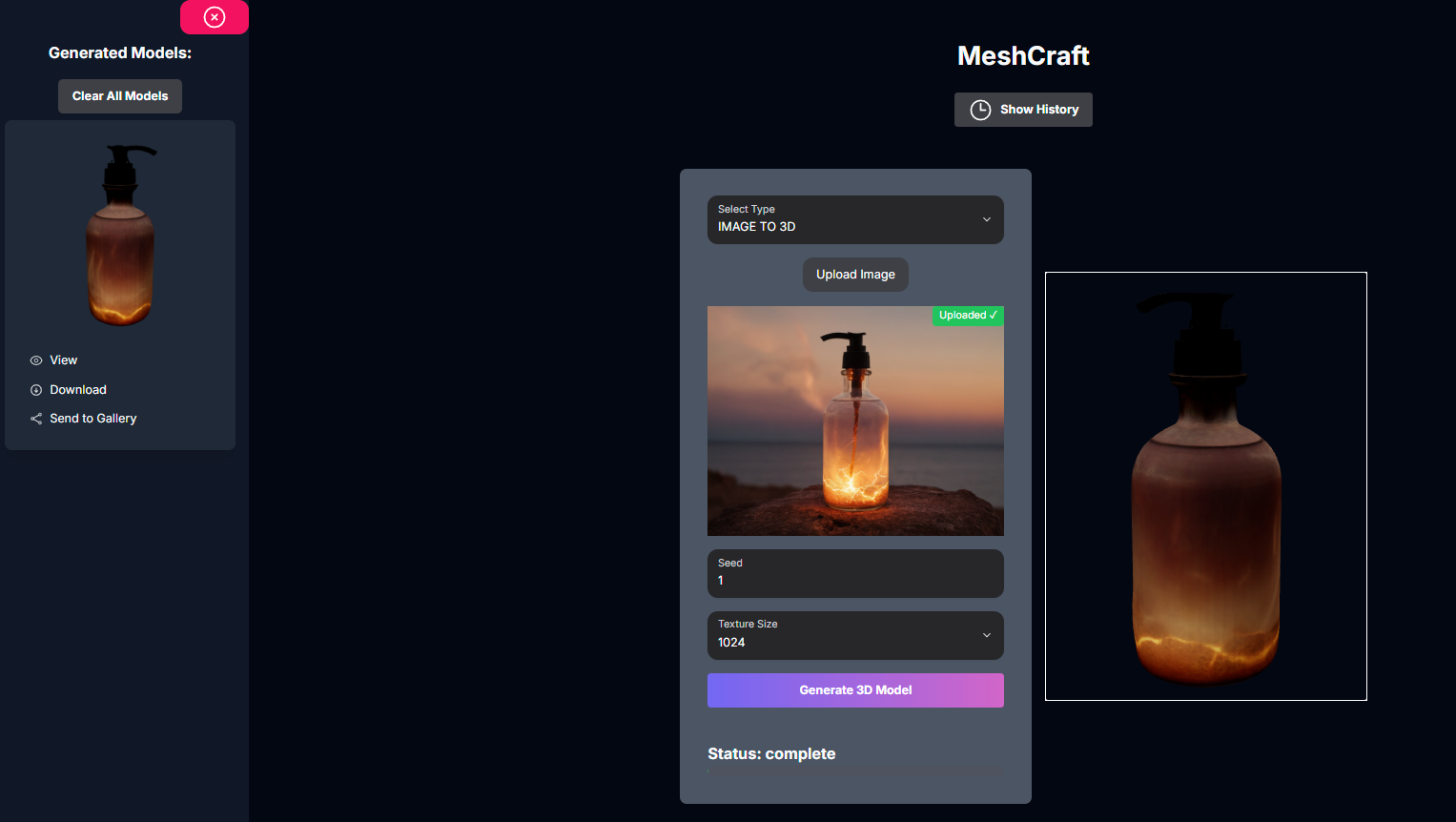 From the **Select Type** dropdown, choose **IMAGE TO 3D**.
Click **Upload Image** and select the image file you want to convert to 3D. Wait for the upload to complete.
Enter a **Seed** number for reproducible results.
Choose the desired **Texture Size** for the model's surface details (e.g., 1024).
Click the **Generate 3D Model** button.
### Text to 3D Mode (General Example)
This mode allows you to generate a 3D model from a text description. The available prompts and settings vary depending on the specific text-based type selected (GENERAL, OBJECT, ANIMAL, HUMAN).
From the **Select Type** dropdown, choose a text-based type like **GENERAL**.
In the **Prompt** field, enter a text description of the 3D model you want to generate.
Depending on the selected type (e.g., OBJECT, ANIMAL, HUMAN), additional prompt fields (like Mesh Prompt, Paint Prompts) and settings (like Mesh Variability, Creative, Animation Type/Prompt) may become available for more detailed control.
Click the **Generate 3D Model** button.
## Input Parameters and Options
The available parameters in MeshCraft depend on the selected **Select Type**:
Choose the generation method: `GENERAL`, `OBJECT`, `ANIMAL`, `HUMAN`, or `IMAGE TO 3D`.
### Image to 3D Specific:
The 2D image file to convert into a 3D model.
A number for reproducible results. Default: 1.
The resolution of the generated texture map (e.g., 256, 512, 1024, 2048). Default: 1024.
### Text to 3D Specific (Parameters vary by selected text type):
(Type: GENERAL) Text description of the desired 3D model.
(Type: OBJECT, ANIMAL, HUMAN) Text description focused on the mesh/structure.
(Type: OBJECT, ANIMAL, HUMAN) Text description for desired textures/colors.
(Type: OBJECT, ANIMAL, HUMAN) Text description for textures/colors to avoid.
(Type: OBJECT, ANIMAL, HUMAN) Controls how much the mesh varies from the prompt (1: Precise, 2: Default, 3: Creative).
(Type: OBJECT, ANIMAL, HUMAN) Toggle for more creative interpretation.
(Type: HUMAN) Select animation options: `none`, `rig_only`, `animate`.
(Type: HUMAN) Text description for the desired animation.
## Generated Models / History
MeshCraft keeps a history of your generated 3D models.
Click the **Show History** button to open the history sidebar on the left.
See a list of your previously generated models with thumbnails.
Select a model from the history to view it in the 3D viewer on the right.
Download individual models in various formats (GLB, FBX, USDZ) or all formats as a ZIP.
Share your generated model to a community gallery (e.g., Discord webhook).
Clear all generated models from your history.
## Tips for Best Results
Provide clear and specific text descriptions or high-quality images for better results.
Try both Image to 3D and different Text to 3D types to see which works best for your concept.
Experiment with Mesh Variability and Creative Generation to control the AI's interpretation in text-based modes.
Select a texture size suitable for your model's intended use (higher for detail, lower for performance).
## Troubleshooting
If you encounter issues with MeshCraft, consider these solutions:
Refine your text prompts with more detail or try different phrasing. Ensure your input image is clear and well-lit for Image to 3D. Experiment with Mesh Variability and Creative settings.
Check your inputs for any unusual characters or overly complex descriptions. Ensure your image file is valid for Image to 3D.
Ensure your image file is in a supported format and size. Check your internet connection.
## Conclusion
MeshCraft provides a powerful and intuitive way to generate 3D models using AI, whether starting from a text description or an image. With its flexible input types and customizable settings, you can explore the possibilities of AI-driven 3D creation for various applications.
From the **Select Type** dropdown, choose **IMAGE TO 3D**.
Click **Upload Image** and select the image file you want to convert to 3D. Wait for the upload to complete.
Enter a **Seed** number for reproducible results.
Choose the desired **Texture Size** for the model's surface details (e.g., 1024).
Click the **Generate 3D Model** button.
### Text to 3D Mode (General Example)
This mode allows you to generate a 3D model from a text description. The available prompts and settings vary depending on the specific text-based type selected (GENERAL, OBJECT, ANIMAL, HUMAN).
From the **Select Type** dropdown, choose a text-based type like **GENERAL**.
In the **Prompt** field, enter a text description of the 3D model you want to generate.
Depending on the selected type (e.g., OBJECT, ANIMAL, HUMAN), additional prompt fields (like Mesh Prompt, Paint Prompts) and settings (like Mesh Variability, Creative, Animation Type/Prompt) may become available for more detailed control.
Click the **Generate 3D Model** button.
## Input Parameters and Options
The available parameters in MeshCraft depend on the selected **Select Type**:
Choose the generation method: `GENERAL`, `OBJECT`, `ANIMAL`, `HUMAN`, or `IMAGE TO 3D`.
### Image to 3D Specific:
The 2D image file to convert into a 3D model.
A number for reproducible results. Default: 1.
The resolution of the generated texture map (e.g., 256, 512, 1024, 2048). Default: 1024.
### Text to 3D Specific (Parameters vary by selected text type):
(Type: GENERAL) Text description of the desired 3D model.
(Type: OBJECT, ANIMAL, HUMAN) Text description focused on the mesh/structure.
(Type: OBJECT, ANIMAL, HUMAN) Text description for desired textures/colors.
(Type: OBJECT, ANIMAL, HUMAN) Text description for textures/colors to avoid.
(Type: OBJECT, ANIMAL, HUMAN) Controls how much the mesh varies from the prompt (1: Precise, 2: Default, 3: Creative).
(Type: OBJECT, ANIMAL, HUMAN) Toggle for more creative interpretation.
(Type: HUMAN) Select animation options: `none`, `rig_only`, `animate`.
(Type: HUMAN) Text description for the desired animation.
## Generated Models / History
MeshCraft keeps a history of your generated 3D models.
Click the **Show History** button to open the history sidebar on the left.
See a list of your previously generated models with thumbnails.
Select a model from the history to view it in the 3D viewer on the right.
Download individual models in various formats (GLB, FBX, USDZ) or all formats as a ZIP.
Share your generated model to a community gallery (e.g., Discord webhook).
Clear all generated models from your history.
## Tips for Best Results
Provide clear and specific text descriptions or high-quality images for better results.
Try both Image to 3D and different Text to 3D types to see which works best for your concept.
Experiment with Mesh Variability and Creative Generation to control the AI's interpretation in text-based modes.
Select a texture size suitable for your model's intended use (higher for detail, lower for performance).
## Troubleshooting
If you encounter issues with MeshCraft, consider these solutions:
Refine your text prompts with more detail or try different phrasing. Ensure your input image is clear and well-lit for Image to 3D. Experiment with Mesh Variability and Creative settings.
Check your inputs for any unusual characters or overly complex descriptions. Ensure your image file is valid for Image to 3D.
Ensure your image file is in a supported format and size. Check your internet connection.
## Conclusion
MeshCraft provides a powerful and intuitive way to generate 3D models using AI, whether starting from a text description or an image. With its flexible input types and customizable settings, you can explore the possibilities of AI-driven 3D creation for various applications.