> ## Documentation Index
> Fetch the complete documentation index at: https://support.myapps.ai/llms.txt
> Use this file to discover all available pages before exploring further.
# PolyCraft
> Generate stunning 3D models from text or images with advanced AI technology.
# PolyCraft: Revolutionary Text and Image to 3D Generator
Transform your ideas into stunning 3D models using cutting-edge AI technology with PolyCraft!
## Overview
PolyCraft is a cutting-edge AI-powered tool that revolutionizes the creation of 3D models. By leveraging advanced algorithms, it transforms text descriptions and 2D images into high-quality 3D objects. This innovative platform bridges the gap between imagination and tangible 3D creations, making it an invaluable asset for designers, animators, game developers, and 3D enthusiasts. PolyCraft also offers powerful post-processing options like **Animate**, **Stylize**, and **Convert** to enhance your generated models.
 Generate 3D models from **detailed text prompts**.
Transform **uploaded images** into 3D models.
**Animate, Stylize, and Convert** generated models.
Download models in **various industry-standard formats**.
## How to Use PolyCraft
PolyCraft offers two main input methods: Text to 3D and Image to 3D.
Decide whether you'll use a text prompt or upload an image as your starting point.
* For **Text to 3D**: Enter a text prompt.
* For **Image to 3D**: Upload an image file.
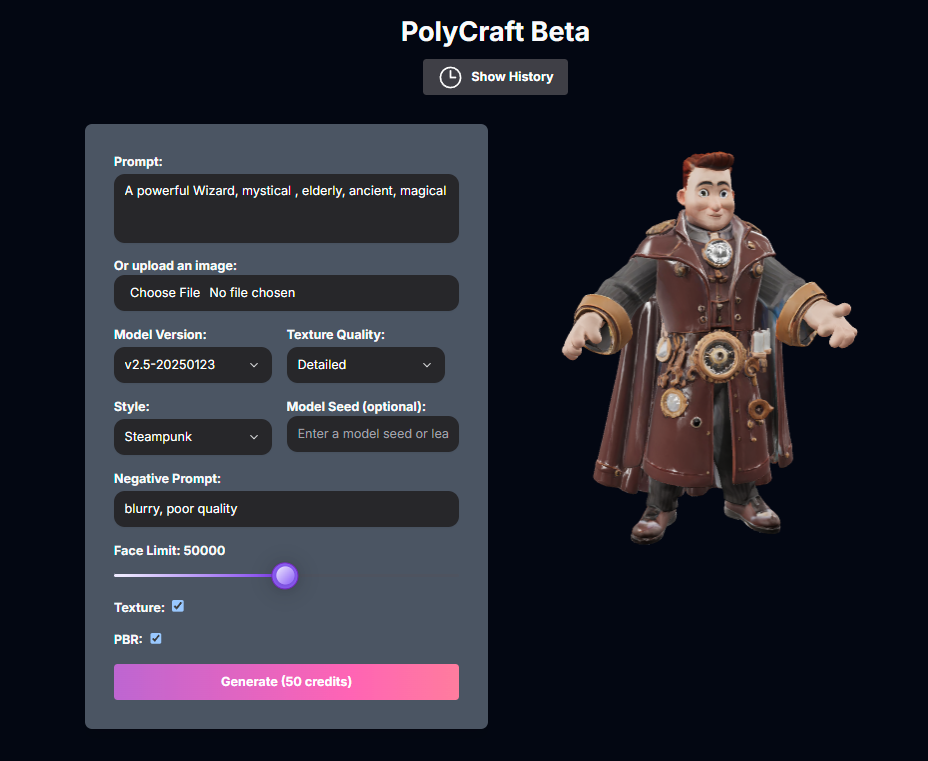
Configure parameters like **Model Version**, **Texture Quality**, **Style**, **Negative Prompt**, **Seed**, **Face Limit**, **Texture**, and **PBR**.
Click the **Generate** button.
### Text to 3D Mode
Generate a 3D model from a text description.
Ensure you are in Text to 3D mode (usually the default or selectable via a toggle/tab).
Enter a **Prompt** describing the model. You can also add a **Negative Prompt** to exclude elements.
Configure **Model Version**, **Texture Quality**, **Style**, **Model Seed (optional)**, **Face Limit**, **Texture**, and **PBR**.
Click **Generate**.
### Image to 3D Mode
Generate a 3D model from a single image.
Choose Image to 3D mode (usually selectable via a toggle/tab).
Click **Choose File** and upload your image file (JPG or PNG).
Configure **Model Version**, **Texture Quality**, **Style**, **Model Seed (optional)**, **Face Limit**, **Texture**, and **PBR**.
Click **Generate**.
## Input Parameters and Options
PolyCraft offers various parameters for generation:
(Text to 3D) Text description of the desired 3D model.
(Image to 3D) Upload an image file (JPG or PNG).
Choose the AI model version (e.g., `v2.5-20250123`, `v2.0-20240919`, `v1.4-20240625`).
Choose the quality of the generated textures (`Standard`, `Detailed`).
Select an artistic style (e.g., `Steampunk`, `Cartoon Character`, `Clay`).
Enter a seed for model consistency.
Text description for elements to avoid.
Set the maximum number of faces (complexity).
Toggle to generate with textures.
Toggle to enable Physically Based Rendering textures.
## Generated Models / History
PolyCraft keeps a history of your generated 3D models.
Generate 3D models from **detailed text prompts**.
Transform **uploaded images** into 3D models.
**Animate, Stylize, and Convert** generated models.
Download models in **various industry-standard formats**.
## How to Use PolyCraft
PolyCraft offers two main input methods: Text to 3D and Image to 3D.
Decide whether you'll use a text prompt or upload an image as your starting point.
* For **Text to 3D**: Enter a text prompt.
* For **Image to 3D**: Upload an image file.
Configure parameters like **Model Version**, **Texture Quality**, **Style**, **Negative Prompt**, **Seed**, **Face Limit**, **Texture**, and **PBR**.
Click the **Generate** button.
### Text to 3D Mode
Generate a 3D model from a text description.
Ensure you are in Text to 3D mode (usually the default or selectable via a toggle/tab).
Enter a **Prompt** describing the model. You can also add a **Negative Prompt** to exclude elements.
Configure **Model Version**, **Texture Quality**, **Style**, **Model Seed (optional)**, **Face Limit**, **Texture**, and **PBR**.
Click **Generate**.
### Image to 3D Mode
Generate a 3D model from a single image.
Choose Image to 3D mode (usually selectable via a toggle/tab).
Click **Choose File** and upload your image file (JPG or PNG).
Configure **Model Version**, **Texture Quality**, **Style**, **Model Seed (optional)**, **Face Limit**, **Texture**, and **PBR**.
Click **Generate**.
## Input Parameters and Options
PolyCraft offers various parameters for generation:
(Text to 3D) Text description of the desired 3D model.
(Image to 3D) Upload an image file (JPG or PNG).
Choose the AI model version (e.g., `v2.5-20250123`, `v2.0-20240919`, `v1.4-20240625`).
Choose the quality of the generated textures (`Standard`, `Detailed`).
Select an artistic style (e.g., `Steampunk`, `Cartoon Character`, `Clay`).
Enter a seed for model consistency.
Text description for elements to avoid.
Set the maximum number of faces (complexity).
Toggle to generate with textures.
Toggle to enable Physically Based Rendering textures.
## Generated Models / History
PolyCraft keeps a history of your generated 3D models.
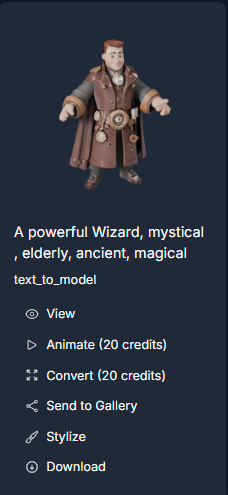 Click the **Show History** button to open the history sidebar on the left.
See a list of your previously generated models with thumbnails and basic info.
Select a model from the history to view it in the 3D viewer.
Access options like **Animate**, **Convert**, and **Stylize** under each model in the history.
Download the model (see Download section below).
Share your generated model to a community gallery.
Clear all generated models from your history.
## Post-Processing Options
PolyCraft offers several advanced post-processing options available from the history sidebar under each generated model.
### Animate Model
Add dynamic movement to a compatible generated model.
Click the **Show History** button to open the history sidebar on the left.
See a list of your previously generated models with thumbnails and basic info.
Select a model from the history to view it in the 3D viewer.
Access options like **Animate**, **Convert**, and **Stylize** under each model in the history.
Download the model (see Download section below).
Share your generated model to a community gallery.
Clear all generated models from your history.
## Post-Processing Options
PolyCraft offers several advanced post-processing options available from the history sidebar under each generated model.
### Animate Model
Add dynamic movement to a compatible generated model.
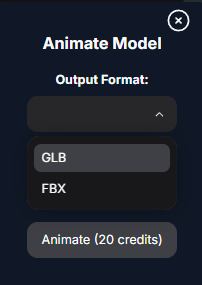 From the history sidebar, click the **Animate** option under a generated model. This will open the Animate Model modal.
Configure the animation parameters:
* **Output Format**: Choose the output file format (GLB, FBX).
* **Animation Type**: Select a predefined animation (Idle, Walk, Climb, Jump, Run, Slash, Shoot, Hurt, Fall, Turn).
From the history sidebar, click the **Animate** option under a generated model. This will open the Animate Model modal.
Configure the animation parameters:
* **Output Format**: Choose the output file format (GLB, FBX).
* **Animation Type**: Select a predefined animation (Idle, Walk, Climb, Jump, Run, Slash, Shoot, Hurt, Fall, Turn).
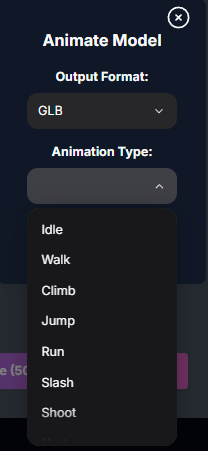 Click the **Animate** button in the modal. The AI will process the model to add the selected animation.
### Animate Parameters:
The desired output file format for the animated model: `GLB`, `FBX`.
Select a predefined animation: `Idle`, `Walk`, `Climb`, `Jump`, `Run`, `Slash`, `Shoot`, `Hurt`, `Fall`, `Turn`.
### Stylize Model
Apply unique artistic styles to a generated model.
Click the **Animate** button in the modal. The AI will process the model to add the selected animation.
### Animate Parameters:
The desired output file format for the animated model: `GLB`, `FBX`.
Select a predefined animation: `Idle`, `Walk`, `Climb`, `Jump`, `Run`, `Slash`, `Shoot`, `Hurt`, `Fall`, `Turn`.
### Stylize Model
Apply unique artistic styles to a generated model.
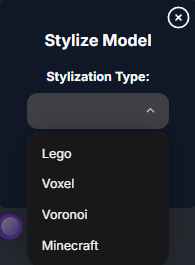 From the history sidebar, click the **Stylize** option under a generated model. This will open the Stylize Model modal.
Choose the desired style from the **Stylization Type** dropdown: **Lego**, **Voxel**, **Voronoi**, or **Minecraft**.
If you select **Minecraft**, an additional setting for **Block Size** will be available.
Click the **Stylize** button in the modal. The AI will process the model to apply the selected style.
### Stylize Parameters:
Select the artistic style: `Lego`, `Voxel`, `Voronoi`, `Minecraft`.
(If Stylization Type is `Minecraft`) Set the size of the blocks.
### Convert Model
Convert a model to various formats with options for remeshing, flattening, and scaling.
From the history sidebar, click the **Stylize** option under a generated model. This will open the Stylize Model modal.
Choose the desired style from the **Stylization Type** dropdown: **Lego**, **Voxel**, **Voronoi**, or **Minecraft**.
If you select **Minecraft**, an additional setting for **Block Size** will be available.
Click the **Stylize** button in the modal. The AI will process the model to apply the selected style.
### Stylize Parameters:
Select the artistic style: `Lego`, `Voxel`, `Voronoi`, `Minecraft`.
(If Stylization Type is `Minecraft`) Set the size of the blocks.
### Convert Model
Convert a model to various formats with options for remeshing, flattening, and scaling.
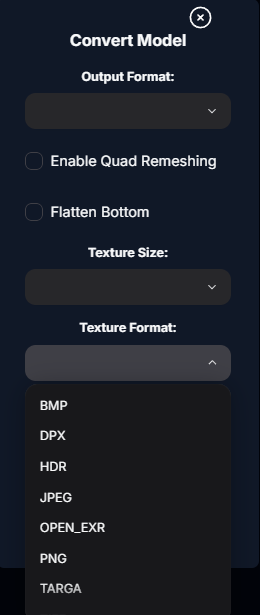
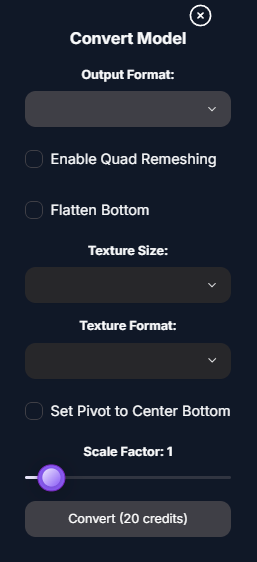 From the history sidebar, click the **Convert** option under a generated model. This will open the Convert Model modal.
Configure the conversion parameters:
* **Output Format**: Choose the output file format (GLTF, USDZ, FBX, OBJ, STL).
From the history sidebar, click the **Convert** option under a generated model. This will open the Convert Model modal.
Configure the conversion parameters:
* **Output Format**: Choose the output file format (GLTF, USDZ, FBX, OBJ, STL).
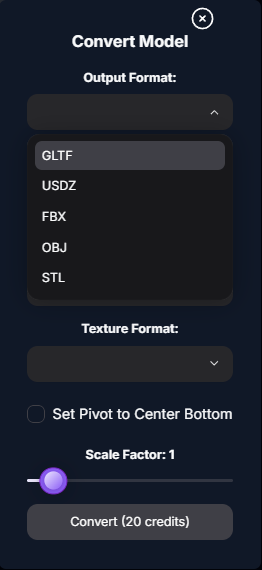 * **Enable Quad Remeshing**: Toggle to remesh into quads.
* **Flatten Bottom**: Toggle to flatten the bottom of the model.
* **Texture Size**: Choose the texture resolution (1024, 2048, 4096).
* **Enable Quad Remeshing**: Toggle to remesh into quads.
* **Flatten Bottom**: Toggle to flatten the bottom of the model.
* **Texture Size**: Choose the texture resolution (1024, 2048, 4096).
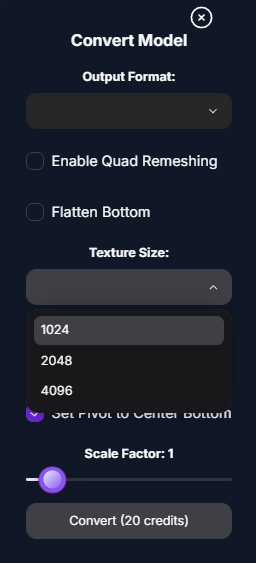 * **Texture Format**: Choose the texture image format (BMP, DPX, HDR, JPEG, OPEN\_EXR, PNG, TARGA, TIFF, WEBP).
 * **Set Pivot to Center Bottom**: Toggle to set the pivot point.
* **Scale Factor**: Adjust the overall scale.
Click the **Convert** button in the modal. The AI will process the model with the new settings.
### Convert Parameters:
The desired output file format.
Toggle to enable remeshing into quads.
Toggle to flatten the bottom of the model.
Choose the texture resolution.
Choose the texture image format.
Toggle to set the pivot point to the center bottom.
Adjust the overall scale of the model.
## Troubleshooting
If you encounter issues with PolyCraft, try these detailed solutions:
1. **Poor Model Quality**:
* Refine your text prompts or use higher-quality input images. Adjust generation settings like Face Limit.
* For Text to 3D, experiment with Model Version, Texture Quality, Style, Negative Prompt, and Seed.
* For Image to 3D, ensure the subject is clear and well-lit.
2. **Generation Errors**:
* Check your inputs for any unusual characters or overly complex descriptions.
* Ensure image files are valid and within limits.
3. **Post-Processing Issues (Animate, Stylize, Convert)**:
* Ensure the original model was generated successfully.
* Check the parameters in the specific modal for valid inputs.
* Some post-processing options may have specific requirements (e.g., Animation may work best on humanoid models).
4. **Download Issues**:
* Ensure you have a stable internet connection.
* Try a different format if one isn't working.
* Clear your browser cache and try again.
## Conclusion
PolyCraft provides a powerful and intuitive way to generate 3D models using AI, whether starting from text or images. With its flexible input types, detailed settings, and comprehensive post-processing tools, it empowers you to create, refine, and enhance 3D assets for various applications.
* **Set Pivot to Center Bottom**: Toggle to set the pivot point.
* **Scale Factor**: Adjust the overall scale.
Click the **Convert** button in the modal. The AI will process the model with the new settings.
### Convert Parameters:
The desired output file format.
Toggle to enable remeshing into quads.
Toggle to flatten the bottom of the model.
Choose the texture resolution.
Choose the texture image format.
Toggle to set the pivot point to the center bottom.
Adjust the overall scale of the model.
## Troubleshooting
If you encounter issues with PolyCraft, try these detailed solutions:
1. **Poor Model Quality**:
* Refine your text prompts or use higher-quality input images. Adjust generation settings like Face Limit.
* For Text to 3D, experiment with Model Version, Texture Quality, Style, Negative Prompt, and Seed.
* For Image to 3D, ensure the subject is clear and well-lit.
2. **Generation Errors**:
* Check your inputs for any unusual characters or overly complex descriptions.
* Ensure image files are valid and within limits.
3. **Post-Processing Issues (Animate, Stylize, Convert)**:
* Ensure the original model was generated successfully.
* Check the parameters in the specific modal for valid inputs.
* Some post-processing options may have specific requirements (e.g., Animation may work best on humanoid models).
4. **Download Issues**:
* Ensure you have a stable internet connection.
* Try a different format if one isn't working.
* Clear your browser cache and try again.
## Conclusion
PolyCraft provides a powerful and intuitive way to generate 3D models using AI, whether starting from text or images. With its flexible input types, detailed settings, and comprehensive post-processing tools, it empowers you to create, refine, and enhance 3D assets for various applications.