> ## Documentation Index
> Fetch the complete documentation index at: https://support.myapps.ai/llms.txt
> Use this file to discover all available pages before exploring further.
# RealityCraft
> Generate realistic 3D models from images or text using advanced AI models.
# RealityCraft: AI-Powered Realistic 3D Model Generation
Transform your images or text descriptions into highly realistic 3D models with RealityCraft!
## Overview
RealityCraft is an advanced AI tool focused on generating realistic 3D models. It supports creating models from single images or multiple views (Multiview), as well as from text prompts for various object types. Leveraging powerful AI models with Turbo capabilities, RealityCraft provides fine-grained control over the generation process, including advanced settings for mesh detail and texture.
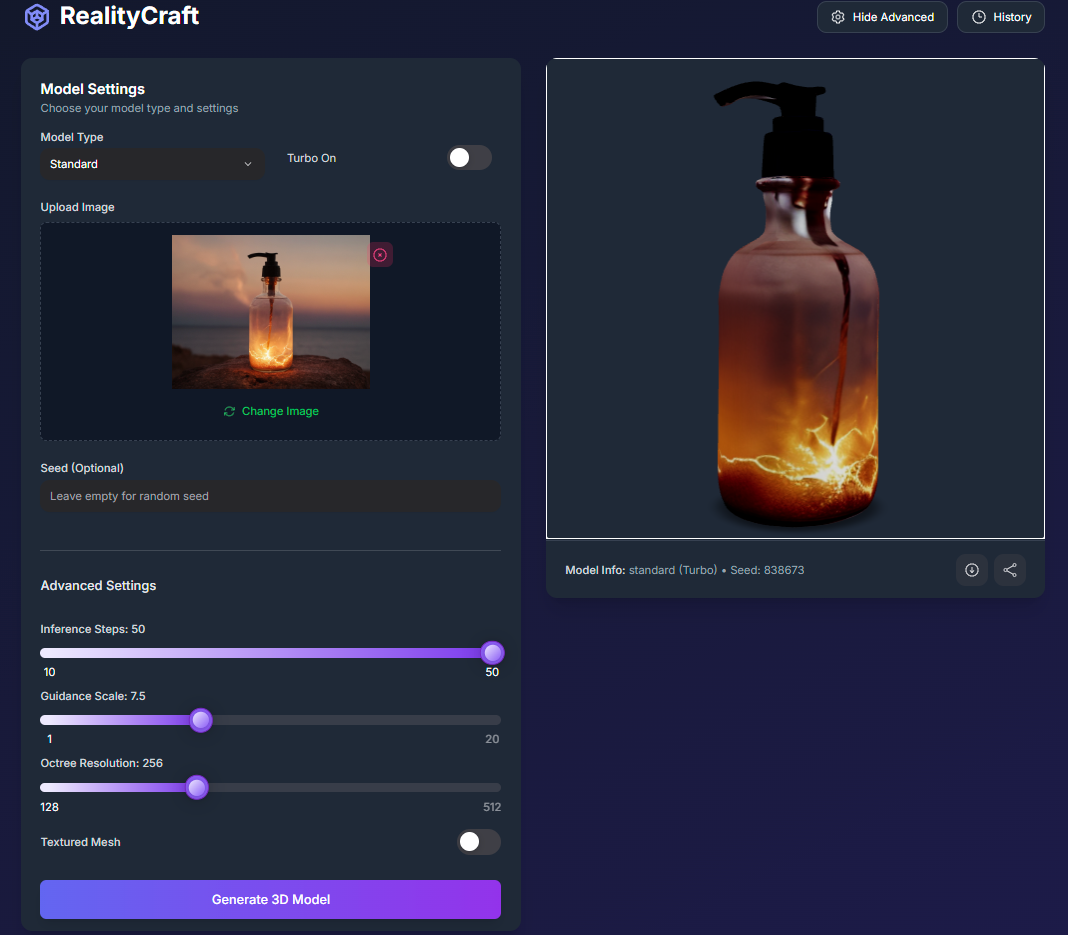 Generate realistic 3D models from a **single 2D image** or **multiple views**.
Create 3D models from **text descriptions** for various object types.
Control **inference steps, guidance scale, resolution**, and **textured mesh** options.
Enable **Turbo** for potentially faster generation.
## How to Use RealityCraft
Follow these steps to generate 3D models with RealityCraft:
Choose the generation method from the **Model Type** dropdown:
* **Mini** or **Standard**: Generate from a single image.
* **Multi-View**: Generate from multiple images (front, back, left).
Toggle the **Turbo On** switch for potentially faster generation.
* For **Mini** or **Standard**: Click to **Upload Image** and select your source image file.
* For **Multi-View**: You can either **Upload a single image** and click **Generate Multi-View Images** to have AI generate the other views, or manually **Upload images** for the Front, Back, and Left views.
Configure the available settings, including **Seed (Optional)** and **Advanced Settings** (Inference Steps, Guidance Scale, Octree Resolution, Textured Mesh).
Click the **Generate 3D Model** button. The AI will process your input and settings to create your 3D model.
## Input Parameters and Options
RealityCraft offers various parameters based on the selected **Model Type**:
Choose the underlying AI model: `mini`, `standard`, or `multiview`.
Toggle to enable Turbo mode for faster generation.
### Input Image(s):
(Model Type: `mini`, `standard`) Upload the single 2D image file to convert.
(Model Type: `multiview`) Generates front, back, and left views from a single uploaded image.
(Model Type: `multiview`) Manually upload images for the front, back, and left views.
### Basic Settings:
Enter a seed number for reproducible results. Leave empty for a random seed.
### Advanced Settings:
Controls the detail and refinement of the mesh generation. Range: 10-50. Default: 50.
Controls how closely the generation adheres to the input image(s). Range: 1-20. Default: 7.5.
Influences the resolution and detail of the generated mesh structure. Range: 128-512 (steps of 16). Default: 256.
Toggle to generate the model with textures. Default: true.
## Generated Models / History
RealityCraft keeps a history of your generated 3D models.
Click the **History** button to open the history sidebar on the right.
See a list of your previously generated models with thumbnails.
Select a model from the history to view it in the 3D viewer on the right.
Download individual models (GLB, FBX, USDZ) or all formats as a ZIP.
Share your generated model to a community gallery.
Clear all generated models from your history.
## Tips for Best Results
Use clear, well-lit images as your source, especially for Mini and Standard models.
For Multiview, ensure the front, back, and left images clearly show the object from those perspectives. Using the AI generator can help ensure consistency.
Adjust Inference Steps, Guidance Scale, and Octree Resolution to find the optimal balance of quality and detail for your specific image.
Use Turbo mode for faster results when iterating, but compare quality with the non-Turbo version if needed.
## Troubleshooting
If you encounter issues with RealityCraft, consider these solutions:
Ensure your input image(s) are high-quality and clearly show the object. Try adjusting Advanced Settings like Inference Steps, Guidance Scale, and Octree Resolution.
Check your input image file format and size. If using Multiview, ensure all three required images are uploaded or generated.
If the AI-generated multiview images are not satisfactory, try uploading a different initial image or manually uploading your own front, back, and left views.
## Conclusion
RealityCraft provides a powerful and intuitive way to generate realistic 3D models using AI from images. With its flexible input options and detailed settings, it empowers you to transform 2D visuals into compelling 3D assets.
Generate realistic 3D models from a **single 2D image** or **multiple views**.
Create 3D models from **text descriptions** for various object types.
Control **inference steps, guidance scale, resolution**, and **textured mesh** options.
Enable **Turbo** for potentially faster generation.
## How to Use RealityCraft
Follow these steps to generate 3D models with RealityCraft:
Choose the generation method from the **Model Type** dropdown:
* **Mini** or **Standard**: Generate from a single image.
* **Multi-View**: Generate from multiple images (front, back, left).
Toggle the **Turbo On** switch for potentially faster generation.
* For **Mini** or **Standard**: Click to **Upload Image** and select your source image file.
* For **Multi-View**: You can either **Upload a single image** and click **Generate Multi-View Images** to have AI generate the other views, or manually **Upload images** for the Front, Back, and Left views.
Configure the available settings, including **Seed (Optional)** and **Advanced Settings** (Inference Steps, Guidance Scale, Octree Resolution, Textured Mesh).
Click the **Generate 3D Model** button. The AI will process your input and settings to create your 3D model.
## Input Parameters and Options
RealityCraft offers various parameters based on the selected **Model Type**:
Choose the underlying AI model: `mini`, `standard`, or `multiview`.
Toggle to enable Turbo mode for faster generation.
### Input Image(s):
(Model Type: `mini`, `standard`) Upload the single 2D image file to convert.
(Model Type: `multiview`) Generates front, back, and left views from a single uploaded image.
(Model Type: `multiview`) Manually upload images for the front, back, and left views.
### Basic Settings:
Enter a seed number for reproducible results. Leave empty for a random seed.
### Advanced Settings:
Controls the detail and refinement of the mesh generation. Range: 10-50. Default: 50.
Controls how closely the generation adheres to the input image(s). Range: 1-20. Default: 7.5.
Influences the resolution and detail of the generated mesh structure. Range: 128-512 (steps of 16). Default: 256.
Toggle to generate the model with textures. Default: true.
## Generated Models / History
RealityCraft keeps a history of your generated 3D models.
Click the **History** button to open the history sidebar on the right.
See a list of your previously generated models with thumbnails.
Select a model from the history to view it in the 3D viewer on the right.
Download individual models (GLB, FBX, USDZ) or all formats as a ZIP.
Share your generated model to a community gallery.
Clear all generated models from your history.
## Tips for Best Results
Use clear, well-lit images as your source, especially for Mini and Standard models.
For Multiview, ensure the front, back, and left images clearly show the object from those perspectives. Using the AI generator can help ensure consistency.
Adjust Inference Steps, Guidance Scale, and Octree Resolution to find the optimal balance of quality and detail for your specific image.
Use Turbo mode for faster results when iterating, but compare quality with the non-Turbo version if needed.
## Troubleshooting
If you encounter issues with RealityCraft, consider these solutions:
Ensure your input image(s) are high-quality and clearly show the object. Try adjusting Advanced Settings like Inference Steps, Guidance Scale, and Octree Resolution.
Check your input image file format and size. If using Multiview, ensure all three required images are uploaded or generated.
If the AI-generated multiview images are not satisfactory, try uploading a different initial image or manually uploading your own front, back, and left views.
## Conclusion
RealityCraft provides a powerful and intuitive way to generate realistic 3D models using AI from images. With its flexible input options and detailed settings, it empowers you to transform 2D visuals into compelling 3D assets.