> ## Documentation Index
> Fetch the complete documentation index at: https://support.myapps.ai/llms.txt
> Use this file to discover all available pages before exploring further.
# Clothes Swap Advanced
> Perform virtual try-ons by placing garments on models with advanced controls
# Clothes Swap Advanced: Your Virtual Try-On Studio
Step into your virtual fitting room with Clothes Swap Advanced! Seamlessly place garments onto models with enhanced control and realistic results.
## Overview
Clothes Swap Advanced is a sophisticated virtual try-on tool designed to accurately place images of clothing items onto different model images. This allows for realistic visualization of how garments look on various body types and poses without the need for physical try-ons or complex photo editing. The tool offers two distinct versions, each providing a different set of controls to cater to various needs, from fine-grained adjustments to streamlined performance.
Realistically place **garment images** onto **model images**.
Choose between **Version 1** for detailed control and **Version 1.5** for performance/quality focus.
Target swaps for **upper body, lower body, one-piece garments**, and more.
Fine-tune results with various **switches and sliders**.
## Choosing Your Version: Version 1 vs. Version 1.5
Clothes Swap Advanced provides two distinct workflows:
### Version 1: Detailed Control
Version 1 offers granular control over various aspects of the try-on process, allowing for more specific adjustments to hands, feet, background, and overall garment appearance.
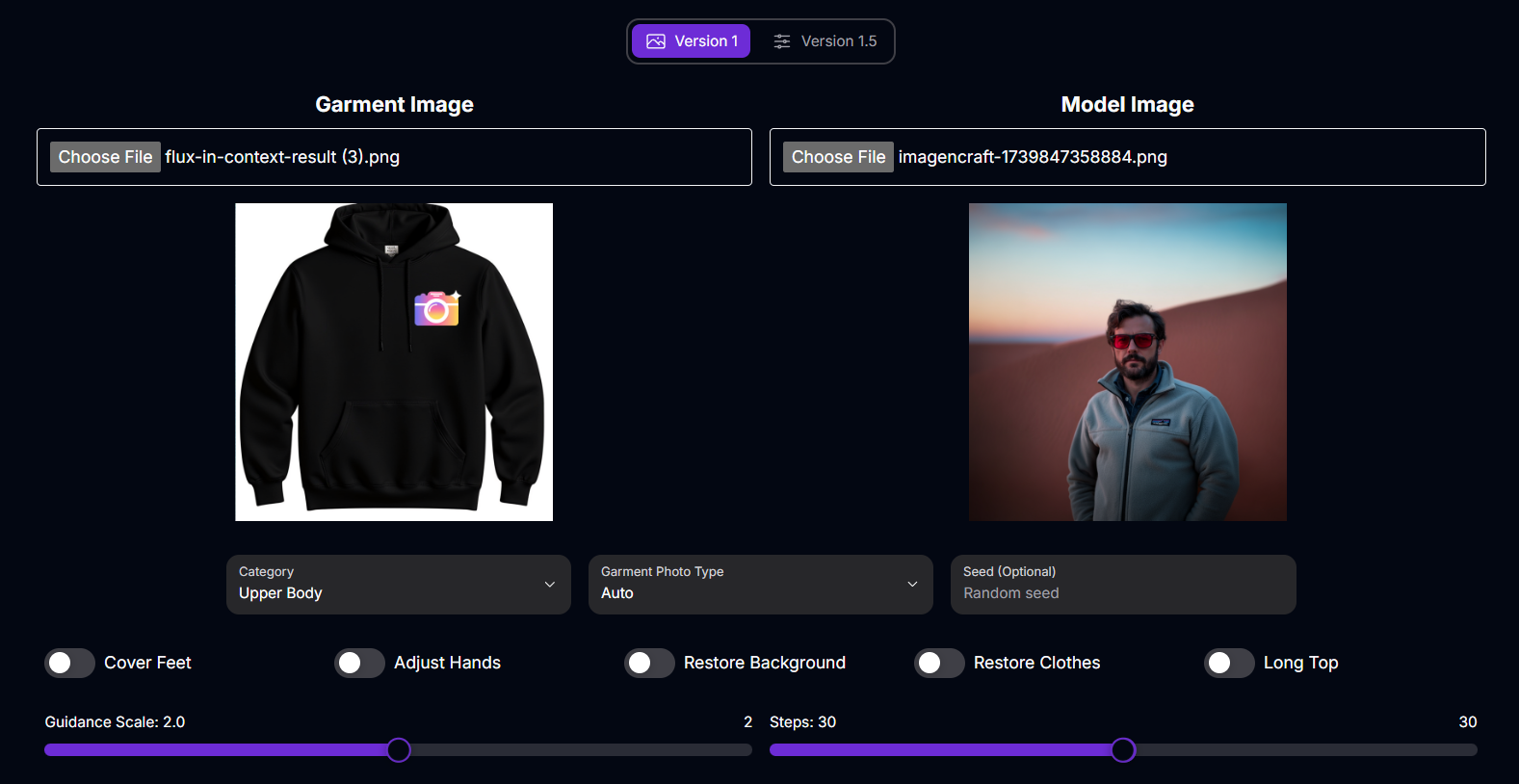 **Inputs & Options (Version 1):**
* **Garment Image**: Upload the image of the clothing item you want to place on the model.
* **Model Image**: Upload the image of the model you want the garment placed onto.
* **Category**: Select the type of garment or body area for the swap.
* Possible values: `Upper Body`, `Lower Body`, `Dresses`
* **Garment Photo Type**: Specify how the garment was photographed.
* Possible values: `On Model`, `Lay Flat`, `Auto`
* **Cover Feet** (Switch): Toggle to attempt covering the model's feet with the garment (useful for long dresses/pants).
* **Adjust Hands** (Switch): Toggle to attempt adjusting the model's hands for a more natural garment fit.
* **Restore Background** (Switch): Toggle to attempt restoring the original background of the model image.
* **Restore Clothes** (Switch): Toggle to attempt restoring parts of the model's original clothes that might show.
* **Long Top** (Switch): Toggle if the garment is a long top (e.g., tunic, long shirt).
* **Guidance Scale** (Slider): Adjust how strictly the AI adheres to the garment shape vs. the model's form.
* **Steps** (Slider): Control the detail and refinement of the generation process.
### Version 1.5: Performance & Quality Focus
Version 1.5 streamlines the process and introduces different model options focused on performance, balance, or quality, along with a segmentation control.
**Inputs & Options (Version 1):**
* **Garment Image**: Upload the image of the clothing item you want to place on the model.
* **Model Image**: Upload the image of the model you want the garment placed onto.
* **Category**: Select the type of garment or body area for the swap.
* Possible values: `Upper Body`, `Lower Body`, `Dresses`
* **Garment Photo Type**: Specify how the garment was photographed.
* Possible values: `On Model`, `Lay Flat`, `Auto`
* **Cover Feet** (Switch): Toggle to attempt covering the model's feet with the garment (useful for long dresses/pants).
* **Adjust Hands** (Switch): Toggle to attempt adjusting the model's hands for a more natural garment fit.
* **Restore Background** (Switch): Toggle to attempt restoring the original background of the model image.
* **Restore Clothes** (Switch): Toggle to attempt restoring parts of the model's original clothes that might show.
* **Long Top** (Switch): Toggle if the garment is a long top (e.g., tunic, long shirt).
* **Guidance Scale** (Slider): Adjust how strictly the AI adheres to the garment shape vs. the model's form.
* **Steps** (Slider): Control the detail and refinement of the generation process.
### Version 1.5: Performance & Quality Focus
Version 1.5 streamlines the process and introduces different model options focused on performance, balance, or quality, along with a segmentation control.
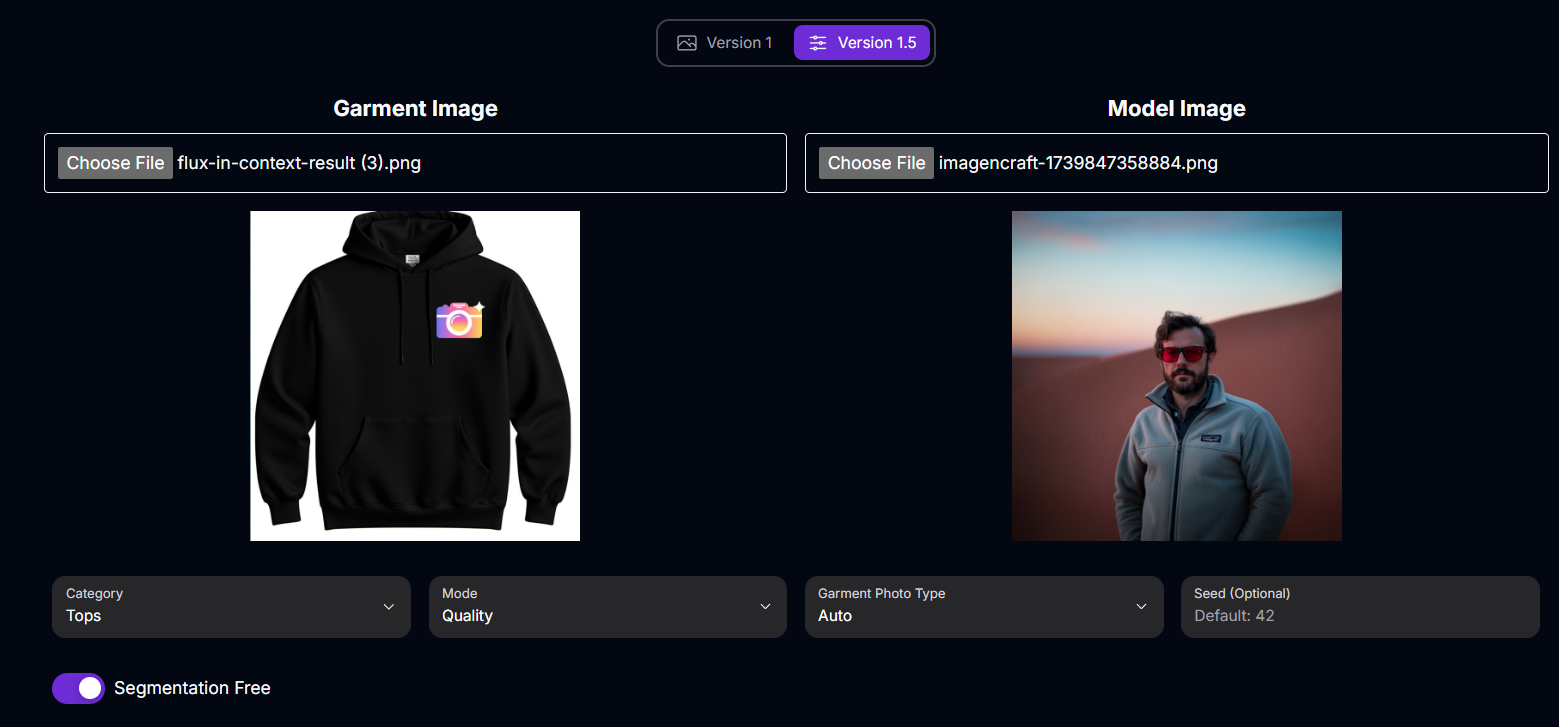 **Inputs & Options (Version 1.5):**
* **Garment Image**: Upload the image of the clothing item.
* **Model Image**: Upload the image of the model.
* **Category**: Select the type of garment.
* Possible values: `Tops`, `Bottoms`, `One Piece`
* **Model**: Choose the AI model optimized for different priorities.
* Possible values: `Performance`, `Balanced`, `Quality`
* **Garment Photo Type**: Specify how the garment was photographed.
* Possible values: (Likely similar to V1: `On Model`, `Lay Flat`, `Auto`)
* **Segmentation Free** (Switch): Toggle to control the use of segmentation during the swap process.
## How to Perform a Virtual Try-On
Follow these general steps to use Clothes Swap Advanced:
Choose between **Version 1** for detailed control or **Version 1.5** based on your needs for performance, quality, or specific garment categories.
Upload the **Garment Image** and the **Model Image** into the designated fields.
Choose the appropriate **Category** that matches the type of garment you are swapping.
Configure the available options based on the version you selected (e.g., switches for hands/feet in V1, model type in V1.5, sliders for guidance/steps).
Click the "Generate" button to perform the virtual try-on.
Once the generation is complete, review the resulting image and download it.
## Tips for Best Results
Select garment and model images with similar lighting, angles, and poses for a more natural-looking swap.
Use high-resolution images for both the garment and the model to ensure a detailed and clear final output.
If one version doesn't give the desired result, try the other version, as their different controls and models can yield varied outcomes.
Adjust sliders like Guidance Scale and Steps (in V1) or experiment with different Model types (in V1.5) to find the optimal balance for your specific images.
## Conclusion
Clothes Swap Advanced provides a versatile and powerful solution for virtual try-ons. With its two distinct versions offering different levels of control and optimization, it empowers users to create realistic visualizations of garments on models for a wide range of applications.
***
**Inputs & Options (Version 1.5):**
* **Garment Image**: Upload the image of the clothing item.
* **Model Image**: Upload the image of the model.
* **Category**: Select the type of garment.
* Possible values: `Tops`, `Bottoms`, `One Piece`
* **Model**: Choose the AI model optimized for different priorities.
* Possible values: `Performance`, `Balanced`, `Quality`
* **Garment Photo Type**: Specify how the garment was photographed.
* Possible values: (Likely similar to V1: `On Model`, `Lay Flat`, `Auto`)
* **Segmentation Free** (Switch): Toggle to control the use of segmentation during the swap process.
## How to Perform a Virtual Try-On
Follow these general steps to use Clothes Swap Advanced:
Choose between **Version 1** for detailed control or **Version 1.5** based on your needs for performance, quality, or specific garment categories.
Upload the **Garment Image** and the **Model Image** into the designated fields.
Choose the appropriate **Category** that matches the type of garment you are swapping.
Configure the available options based on the version you selected (e.g., switches for hands/feet in V1, model type in V1.5, sliders for guidance/steps).
Click the "Generate" button to perform the virtual try-on.
Once the generation is complete, review the resulting image and download it.
## Tips for Best Results
Select garment and model images with similar lighting, angles, and poses for a more natural-looking swap.
Use high-resolution images for both the garment and the model to ensure a detailed and clear final output.
If one version doesn't give the desired result, try the other version, as their different controls and models can yield varied outcomes.
Adjust sliders like Guidance Scale and Steps (in V1) or experiment with different Model types (in V1.5) to find the optimal balance for your specific images.
## Conclusion
Clothes Swap Advanced provides a versatile and powerful solution for virtual try-ons. With its two distinct versions offering different levels of control and optimization, it empowers users to create realistic visualizations of garments on models for a wide range of applications.
***