> ## Documentation Index
> Fetch the complete documentation index at: https://support.myapps.ai/llms.txt
> Use this file to discover all available pages before exploring further.
# Edit Image
> Modify images with maskless editing using the Step1X-Edit model
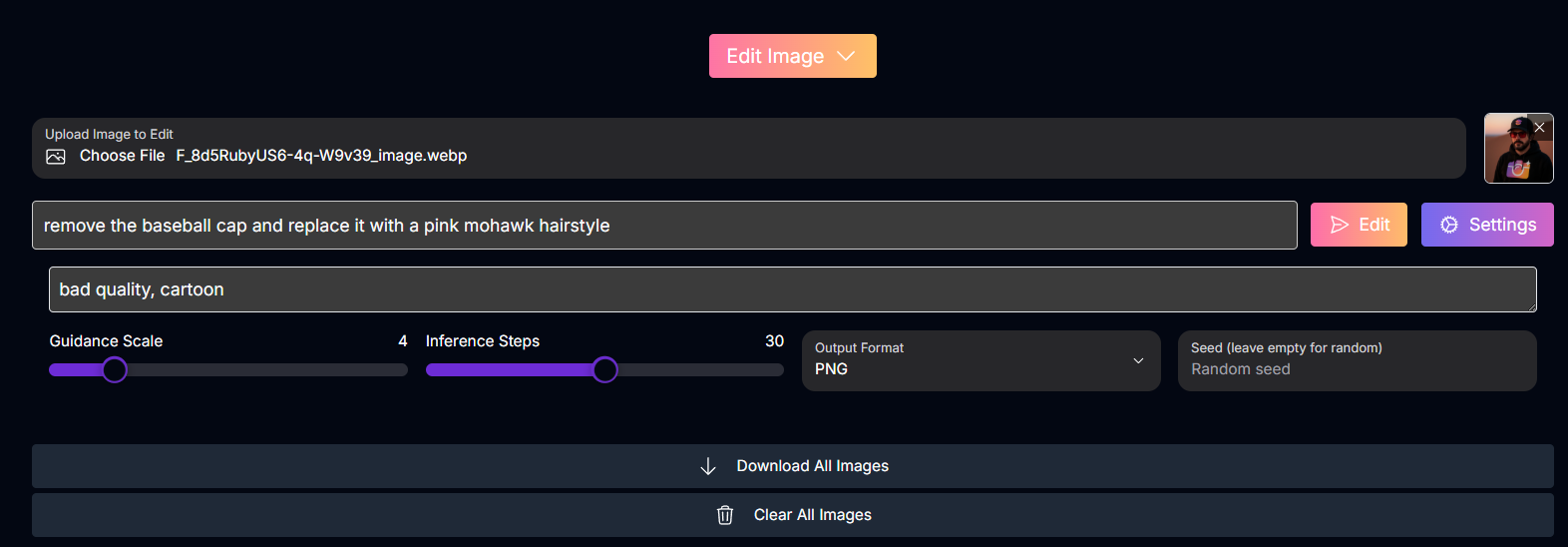 # Edit Image: Maskless AI Image Modification with Step1X-Edit
Transform your images with ease using Edit Image! Leverage the power of Step1X-Edit for intuitive, maskless editing based on simple text descriptions, achieving better consistency than ever before.
## Overview
Edit Image is an advanced AI tool that redefines the image editing process. Powered by the **Step1X-Edit model**, it offers a **maskless editing approach**, allowing you to modify images simply by describing the desired changes in natural language. Unlike traditional methods that require precise masking, Step1X-Edit understands your instructions and intelligently applies the modifications. This tool excels in delivering **high-quality outputs** with **superior consistency**, making it a powerful alternative to other multimodal editing models.
Modify images by describing changes with **natural language**, no complex masking required.
Generate **professional-grade edited images** with fine detail and clarity.
Achieve **more reliable and consistent results** in applying described changes.
Edit images simply by **telling the AI what you want to change**.
## How to Use Edit Image
Follow these steps to modify your images using maskless AI editing:
Upload the base image you wish to edit. This is the image that the AI will modify based on your instructions.
In the main prompt field, provide a clear text description of the **modifications you want to make** to the image.
*Examples:*
* "change the outfit to a blue jacket"
* "add a mustache to the person's face"
* "turn the sky into a starry night"
Use the negative prompt field to specify any elements or characteristics you want to **avoid** in the edited image.
This helps prevent unwanted changes or artifacts.
Configure the generation parameters to fine-tune the editing process:
Controls how closely the AI adheres to your description of changes. Higher values result in changes that more strictly follow your prompt.
Determines the number of denoising steps. Higher values can lead to more detailed and refined edits.
Enter a specific number for reproducible results. Useful for applying similar edits consistently or iterating on a specific modification.
Click the "Generate" button to apply the described changes to your image using the Step1X-Edit model.
## Input Parameters and Options
Here are the key input parameters and options available in Edit Image:
The base image file to be edited.
A text prompt describing the desired modifications to the image.
A text prompt specifying elements or characteristics to avoid in the edited image. (Optional)
Controls how closely the AI adheres to the description of changes.
The number of inference steps to perform.
A seed value for reproducible results. (Optional)
## Tips for Best Results
Clearly describe the exact modifications you want to make to the image.
Actively use negative prompts to prevent unwanted alterations or artifacts in the edited image.
Adjust the Guidance Scale and Inference Steps to find the optimal balance between adherence to prompt and quality of edit.
Begin with high-quality, well-defined images for the best editing outcomes.
## Conclusion
Edit Image, powered by the Step1X-Edit model, offers a revolutionary maskless approach to AI image editing. Its focus on natural language instructions, high-quality output, and superior consistency makes it an intuitive and powerful tool for transforming your images with ease.
***
# Edit Image: Maskless AI Image Modification with Step1X-Edit
Transform your images with ease using Edit Image! Leverage the power of Step1X-Edit for intuitive, maskless editing based on simple text descriptions, achieving better consistency than ever before.
## Overview
Edit Image is an advanced AI tool that redefines the image editing process. Powered by the **Step1X-Edit model**, it offers a **maskless editing approach**, allowing you to modify images simply by describing the desired changes in natural language. Unlike traditional methods that require precise masking, Step1X-Edit understands your instructions and intelligently applies the modifications. This tool excels in delivering **high-quality outputs** with **superior consistency**, making it a powerful alternative to other multimodal editing models.
Modify images by describing changes with **natural language**, no complex masking required.
Generate **professional-grade edited images** with fine detail and clarity.
Achieve **more reliable and consistent results** in applying described changes.
Edit images simply by **telling the AI what you want to change**.
## How to Use Edit Image
Follow these steps to modify your images using maskless AI editing:
Upload the base image you wish to edit. This is the image that the AI will modify based on your instructions.
In the main prompt field, provide a clear text description of the **modifications you want to make** to the image.
*Examples:*
* "change the outfit to a blue jacket"
* "add a mustache to the person's face"
* "turn the sky into a starry night"
Use the negative prompt field to specify any elements or characteristics you want to **avoid** in the edited image.
This helps prevent unwanted changes or artifacts.
Configure the generation parameters to fine-tune the editing process:
Controls how closely the AI adheres to your description of changes. Higher values result in changes that more strictly follow your prompt.
Determines the number of denoising steps. Higher values can lead to more detailed and refined edits.
Enter a specific number for reproducible results. Useful for applying similar edits consistently or iterating on a specific modification.
Click the "Generate" button to apply the described changes to your image using the Step1X-Edit model.
## Input Parameters and Options
Here are the key input parameters and options available in Edit Image:
The base image file to be edited.
A text prompt describing the desired modifications to the image.
A text prompt specifying elements or characteristics to avoid in the edited image. (Optional)
Controls how closely the AI adheres to the description of changes.
The number of inference steps to perform.
A seed value for reproducible results. (Optional)
## Tips for Best Results
Clearly describe the exact modifications you want to make to the image.
Actively use negative prompts to prevent unwanted alterations or artifacts in the edited image.
Adjust the Guidance Scale and Inference Steps to find the optimal balance between adherence to prompt and quality of edit.
Begin with high-quality, well-defined images for the best editing outcomes.
## Conclusion
Edit Image, powered by the Step1X-Edit model, offers a revolutionary maskless approach to AI image editing. Its focus on natural language instructions, high-quality output, and superior consistency makes it an intuitive and powerful tool for transforming your images with ease.
***