> ## Documentation Index
> Fetch the complete documentation index at: https://support.myapps.ai/llms.txt
> Use this file to discover all available pages before exploring further.
# Advanced Face Swap
> Perform high-quality face swaps with support for two faces and enhanced recognition
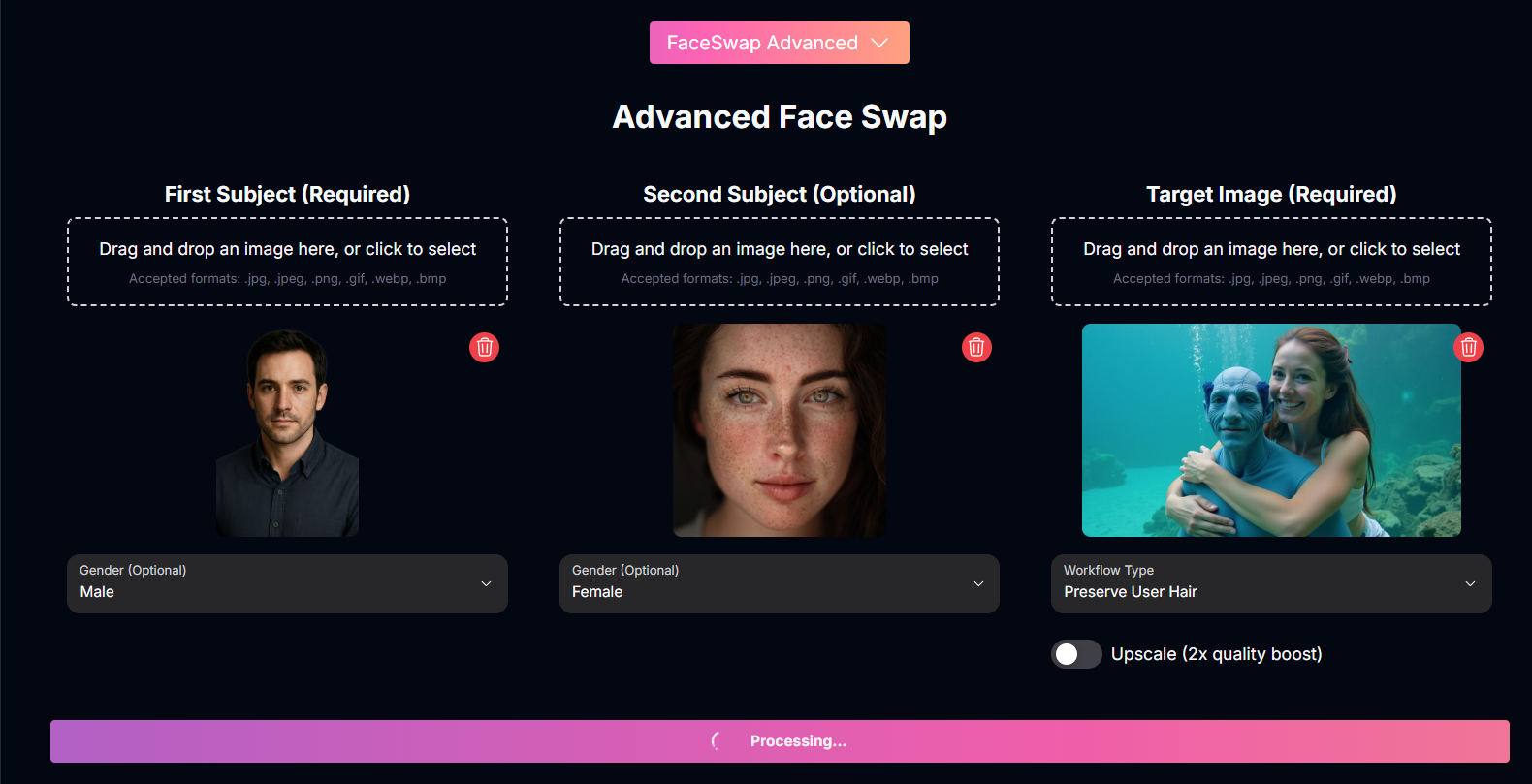 # Advanced Face Swap: Precision & Versatility in Face Replacement
Elevate your face swapping game with Advanced Face Swap! Achieve higher quality results, swap up to two faces in a single image, and benefit from enhanced facial recognition technology.
## Overview
Advanced Face Swap is a powerful tool designed for creators who demand more from face replacement. Building upon standard face swapping capabilities, this advanced version offers **significantly higher quality generation**, **improved facial recognition** for more accurate swaps, and the ability to **swap up to two faces** within a single target image. Whether you're creating complex composite images, enhancing personal photos, or exploring artistic concepts, Advanced Face Swap provides the precision and flexibility you need.
Generate face swaps with **enhanced realism and detail**.
Benefit from **better facial detection** for more accurate and seamless swaps.
Swap **up to two different faces** into a single target image.
Control aspects like **hair integration** and **upscaling**.
## How to Use Advanced Face Swap
Follow these steps to perform advanced face swaps with precision:
Upload the image of the **first person** whose face you want to swap into the target image. Select their **gender** using the provided option.
If your target image has two faces you want to swap, upload the image for the **second person** and select their **gender**. This step is optional if you only need to swap one face.
Upload the **target image** into which the face(s) will be swapped. The final output will retain everything from this image except the original faces, which will be replaced by the face(s) from your input images.
Select the workflow type based on how you want the hair to be handled:
The AI will attempt to use the hair from the **input person's image**.
The AI will attempt to use the hair from the **original target image**.
Activate the **Upscale** switch for higher resolution output.
Enabling upscale will result in a longer generation time.
Click the "Generate" button to initiate the advanced face swapping process.
## Tips for Best Results
Ensure both your input face images and the target image are clear, well-lit, and have faces that are easily visible and not obstructed.
For the most seamless swaps, try to use input face images that have similar angles and facial expressions to the faces in the target image.
Try both "Use Subject Hair" and "Use Target Hair" workflow types to see which produces a more natural result for your specific images.
If you need a high-quality final image for printing or detailed viewing, enable the upscale option despite the longer generation time.
## Conclusion
Advanced Face Swap provides a powerful and flexible solution for creating high-quality face replacements. With support for two faces, enhanced recognition, and control over key aspects like hair and resolution, it's an indispensable tool for anyone looking to achieve precise and versatile face swapping results.
***
# Advanced Face Swap: Precision & Versatility in Face Replacement
Elevate your face swapping game with Advanced Face Swap! Achieve higher quality results, swap up to two faces in a single image, and benefit from enhanced facial recognition technology.
## Overview
Advanced Face Swap is a powerful tool designed for creators who demand more from face replacement. Building upon standard face swapping capabilities, this advanced version offers **significantly higher quality generation**, **improved facial recognition** for more accurate swaps, and the ability to **swap up to two faces** within a single target image. Whether you're creating complex composite images, enhancing personal photos, or exploring artistic concepts, Advanced Face Swap provides the precision and flexibility you need.
Generate face swaps with **enhanced realism and detail**.
Benefit from **better facial detection** for more accurate and seamless swaps.
Swap **up to two different faces** into a single target image.
Control aspects like **hair integration** and **upscaling**.
## How to Use Advanced Face Swap
Follow these steps to perform advanced face swaps with precision:
Upload the image of the **first person** whose face you want to swap into the target image. Select their **gender** using the provided option.
If your target image has two faces you want to swap, upload the image for the **second person** and select their **gender**. This step is optional if you only need to swap one face.
Upload the **target image** into which the face(s) will be swapped. The final output will retain everything from this image except the original faces, which will be replaced by the face(s) from your input images.
Select the workflow type based on how you want the hair to be handled:
The AI will attempt to use the hair from the **input person's image**.
The AI will attempt to use the hair from the **original target image**.
Activate the **Upscale** switch for higher resolution output.
Enabling upscale will result in a longer generation time.
Click the "Generate" button to initiate the advanced face swapping process.
## Tips for Best Results
Ensure both your input face images and the target image are clear, well-lit, and have faces that are easily visible and not obstructed.
For the most seamless swaps, try to use input face images that have similar angles and facial expressions to the faces in the target image.
Try both "Use Subject Hair" and "Use Target Hair" workflow types to see which produces a more natural result for your specific images.
If you need a high-quality final image for printing or detailed viewing, enable the upscale option despite the longer generation time.
## Conclusion
Advanced Face Swap provides a powerful and flexible solution for creating high-quality face replacements. With support for two faces, enhanced recognition, and control over key aspects like hair and resolution, it's an indispensable tool for anyone looking to achieve precise and versatile face swapping results.
***