> ## Documentation Index
> Fetch the complete documentation index at: https://support.myapps.ai/llms.txt
> Use this file to discover all available pages before exploring further.
# Flux In Context
> Place a logo onto a product within an image using AI
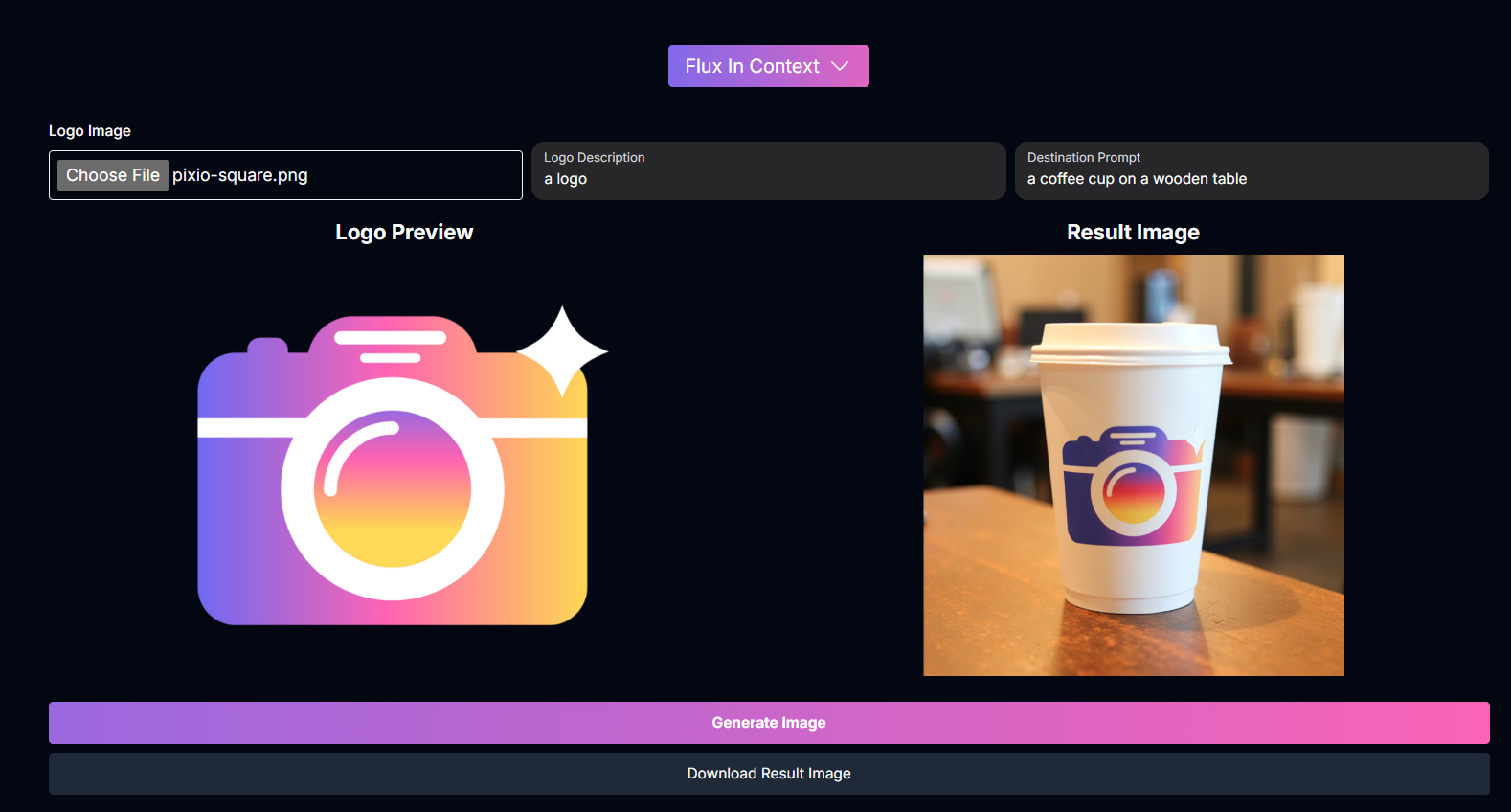 # Flux In Context: Seamless Logo Placement on Products
Effortlessly place your logo onto any product or scene using Flux In Context! Achieve consistent branding and realistic placements with the power of AI.
## Overview
Flux In Context is a specialized AI tool designed to solve the common challenge of visualizing how a logo appears on a product or within a specific environment. By combining your logo image with a descriptive destination prompt and an optional logo description, this tool leverages advanced AI to seamlessly integrate your logo into a generated image, making it appear naturally on the intended surface. It's particularly useful for branding, marketing mockups, and creative visualizations.
Realistically place your logo onto **products or surfaces** in generated images.
Improve logo appearance and integration with an optional **detailed logo description**.
Define the **destination scene or product** using a simple text prompt.
Quickly generate branded visuals for **marketing and mockups**.
## How to Use Flux In Context
Follow these steps to place your logo onto a product or scene:
Upload the image file of the **logo** you want to place. Ensure the logo is clear and has a transparent or easily removable background for best results.
Provide a detailed text description of your logo. This helps the AI understand the logo's features, colors, and style, leading to more consistent placement and appearance in the final image.
Enter a **destination prompt** describing the product or scene where you want your logo to appear. Be specific about the object and its context.
*Example Destination Prompts:*
* "a white ceramic coffee mug on a wooden table"
* "a black t-shirt hanging on a rack in a clothing store"
* "a laptop screen in a modern office environment"
Click the "Generate" button. The AI will process your logo, description, and destination prompt to create a new image with your logo placed in the specified location.
## Input Parameters
Here are the key input parameters for Flux In Context:
The image file of the logo you want to place.
A detailed text description of the logo for better consistency in placement and appearance. (Optional but recommended)
A text prompt describing the product or scene where the logo should be placed.
## Tips for Best Results
Start with a clear, high-resolution logo image, preferably with a transparent background.
Provide a detailed description of your logo to help the AI maintain its appearance.
In your destination prompt, clearly describe the object and the surface where the logo should be placed.
Try slightly different destination prompts or logo descriptions if the initial placement isn't perfect.
## Conclusion
Flux In Context offers a simple yet powerful solution for integrating logos onto products and scenes using AI. Its intuitive workflow and focus on consistent, realistic placement make it an invaluable tool for creating branded visuals efficiently.
***
# Flux In Context: Seamless Logo Placement on Products
Effortlessly place your logo onto any product or scene using Flux In Context! Achieve consistent branding and realistic placements with the power of AI.
## Overview
Flux In Context is a specialized AI tool designed to solve the common challenge of visualizing how a logo appears on a product or within a specific environment. By combining your logo image with a descriptive destination prompt and an optional logo description, this tool leverages advanced AI to seamlessly integrate your logo into a generated image, making it appear naturally on the intended surface. It's particularly useful for branding, marketing mockups, and creative visualizations.
Realistically place your logo onto **products or surfaces** in generated images.
Improve logo appearance and integration with an optional **detailed logo description**.
Define the **destination scene or product** using a simple text prompt.
Quickly generate branded visuals for **marketing and mockups**.
## How to Use Flux In Context
Follow these steps to place your logo onto a product or scene:
Upload the image file of the **logo** you want to place. Ensure the logo is clear and has a transparent or easily removable background for best results.
Provide a detailed text description of your logo. This helps the AI understand the logo's features, colors, and style, leading to more consistent placement and appearance in the final image.
Enter a **destination prompt** describing the product or scene where you want your logo to appear. Be specific about the object and its context.
*Example Destination Prompts:*
* "a white ceramic coffee mug on a wooden table"
* "a black t-shirt hanging on a rack in a clothing store"
* "a laptop screen in a modern office environment"
Click the "Generate" button. The AI will process your logo, description, and destination prompt to create a new image with your logo placed in the specified location.
## Input Parameters
Here are the key input parameters for Flux In Context:
The image file of the logo you want to place.
A detailed text description of the logo for better consistency in placement and appearance. (Optional but recommended)
A text prompt describing the product or scene where the logo should be placed.
## Tips for Best Results
Start with a clear, high-resolution logo image, preferably with a transparent background.
Provide a detailed description of your logo to help the AI maintain its appearance.
In your destination prompt, clearly describe the object and the surface where the logo should be placed.
Try slightly different destination prompts or logo descriptions if the initial placement isn't perfect.
## Conclusion
Flux In Context offers a simple yet powerful solution for integrating logos onto products and scenes using AI. Its intuitive workflow and focus on consistent, realistic placement make it an invaluable tool for creating branded visuals efficiently.
***