> ## Documentation Index
> Fetch the complete documentation index at: https://support.myapps.ai/llms.txt
> Use this file to discover all available pages before exploring further.
# FrameCraft
> Create original images or combine concepts from multiple images
# FrameCraft: Crafting Images with AI Precision
Unleash your creativity with FrameCraft! Generate unique images from scratch or blend concepts from multiple reference images with unparalleled control.
## Overview
FrameCraft is a versatile AI image generation tool that offers two distinct modes to suit your creative needs: **Generate** and **References**. Whether you're starting with a blank canvas and a text prompt or seeking to combine specific visual elements and styles from existing images, FrameCraft provides the flexibility and control to bring your vision to life.
Create visuals from **text prompts** with customizable styles and settings.
Blend elements from **up to 3 reference images** to craft unique scenes and characters.
Fine-tune your creations with easy-to-use **style, aspect ratio, diversity, and seed** options.
Leverage the power of references for **reliable visual consistency**.
## Generate Mode: Creating from Scratch
In Generate mode, FrameCraft allows you to conjure images purely from your imagination, guided by a text prompt and various stylistic controls.
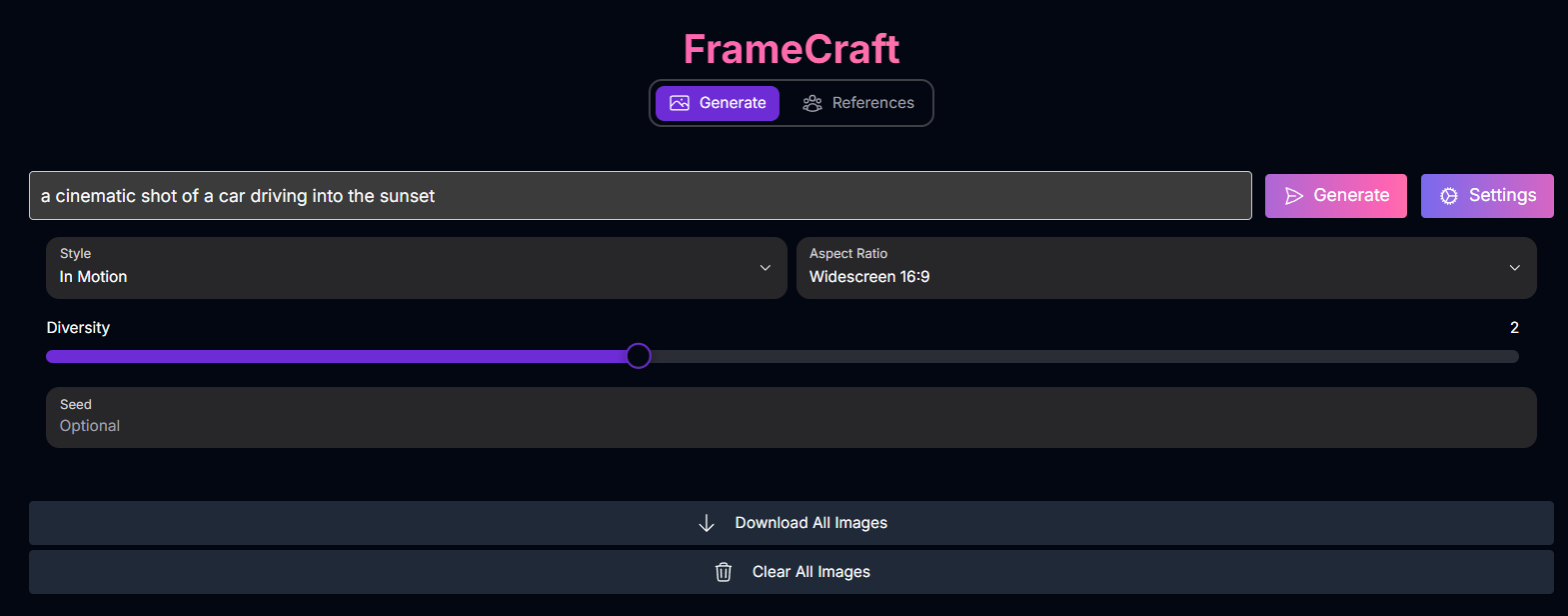 **Inputs & Options (Generate Mode):**
* **Prompt**: Enter a text description of the image you want to generate.
* **Style**: Select a predefined artistic style to influence the image's aesthetic.
Based on the screenshot, available styles include:
* In Motion
* Light Anime
* Dark Anime
* Painted Anime
* 3D Cartoon
* Sketch
* Low Angle
* Terracotta
* **Aspect Ratio**: Choose the desired shape for your image.
Based on the screenshot, available aspect ratios include:
* Widescreen 16:9
* Portrait 9:16
* Square 1:1
* Classic 4:3
* Ultrawide 21:9
* **Diversity**: Adjust a slider to control the variation among the generated images. Higher diversity yields more unique results.
* **Seed** (Optional): Enter a specific number for reproducible results. Leaving it optional generates a random seed for each creation.
**Output:**
When you click Generate in this mode, FrameCraft automatically provides **4 unique images** based on your prompt and settings.
### Generate Mode Examples
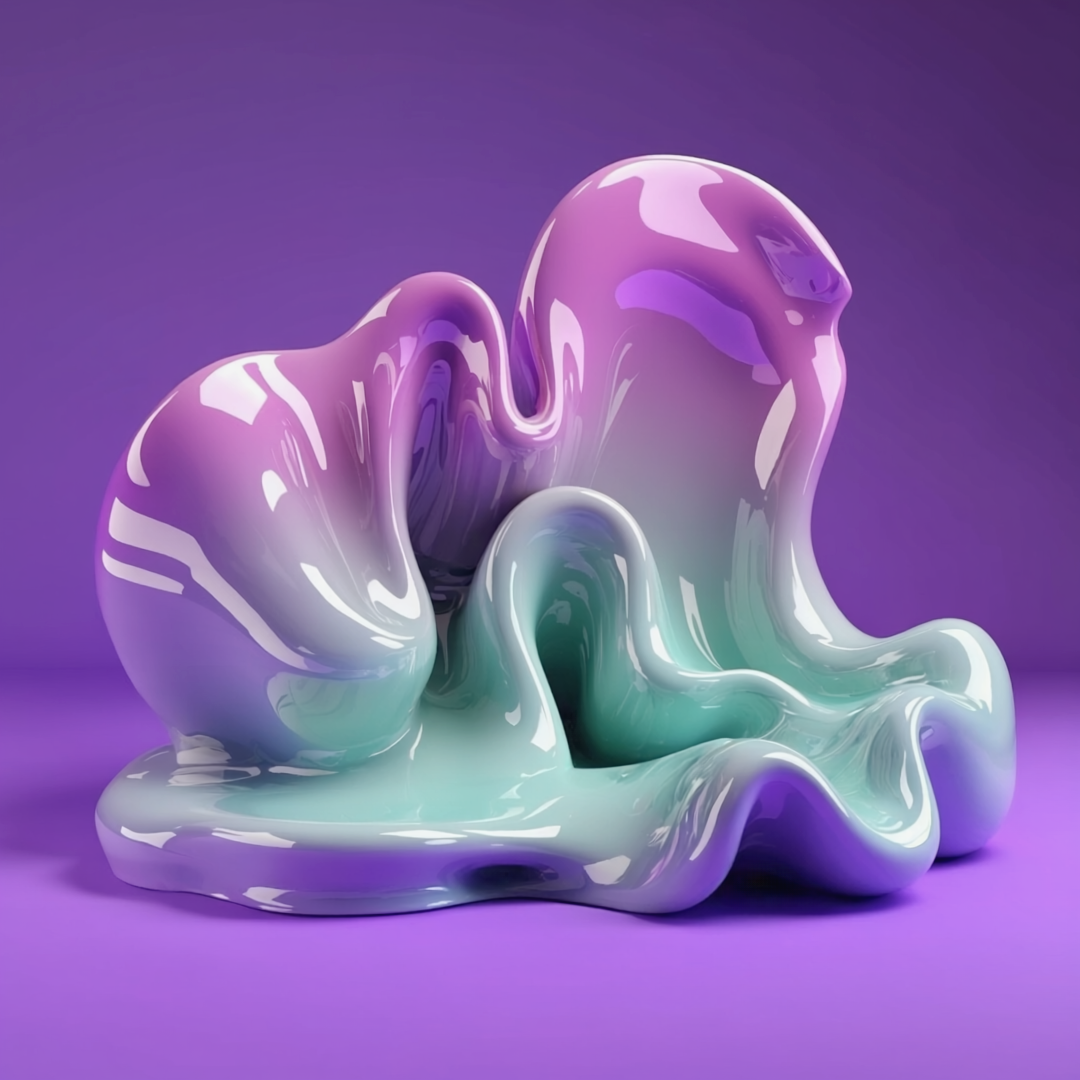
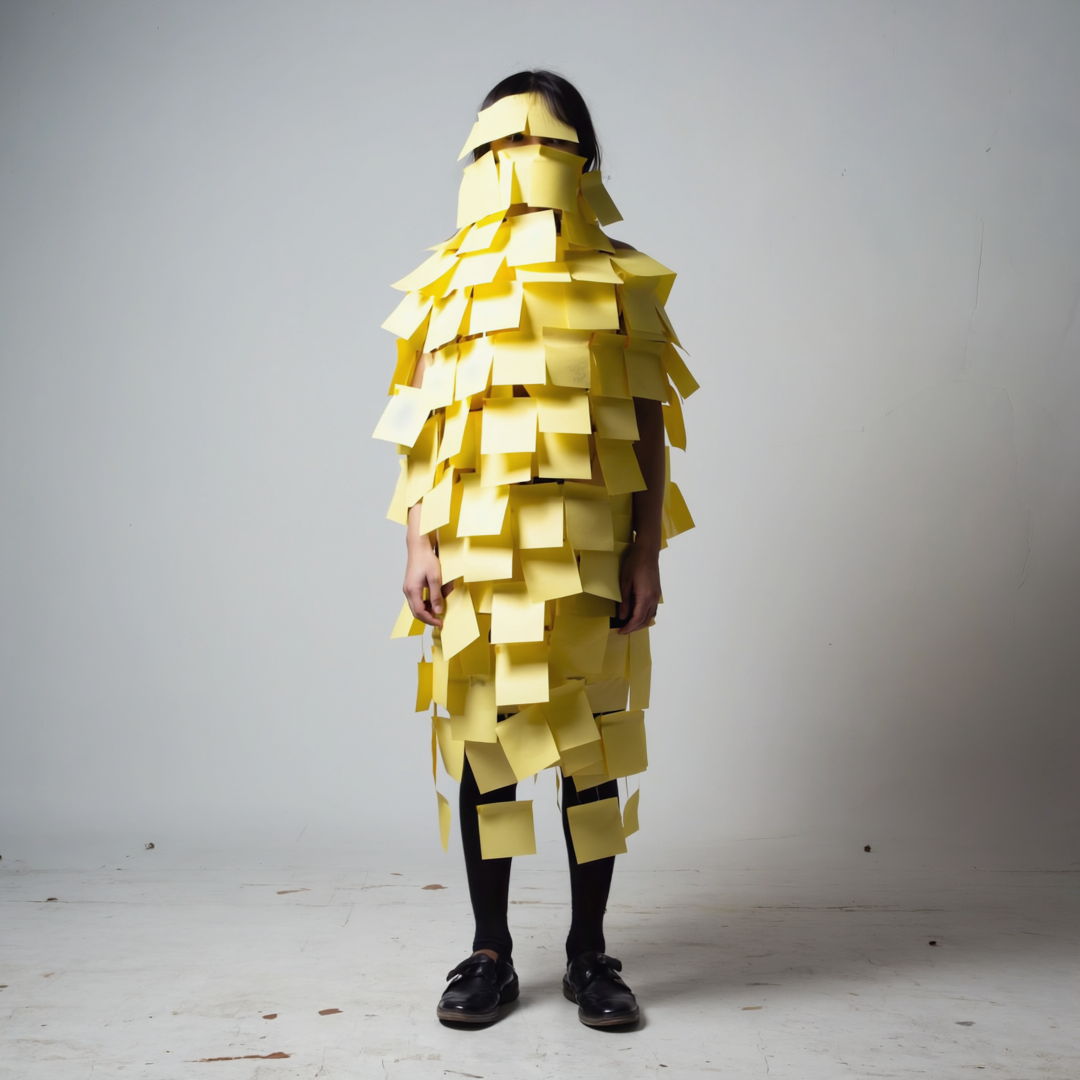
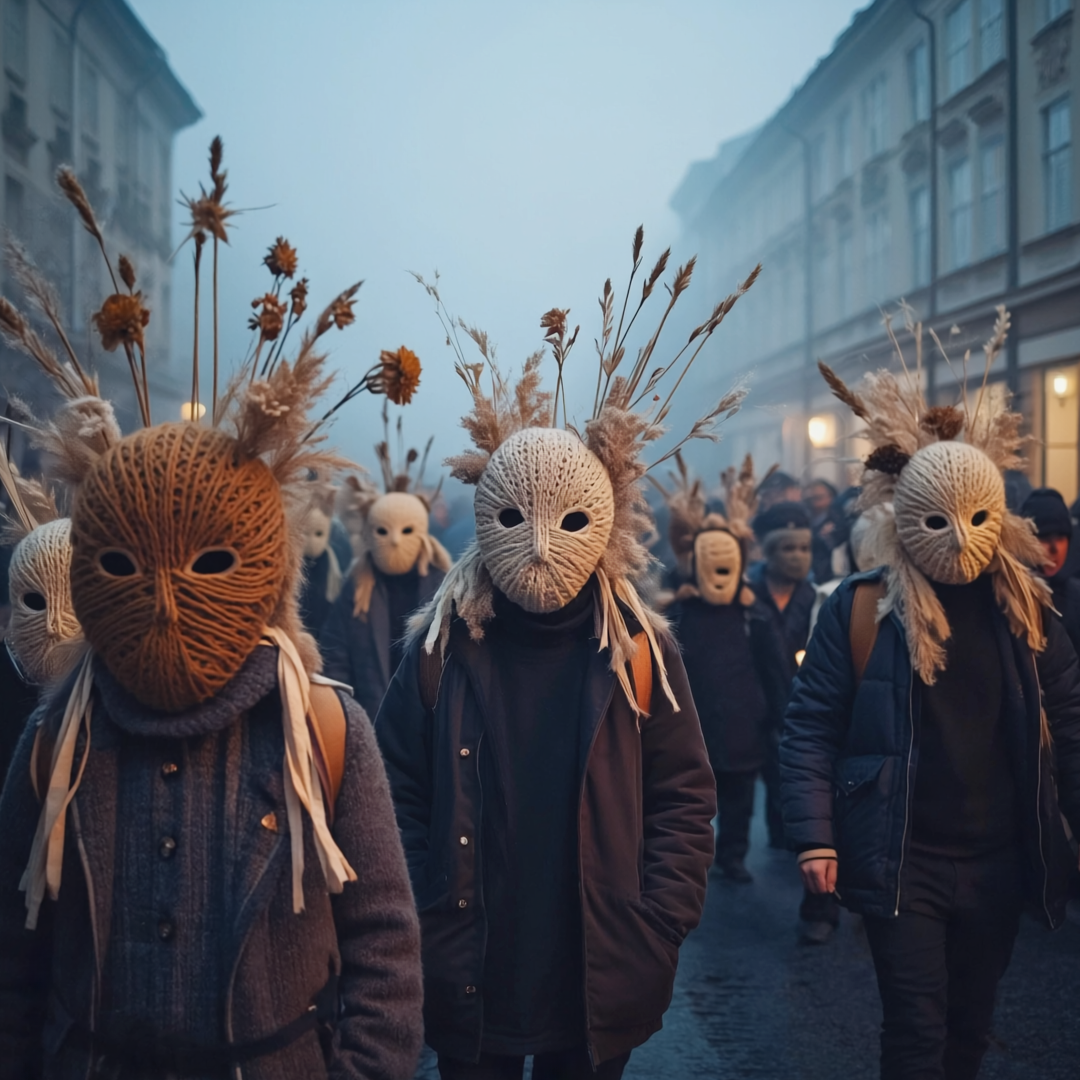
Behold the stunning variety achievable when generating images from text prompts:
**Inputs & Options (Generate Mode):**
* **Prompt**: Enter a text description of the image you want to generate.
* **Style**: Select a predefined artistic style to influence the image's aesthetic.
Based on the screenshot, available styles include:
* In Motion
* Light Anime
* Dark Anime
* Painted Anime
* 3D Cartoon
* Sketch
* Low Angle
* Terracotta
* **Aspect Ratio**: Choose the desired shape for your image.
Based on the screenshot, available aspect ratios include:
* Widescreen 16:9
* Portrait 9:16
* Square 1:1
* Classic 4:3
* Ultrawide 21:9
* **Diversity**: Adjust a slider to control the variation among the generated images. Higher diversity yields more unique results.
* **Seed** (Optional): Enter a specific number for reproducible results. Leaving it optional generates a random seed for each creation.
**Output:**
When you click Generate in this mode, FrameCraft automatically provides **4 unique images** based on your prompt and settings.
### Generate Mode Examples
Behold the stunning variety achievable when generating images from text prompts:
 ```text theme={null}
A modern sleek product shot background of ceramic blocks of organic shapes, they all contain different textures, some are shiny some art matte, surreal, stacked on top of each other, color story
```
```text theme={null}
A modern sleek product shot background of ceramic blocks of organic shapes, they all contain different textures, some are shiny some art matte, surreal, stacked on top of each other, color story
```
 ```text theme={null}
Realistic, A person covered in sticky notes. White background. Full-body shot. Surreal, 35mm, film grain, minimal composition
```
```text theme={null}
Realistic, A person covered in sticky notes. White background. Full-body shot. Surreal, 35mm, film grain, minimal composition
```
 ```text theme={null}
A scene composed of many individuals in a parallel universe where everyone wears masks created from scraps of knitted fabrics and other organic materials. Medium-shot, depth of field, with photo-documentary aesthetic. Outdoors, sky is deep blue, foggy morning, the environment is intense
```
```text theme={null}
A scene composed of many individuals in a parallel universe where everyone wears masks created from scraps of knitted fabrics and other organic materials. Medium-shot, depth of field, with photo-documentary aesthetic. Outdoors, sky is deep blue, foggy morning, the environment is intense
```
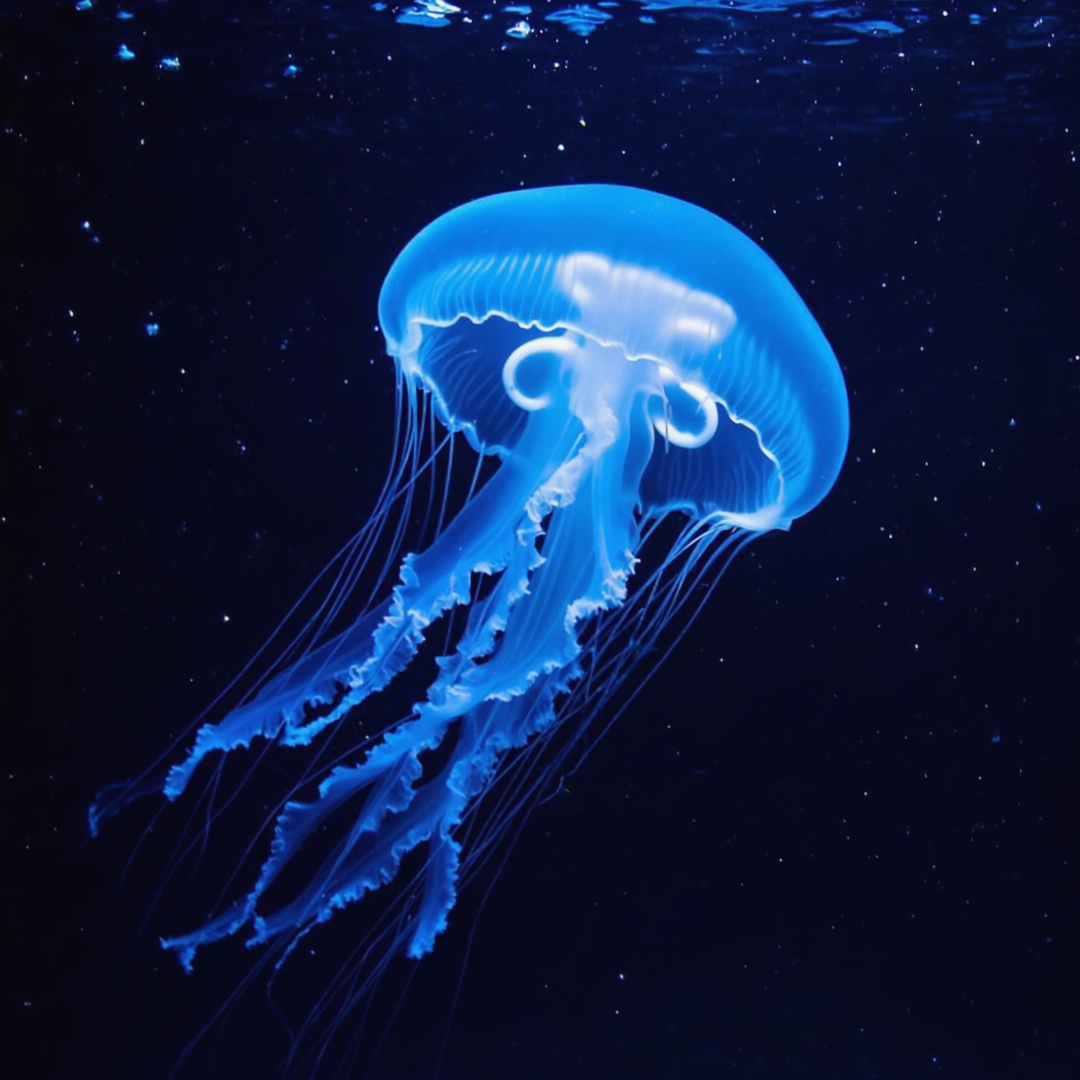 ```text theme={null}
Cinematic shot of a Mysterious Jellyfish. Using a camera with a 50mm f/ 1. 4 lens, the scene is captured in dark and moody tones, with deep blacks and a dramatic atmosphere.
```
## References Mode: Blending Concepts
References mode allows you to upload existing images and use them to guide the AI's creation, blending elements, styles, or concepts from your references into a new image.
```text theme={null}
Cinematic shot of a Mysterious Jellyfish. Using a camera with a 50mm f/ 1. 4 lens, the scene is captured in dark and moody tones, with deep blacks and a dramatic atmosphere.
```
## References Mode: Blending Concepts
References mode allows you to upload existing images and use them to guide the AI's creation, blending elements, styles, or concepts from your references into a new image.
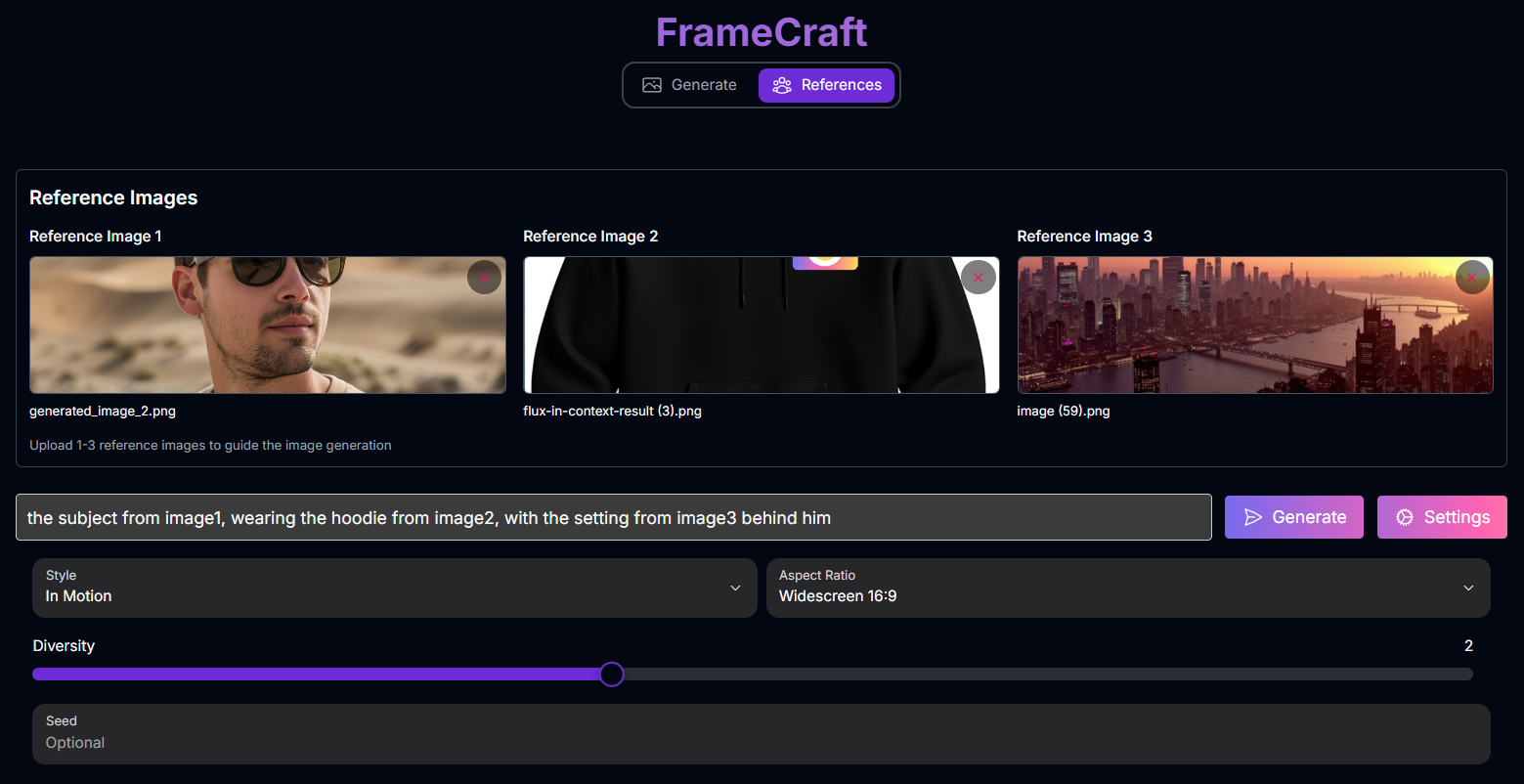 **Inputs & Options (References Mode):**
* **Reference Images**: Upload up to **3 reference images** into the provided slots. These images will serve as visual inputs for the AI.
* **Prompt**: Enter a text description that guides how the AI should use the reference images and what the final output should look like.
* **Style**: Select a predefined artistic style (same options as Generate mode).
* **Aspect Ratio**: Choose the desired shape for your image (same options as Generate mode).
* **Diversity**: Adjust a slider to control the variation among the generated images.
* **Seed** (Optional): Enter a specific number for reproducible results.
### Prompting with References
When using References mode, your prompt needs to tell the AI how to combine the visual information from the uploaded images. You can refer to the images by their number (e.g., `image1`, `image2`, `image3`).
**Prompt Structure for References:**
Describe the desired output, explicitly referencing elements from your uploaded images using `image1`, `image2`, and `image3`.
*Example Prompt:*
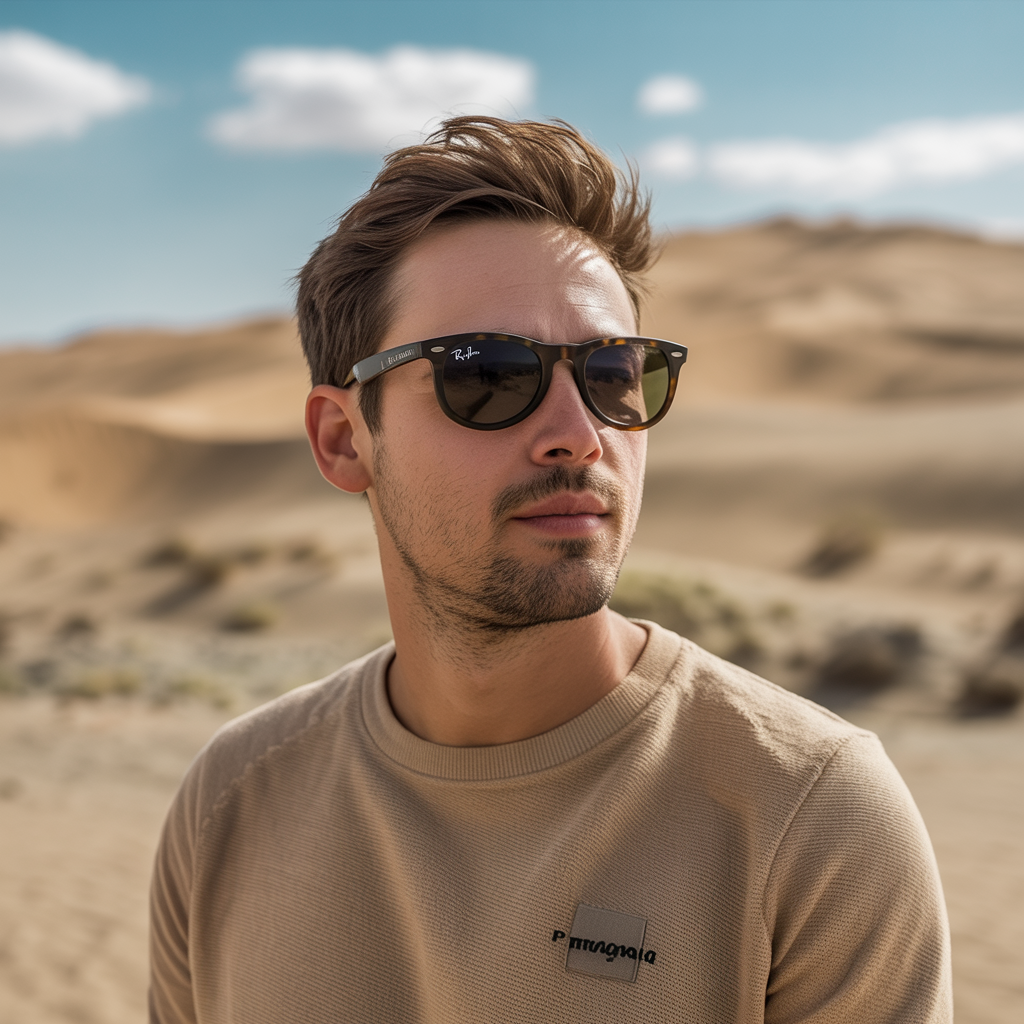
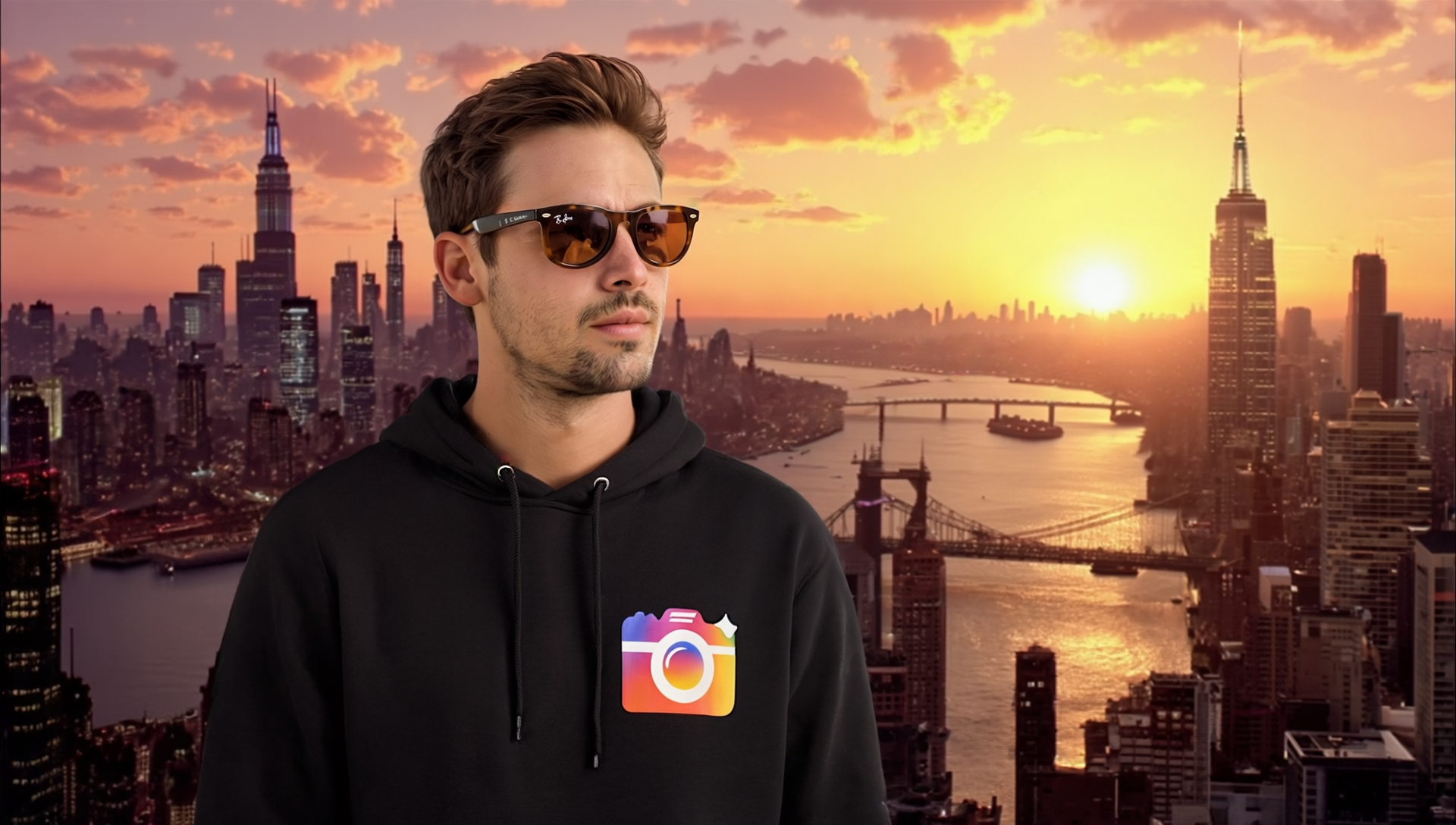
"the subject from image1, wearing the hoodie from image2, with the setting from image3 behind him"
### References Mode Example
See how FrameCraft can combine elements from multiple images based on a prompt:
**Inputs & Options (References Mode):**
* **Reference Images**: Upload up to **3 reference images** into the provided slots. These images will serve as visual inputs for the AI.
* **Prompt**: Enter a text description that guides how the AI should use the reference images and what the final output should look like.
* **Style**: Select a predefined artistic style (same options as Generate mode).
* **Aspect Ratio**: Choose the desired shape for your image (same options as Generate mode).
* **Diversity**: Adjust a slider to control the variation among the generated images.
* **Seed** (Optional): Enter a specific number for reproducible results.
### Prompting with References
When using References mode, your prompt needs to tell the AI how to combine the visual information from the uploaded images. You can refer to the images by their number (e.g., `image1`, `image2`, `image3`).
**Prompt Structure for References:**
Describe the desired output, explicitly referencing elements from your uploaded images using `image1`, `image2`, and `image3`.
*Example Prompt:*
"the subject from image1, wearing the hoodie from image2, with the setting from image3 behind him"
### References Mode Example
See how FrameCraft can combine elements from multiple images based on a prompt:
.png)
.png) **Prompt Used:** "the subject from image1, wearing the hoodie from image2, with the setting from image3 behind him"
**Resulting Image:**
**Prompt Used:** "the subject from image1, wearing the hoodie from image2, with the setting from image3 behind him"
**Resulting Image:**
 ## Mastering Prompts for FrameCraft
Effective prompting is crucial for both Generate and References modes. FrameCraft excels at interpreting detailed, natural language prompts.
### Prompting Best Practices
Focus on painting a vivid picture with your words. Avoid conversational phrases like "can you please generate..."
*Example:* Instead of "can you please generate an image of a giraffe with a short neck?", use "cinematic photograph of a giraffe with an extremely short neck."
Describe what you *do* want in the image. FrameCraft does not support negative prompts, and describing what you don't want may have the opposite effect.
*Example:* Instead of "a man with no hair," use "a bald man."
Use full sentences and natural language. This gives you more precise control over individual elements compared to keyword-heavy prompts.
Describe the Subject, Scene, Composition, Lighting, Color, Style, Focus, Angle, Text, and Mood to create complex and nuanced images.
### Prompt Keyword Collections
Use these keyword collections as inspiration to add detail and style to your prompts:
* **Glitchcore**: Glitch art, glitchcore, grain texture, datamosh, melting pixels, chromatic aberration, CRT static accents.
* **Dreamy**: Dreamlike, soft focus, light leaks, star lens flare, fine grain, soft gaussian blur, ethereal glow, motion blur.
* **Modern**: Sharp, clean, minimalistic.
* **Horror**: High contrast, desaturated, unstable movement, dark color palette, horror aesthetic.
* **Lo-Fi**: Hand drawn panel, lo-fi 1980s japanese magazine art style, muted tones, pastel color palette, soft grain, nostalgic aesthetic, animated.
* **Vaporwave**: vaporwave, saturated pink, purple, and blues, Retro aesthetics, Glowing neon elements, 90s design elements.
* **Collage**: collage style, mixed media approach, printed paper cutouts, torn paper edges.
* **Pastel baroque**: elegant baroque artwork, elegant artistry, muted cool pastel color palette with pops of pastel warmth, smooth oil painting, finely blended shading, floral motifs, elaborate.
* **Illustration**: Storybook illustration, thick lines, clean bold shapes, hand-drawn quality, precise ink-like lines.
* **Anime**: anime-style illustration, slightly blurry background, flat shading.
* **Pixel**: pixel art, pixelated scene reminiscent of a nostalgic video game.
* **Centered subject**: \[subject] in center frame.
* **Rule of thirds**: rule of thirds composition.
* **Symmetrical**: gentle symmetry, symmetrical composition.
* **Disposable film**: Classic disposable flash photography taken at night, Characteristics and qualities of a disposable flash camera, on film, vignette and slight overexposure, Overall muted color.
* **Damaged film**: Grainy texture, slightly overexposed, muted colors, visible film scratches, damaged film, light leaks, spontaneous, timeless, soft focus, characteristic Polaroid aesthetic, historical wear and tear.
* **Heavy grain film**: Heavy film grain, visible noise, visible dust particles.
* **VHS**: Shot on VHS, VHS artifacts, tracking lines, worn film texture, analog color bleeding, grainy quality.
* **Cinematic**: Cinematic photograph, movie still, theatrical, anamorphic lens, 35mm, professional composition.
* **Portrait photography**: Portrait, diffused lighting, editorial portrait, fashion portrait.
* **Product photography**: product photography, minimalist, clean, bright lighting, thoughtfully arranged floral and wood elements.
* **Relaxed**: relaxed pose, elegant.
* **In motion**: natural motion blur emphasizes the subject's movement against the still environment.
* **Surreal anatomy**: the \[subject] curves and bends impossibly, distorted, warped, squished, and extremely deformed and exaggerated, surreal anatomy.
* **Theater marquee**: theater with a large marquee sign that boldly spells \[word].
* **Neon sign**: neon sign that spells \[word].
* **Balloon**: balloons forming the word \[word].
* **Scanner**: black and white scanned image, vintage photocopy scan stretch effect, grain texture, gritty.
* **Static hologram**: static hologram in the shape of \[subject], crt static, soft natural glow.
* **Chrome**: liquid chrome, reflective, shiny, iridescent sheen.
* **Piñata**: piñata \[subject], thin tissue paper in assorted colors.
## How to Use FrameCraft
Here's a step-by-step guide to using both modes in FrameCraft:
Select either **Generate** to create a new image from a text prompt or **References** to use existing images as inspiration.
* **Generate Mode**: Enter your text prompt.
* **References Mode**: Upload up to 3 reference images and enter your text prompt, referencing the images as needed (e.g., `image1`).
Configure the **Style**, **Aspect Ratio**, **Diversity**, and **Seed** (optional) to refine your output.
Click the "Generate" button. FrameCraft will create images based on your chosen mode and inputs.
Review the generated images. In References mode, you can save outputs as new references for further iteration.
## Tips for Best Results
Try both Generate and References modes to see which best suits your creative process for different tasks.
For References mode, start with clear, high-quality images to ensure the AI can accurately interpret and blend the visual concepts.
Don't hesitate to generate multiple times, adjusting your prompt, style, diversity, or seed to explore variations and refine your results.
Use the provided keyword collections as inspiration to add rich detail and specific styles to your prompts.
## Conclusion
FrameCraft offers a powerful and flexible platform for AI image generation. Whether you're creating entirely new visuals or skillfully blending concepts from existing images, its intuitive interface and robust controls empower you to bring your artistic visions to life with precision and creativity.
***
## Mastering Prompts for FrameCraft
Effective prompting is crucial for both Generate and References modes. FrameCraft excels at interpreting detailed, natural language prompts.
### Prompting Best Practices
Focus on painting a vivid picture with your words. Avoid conversational phrases like "can you please generate..."
*Example:* Instead of "can you please generate an image of a giraffe with a short neck?", use "cinematic photograph of a giraffe with an extremely short neck."
Describe what you *do* want in the image. FrameCraft does not support negative prompts, and describing what you don't want may have the opposite effect.
*Example:* Instead of "a man with no hair," use "a bald man."
Use full sentences and natural language. This gives you more precise control over individual elements compared to keyword-heavy prompts.
Describe the Subject, Scene, Composition, Lighting, Color, Style, Focus, Angle, Text, and Mood to create complex and nuanced images.
### Prompt Keyword Collections
Use these keyword collections as inspiration to add detail and style to your prompts:
* **Glitchcore**: Glitch art, glitchcore, grain texture, datamosh, melting pixels, chromatic aberration, CRT static accents.
* **Dreamy**: Dreamlike, soft focus, light leaks, star lens flare, fine grain, soft gaussian blur, ethereal glow, motion blur.
* **Modern**: Sharp, clean, minimalistic.
* **Horror**: High contrast, desaturated, unstable movement, dark color palette, horror aesthetic.
* **Lo-Fi**: Hand drawn panel, lo-fi 1980s japanese magazine art style, muted tones, pastel color palette, soft grain, nostalgic aesthetic, animated.
* **Vaporwave**: vaporwave, saturated pink, purple, and blues, Retro aesthetics, Glowing neon elements, 90s design elements.
* **Collage**: collage style, mixed media approach, printed paper cutouts, torn paper edges.
* **Pastel baroque**: elegant baroque artwork, elegant artistry, muted cool pastel color palette with pops of pastel warmth, smooth oil painting, finely blended shading, floral motifs, elaborate.
* **Illustration**: Storybook illustration, thick lines, clean bold shapes, hand-drawn quality, precise ink-like lines.
* **Anime**: anime-style illustration, slightly blurry background, flat shading.
* **Pixel**: pixel art, pixelated scene reminiscent of a nostalgic video game.
* **Centered subject**: \[subject] in center frame.
* **Rule of thirds**: rule of thirds composition.
* **Symmetrical**: gentle symmetry, symmetrical composition.
* **Disposable film**: Classic disposable flash photography taken at night, Characteristics and qualities of a disposable flash camera, on film, vignette and slight overexposure, Overall muted color.
* **Damaged film**: Grainy texture, slightly overexposed, muted colors, visible film scratches, damaged film, light leaks, spontaneous, timeless, soft focus, characteristic Polaroid aesthetic, historical wear and tear.
* **Heavy grain film**: Heavy film grain, visible noise, visible dust particles.
* **VHS**: Shot on VHS, VHS artifacts, tracking lines, worn film texture, analog color bleeding, grainy quality.
* **Cinematic**: Cinematic photograph, movie still, theatrical, anamorphic lens, 35mm, professional composition.
* **Portrait photography**: Portrait, diffused lighting, editorial portrait, fashion portrait.
* **Product photography**: product photography, minimalist, clean, bright lighting, thoughtfully arranged floral and wood elements.
* **Relaxed**: relaxed pose, elegant.
* **In motion**: natural motion blur emphasizes the subject's movement against the still environment.
* **Surreal anatomy**: the \[subject] curves and bends impossibly, distorted, warped, squished, and extremely deformed and exaggerated, surreal anatomy.
* **Theater marquee**: theater with a large marquee sign that boldly spells \[word].
* **Neon sign**: neon sign that spells \[word].
* **Balloon**: balloons forming the word \[word].
* **Scanner**: black and white scanned image, vintage photocopy scan stretch effect, grain texture, gritty.
* **Static hologram**: static hologram in the shape of \[subject], crt static, soft natural glow.
* **Chrome**: liquid chrome, reflective, shiny, iridescent sheen.
* **Piñata**: piñata \[subject], thin tissue paper in assorted colors.
## How to Use FrameCraft
Here's a step-by-step guide to using both modes in FrameCraft:
Select either **Generate** to create a new image from a text prompt or **References** to use existing images as inspiration.
* **Generate Mode**: Enter your text prompt.
* **References Mode**: Upload up to 3 reference images and enter your text prompt, referencing the images as needed (e.g., `image1`).
Configure the **Style**, **Aspect Ratio**, **Diversity**, and **Seed** (optional) to refine your output.
Click the "Generate" button. FrameCraft will create images based on your chosen mode and inputs.
Review the generated images. In References mode, you can save outputs as new references for further iteration.
## Tips for Best Results
Try both Generate and References modes to see which best suits your creative process for different tasks.
For References mode, start with clear, high-quality images to ensure the AI can accurately interpret and blend the visual concepts.
Don't hesitate to generate multiple times, adjusting your prompt, style, diversity, or seed to explore variations and refine your results.
Use the provided keyword collections as inspiration to add rich detail and specific styles to your prompts.
## Conclusion
FrameCraft offers a powerful and flexible platform for AI image generation. Whether you're creating entirely new visuals or skillfully blending concepts from existing images, its intuitive interface and robust controls empower you to bring your artistic visions to life with precision and creativity.
***