> ## Documentation Index
> Fetch the complete documentation index at: https://support.myapps.ai/llms.txt
> Use this file to discover all available pages before exploring further.
# ImagenCraft
> Advanced AI image generation and editing powered by Google Imagen
# ImagenCraft: Powered by Google Imagen
Unlock the power of Google Imagen with ImagenCraft! Create stunning images, edit with precision, and customize visuals through a close partnership with Google.
## Overview
ImagenCraft is a cutting-edge AI platform that leverages Google's powerful **Imagen models** for both image generation and advanced editing. Thanks to a close partnership with Google, ImagenCraft offers unique capabilities, particularly in image editing. The platform is structured around three core modes – **Create, Edit, and Customize** – providing a versatile workflow for all your visual needs.
Generate original images from **text prompts** using powerful Imagen models.
Modify existing images with precision using **mask-based and mask-free editing tools**.
Tailor image generation based on **subject, style, or control images**.
## Modes of Operation
ImagenCraft offers three distinct modes, each designed for a specific type of visual workflow:
### Create Mode: Generate Images from Text
In Create mode, you can generate entirely new images from scratch using text prompts.
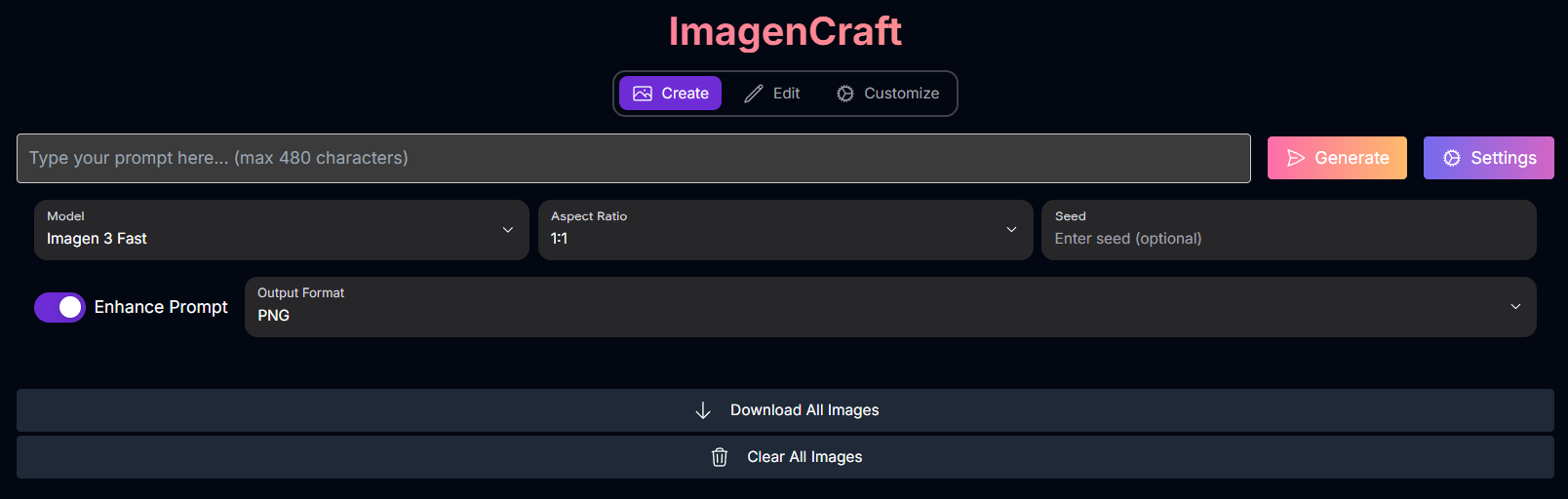 **Inputs & Options (Create Mode):**
* **Prompt**: Your text description of the desired image. (Max 480 characters)
* **Model**: Select the Imagen model for generation.
* Possible values: `imagen-3.0-generate-002` (Imagen 3), `imagen-3.0-fast-generate-001` (Imagen 3 Fast)
* **Negative Prompt**: Specify elements to omit. (Note: Not fully supported by `imagen-3.0-fast-generate-001`).
* **Sample Count**: Number of images to generate (1-4).
* **Seed**: For reproducible results (optional).
* **Enhance Prompt**: Toggle for LLM-based prompt rewriting (available for `imagen-3.0-generate-002`).
* **Aspect Ratio**: Choose the image shape.
* Possible values: `1:1`, `9:16`, `16:9`, `3:4`, `4:3`
* **Output Format**: File format (PNG, JPEG).
* **Compression Quality**: For JPEG output (0-100).
### Create Mode Examples
Explore the diverse range of images you can generate from text prompts:
**Inputs & Options (Create Mode):**
* **Prompt**: Your text description of the desired image. (Max 480 characters)
* **Model**: Select the Imagen model for generation.
* Possible values: `imagen-3.0-generate-002` (Imagen 3), `imagen-3.0-fast-generate-001` (Imagen 3 Fast)
* **Negative Prompt**: Specify elements to omit. (Note: Not fully supported by `imagen-3.0-fast-generate-001`).
* **Sample Count**: Number of images to generate (1-4).
* **Seed**: For reproducible results (optional).
* **Enhance Prompt**: Toggle for LLM-based prompt rewriting (available for `imagen-3.0-generate-002`).
* **Aspect Ratio**: Choose the image shape.
* Possible values: `1:1`, `9:16`, `16:9`, `3:4`, `4:3`
* **Output Format**: File format (PNG, JPEG).
* **Compression Quality**: For JPEG output (0-100).
### Create Mode Examples
Explore the diverse range of images you can generate from text prompts:
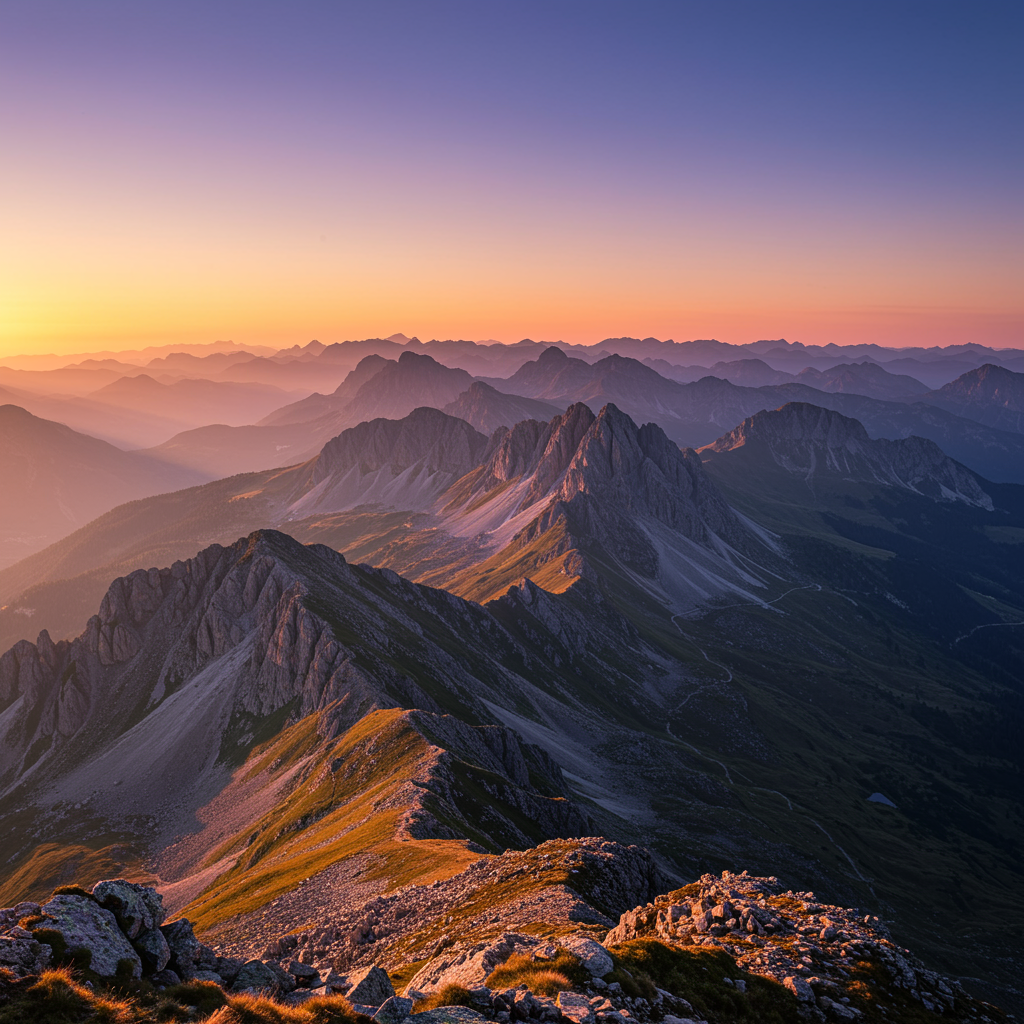 ```text theme={null}
an expansive mountain range, landscape wide angle 10mm
```
```text theme={null}
an expansive mountain range, landscape wide angle 10mm
```
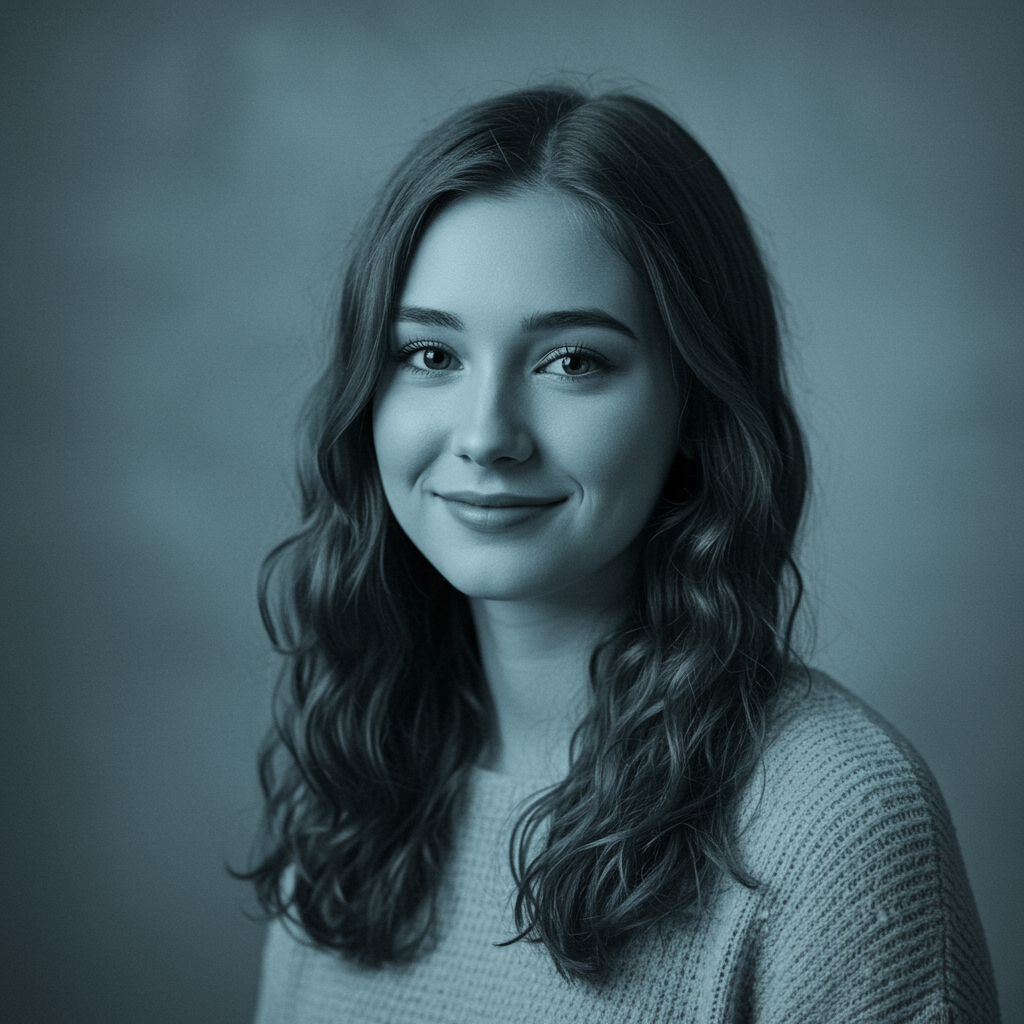 ```text theme={null}
A woman, 35mm portrait, blue and grey duotones
```
```text theme={null}
A woman, 35mm portrait, blue and grey duotones
```
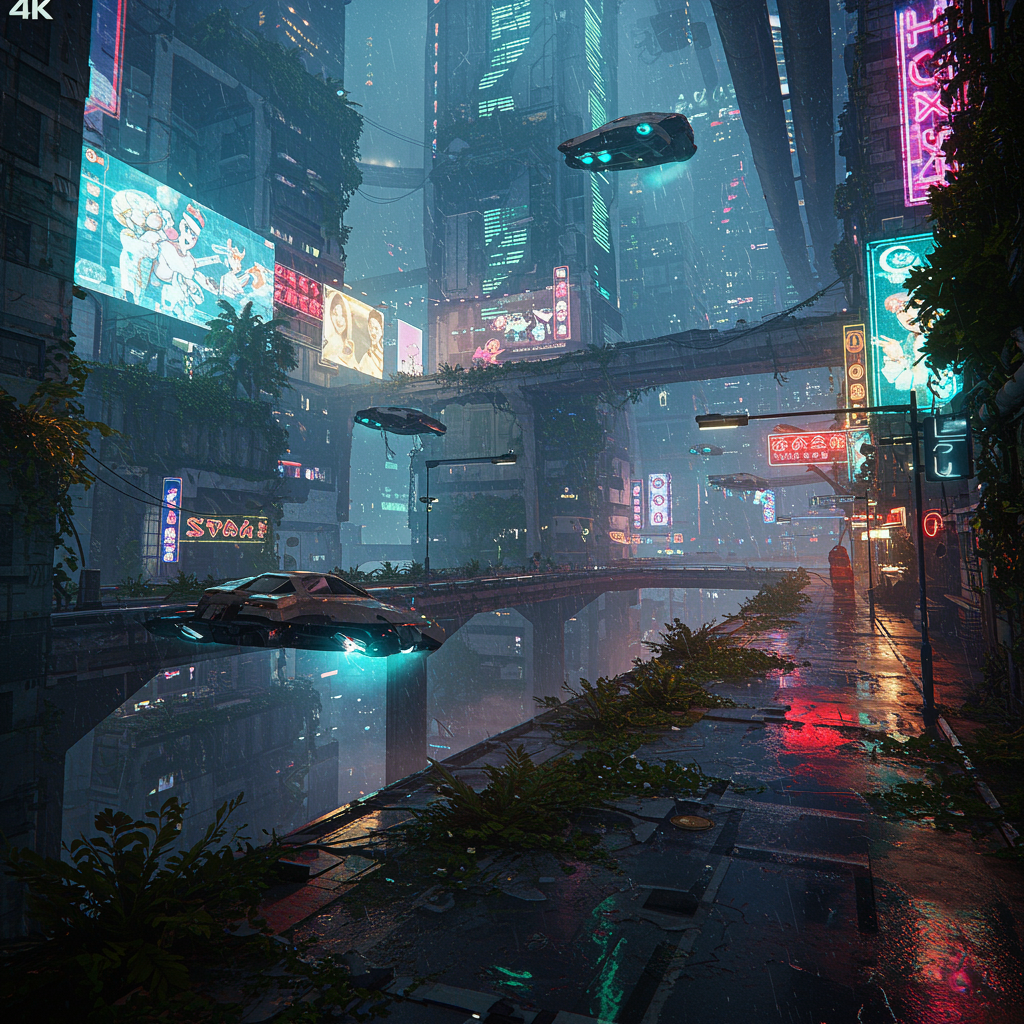 ```text theme={null}
4K video game concept art, urban jungle, cyberpunk city, detailed rendering
```
```text theme={null}
4K video game concept art, urban jungle, cyberpunk city, detailed rendering
```
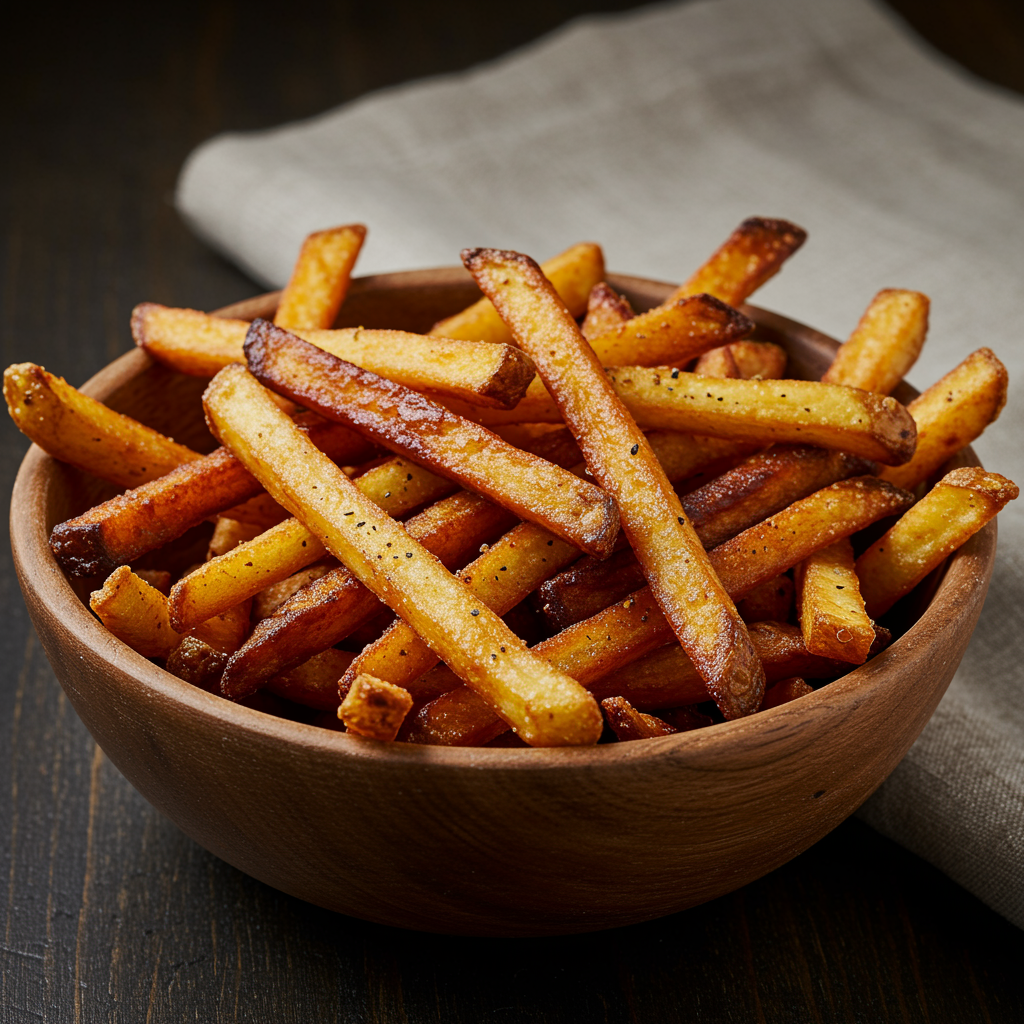 ```text theme={null}
A professional studio photo of french fries for a high end restaurant, in the style of a food magazine
```
### Edit Mode: Modify Existing Images
Edit mode allows you to alter existing images using various tools, including mask-based and mask-free methods. Requires an **Image Upload**.
```text theme={null}
A professional studio photo of french fries for a high end restaurant, in the style of a food magazine
```
### Edit Mode: Modify Existing Images
Edit mode allows you to alter existing images using various tools, including mask-based and mask-free methods. Requires an **Image Upload**.
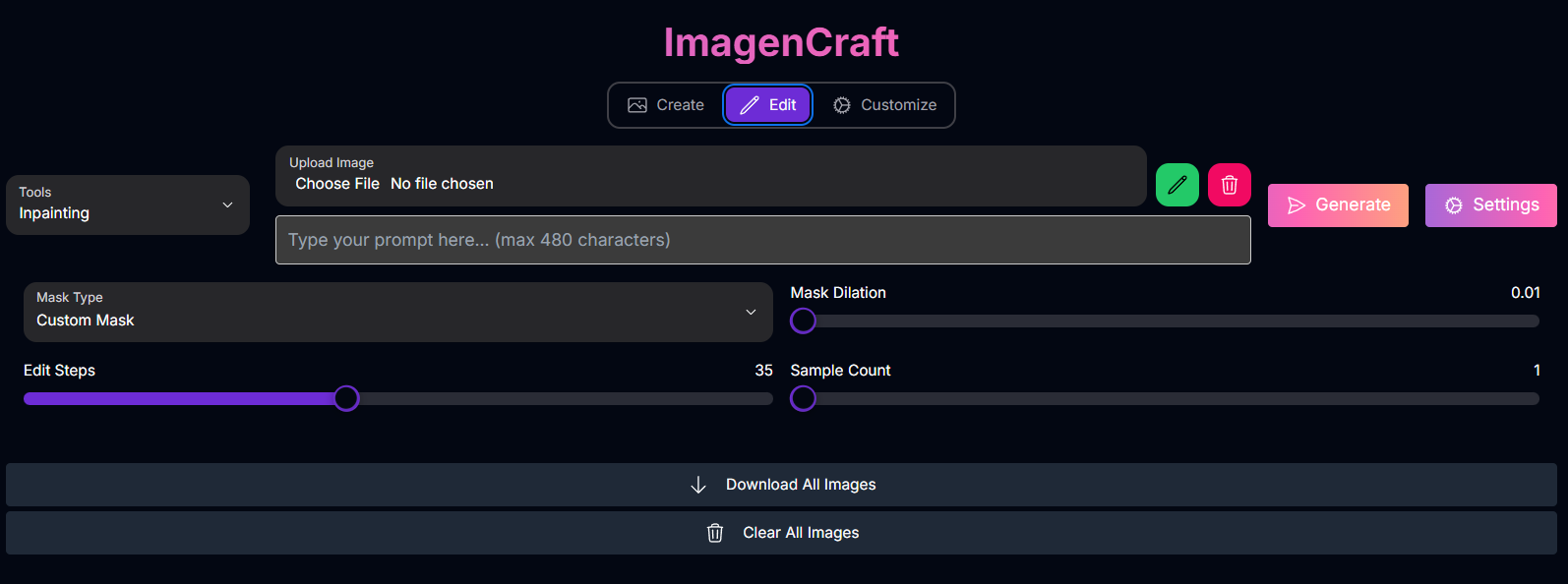 **Tools Available (Edit Mode):**
Modify specific masked areas (insert or remove content).
* **Inputs:** Prompt (for insertion), Image Upload, Mask Image (Custom mask) or Mask Type (Auto mask), Mask Dilation, Edit Steps, Sample Count.
Remove content from masked areas.
* **Inputs:** Image Upload, Mask Image (Custom mask) or Mask Type (Auto mask), Mask Dilation, Edit Steps, Sample Count. (Prompt and Negative Prompt are typically omitted for removal).
Expand the image content beyond its original boundaries.
* **Inputs:** Prompt (optional, for new areas), Image Upload, Mask Dilation, Edit Steps, Sample Count. (Requires configuring the outpainting mask/padding).
Edit the background of a product image while preserving the product.
* **Inputs:** Prompt (for new background), Image Upload, Mask Mode (Automatic or Manual), Mask Image (Manual mask), Mask Dilation, Edit Steps, Sample Count.
**Common Inputs & Options (Edit Mode):**
* **Prompt**: Describes the desired changes or the new content (used with Inpainting Insertion, Outpainting, Product Image).
* **Negative Prompt**: Specify elements to avoid (used with Inpainting Insertion, Outpainting, Product Image).
* **Image Upload**: The base image to be edited.
* **Mask Image**: A manually drawn mask defining the edit area (used with Inpainting, Remove Object, Product Image - Manual Mask Mode).
* **Mask Type**: For automatic mask detection (Background, Foreground - used with Inpainting, Remove Object).
* **Mask Mode**: For Product Image editing (Automatic Background, Manual Mask).
* **Mask Dilation**: Adjusts the mask area (0.0 - 0.10).
* **Edit Steps**: Controls the refinement of the edit (5-75).
* **Sample Count**: Number of edited variations (1-4).
### Edit Mode Examples
See how ImagenCraft can modify existing images using its editing tools:
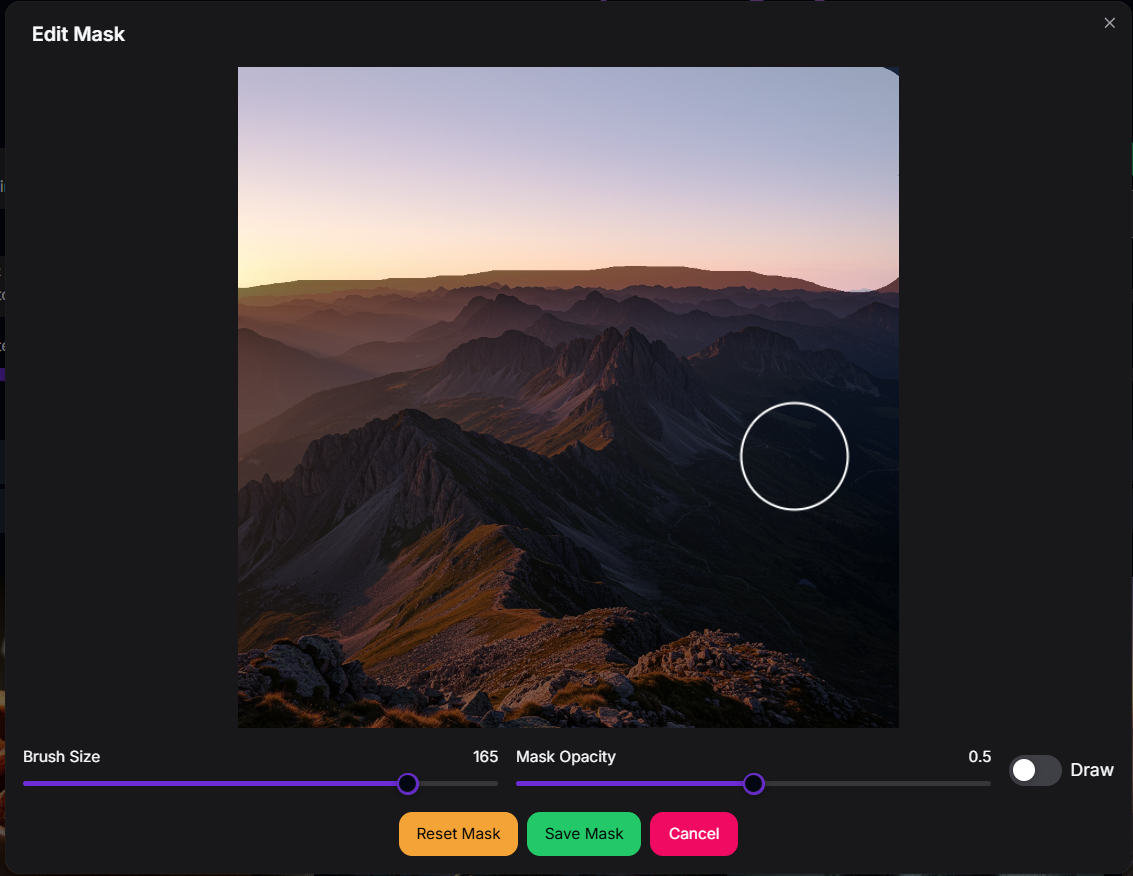
#### Inpainting Example
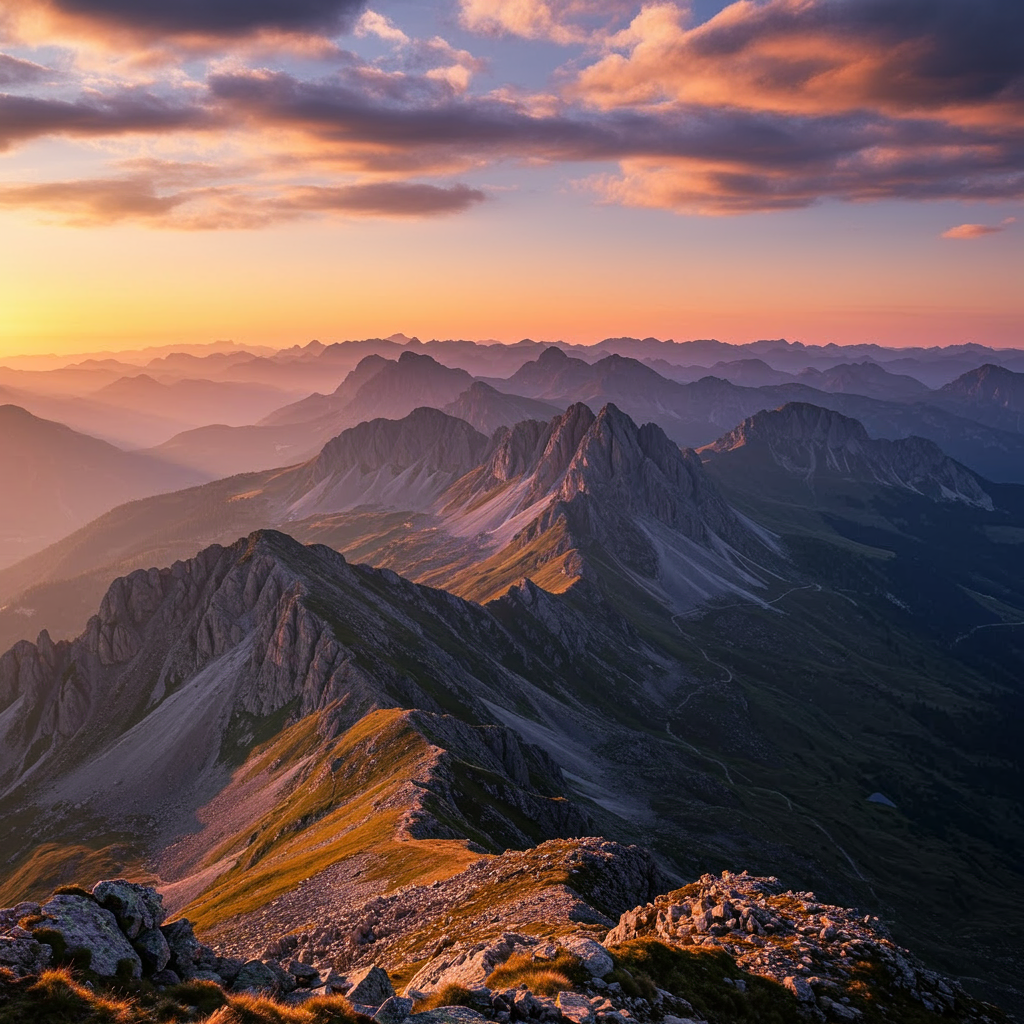
Modify a specific area within an image using a mask and prompt:
**Tools Available (Edit Mode):**
Modify specific masked areas (insert or remove content).
* **Inputs:** Prompt (for insertion), Image Upload, Mask Image (Custom mask) or Mask Type (Auto mask), Mask Dilation, Edit Steps, Sample Count.
Remove content from masked areas.
* **Inputs:** Image Upload, Mask Image (Custom mask) or Mask Type (Auto mask), Mask Dilation, Edit Steps, Sample Count. (Prompt and Negative Prompt are typically omitted for removal).
Expand the image content beyond its original boundaries.
* **Inputs:** Prompt (optional, for new areas), Image Upload, Mask Dilation, Edit Steps, Sample Count. (Requires configuring the outpainting mask/padding).
Edit the background of a product image while preserving the product.
* **Inputs:** Prompt (for new background), Image Upload, Mask Mode (Automatic or Manual), Mask Image (Manual mask), Mask Dilation, Edit Steps, Sample Count.
**Common Inputs & Options (Edit Mode):**
* **Prompt**: Describes the desired changes or the new content (used with Inpainting Insertion, Outpainting, Product Image).
* **Negative Prompt**: Specify elements to avoid (used with Inpainting Insertion, Outpainting, Product Image).
* **Image Upload**: The base image to be edited.
* **Mask Image**: A manually drawn mask defining the edit area (used with Inpainting, Remove Object, Product Image - Manual Mask Mode).
* **Mask Type**: For automatic mask detection (Background, Foreground - used with Inpainting, Remove Object).
* **Mask Mode**: For Product Image editing (Automatic Background, Manual Mask).
* **Mask Dilation**: Adjusts the mask area (0.0 - 0.10).
* **Edit Steps**: Controls the refinement of the edit (5-75).
* **Sample Count**: Number of edited variations (1-4).
### Edit Mode Examples
See how ImagenCraft can modify existing images using its editing tools:
#### Inpainting Example
Modify a specific area within an image using a mask and prompt:
 ```text theme={null}
Prompt: Clouds
```
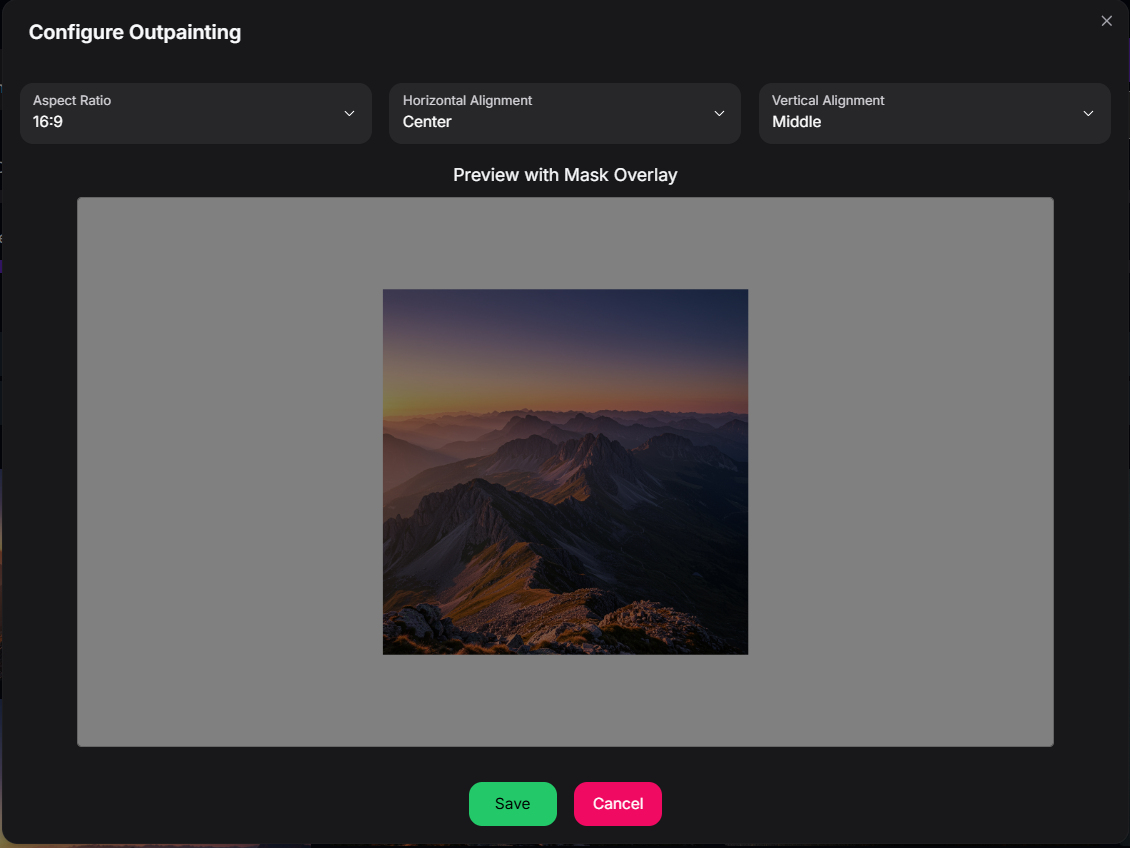
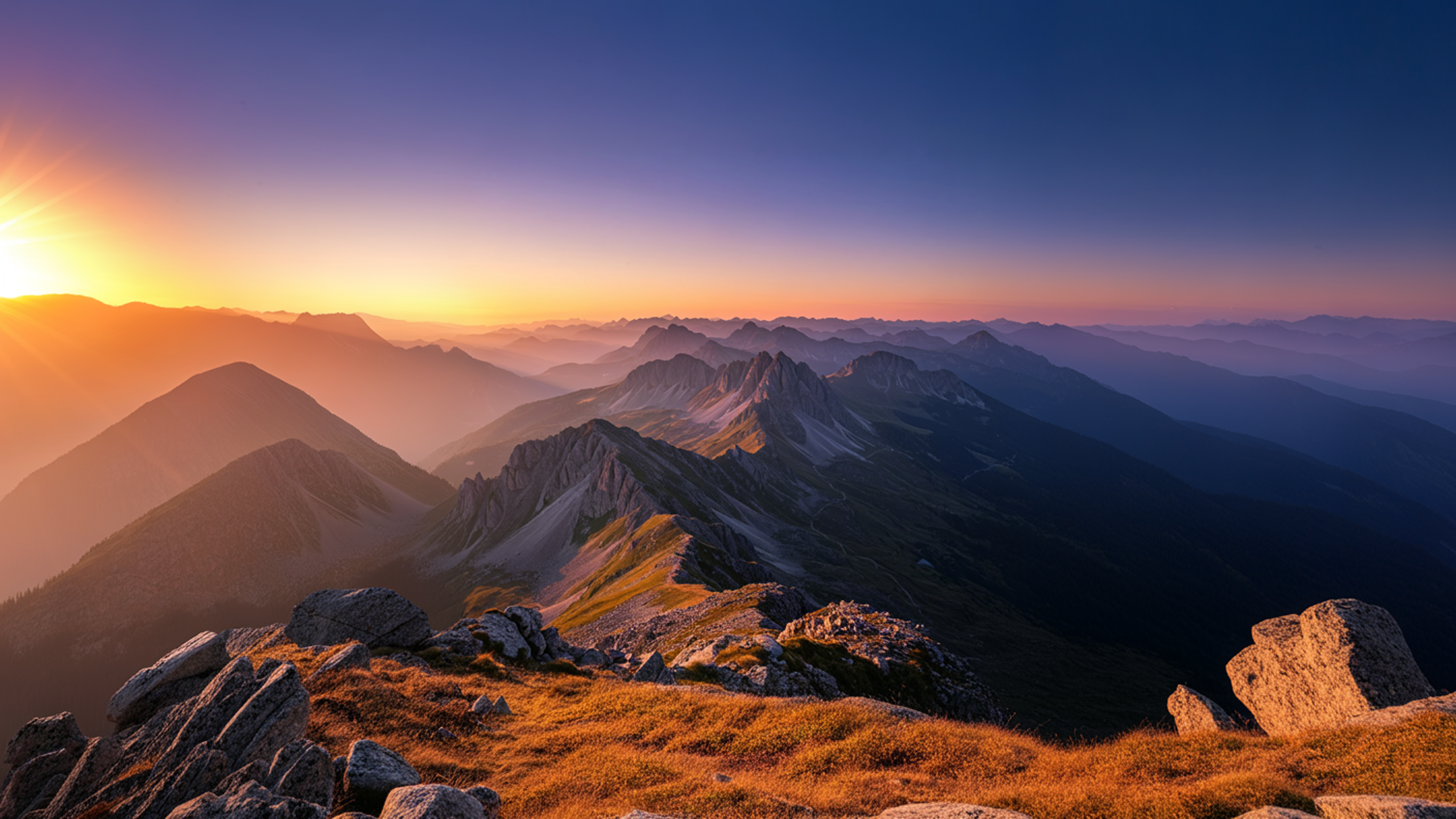
#### Outpainting Example
Expand the content of an image beyond its original boundaries:
```text theme={null}
Prompt: Clouds
```
#### Outpainting Example
Expand the content of an image beyond its original boundaries:
 ```text theme={null}
Prompt: mountains
```
### Customize Mode: Tailor Generation with References
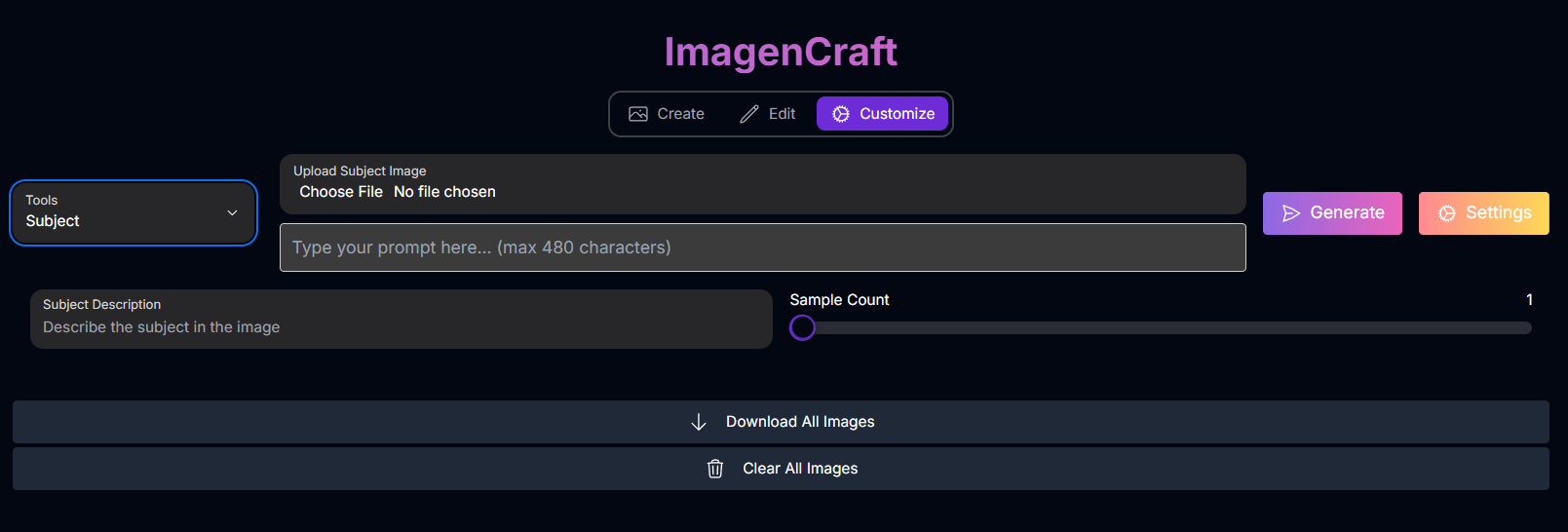
Customize mode allows you to influence image generation based on reference images or specific control types. Requires an **Image Upload** for the reference/control.
```text theme={null}
Prompt: mountains
```
### Customize Mode: Tailor Generation with References
Customize mode allows you to influence image generation based on reference images or specific control types. Requires an **Image Upload** for the reference/control.
 **Tools Available (Customize Mode):**
Generate images of a specific subject based on a reference image.
* **Inputs:** Prompt, Subject Image, Subject Description, Sample Count.
Generate images in a specific artistic style based on a reference image.
* **Inputs:** Prompt, Style Image, Style Description, Sample Count.
**Common Inputs & Options (Customize Mode):**
* **Prompt**: Describes the desired image, often referencing the subject, style, or structure from the input image.
* **Sample Count**: Number of images to generate (1-4).
* **Subject Image**: Reference image of the subject.
* **Subject Description**: Text description of the subject.
* **Style Image**: Reference image of the desired style.
* **Style Description**: Text description of the style.
* **Control Image**: Reference image for structural guidance.
* **Control Type**: Type of structural guidance (Canny, Scribble).
* **Enable Control Image Computation**: Toggle to enable processing of the control image.
## Mastering Prompts for ImagenCraft
Prompting is crucial in all modes, but the focus shifts depending on whether you are creating, editing, or customizing. Imagen models are known for strong prompt interpretation and respond well to descriptive, clear language.
### Prompt Writing Basics: Subject, Context, and Style
A good starting point for any prompt is to define the core elements:
The main object, person, animal, or scenery.
The environment or setting for the subject.
The artistic style (e.g., painting, photograph, sketch, or more specific styles).
After establishing these basics, refine your prompt by adding more details through iteration until the generated image aligns with your vision.
### General Prompting Principles:
Employ descriptive language, detailed adjectives, and adverbs to paint a clear picture for Imagen.
*Example:* Instead of "a park," try "A park in the spring next to a lake, the sun sets across the lake, golden hour, red wildflowers."
Formulate prompts using descriptive sentences, as you would describe an image to another person.
Use negative prompts to steer away from unwanted elements (Note: support varies by model).
For models supporting prompt enhancement (like `imagen-3.0-generate-002`), a shorter prompt can be automatically expanded for potentially better results. This is enabled by default.
### Prompting for Specific Modes/Tools:
Focus on fully describing the desired image from scratch, combining subject, context, and style with rich details.
*Example:* "A futuristic cityscape at sunset, high angle view, digital painting, vibrant colors."
Describe what you want to appear *within the masked area*. Focus on the object or scene you want to generate and how it should blend with the existing image. For best results, use a description of the masked area. Avoid single-word prompts.
*Example:* (Mask over a blank wall) Prompt: "A vibrant graffiti mural covering the wall."
When removing objects, prompts are typically omitted or left empty. The mask defines what is removed, and the AI fills based on the surrounding context.
Describe the content you want to appear in the *expanded areas* around the original image. You can provide an empty string to create the edited images, but a description of the masked area is recommended for best results.
*Example:* (Outpainting around a portrait) Prompt: "A lush forest extending around the person."
Describe the desired *background* or *environment* for the product.
*Example:* (Input: Product image) Prompt: "Place the product on a wooden table in a sunny cafe."
Describe the desired image, referencing the subject from your input image. Use the format `[referenceId]` to refer to the subject image(s).
*Example:* (Input: Subject Image with referenceId 1) Prompt: "Generate an image of the person \[1] as a knight in shining armor." (Referencing the subject with `[1]`).
Describe the desired image content, indicating it should be in the style of your input image. Use the format `[referenceId]` to refer to the style image.
*Example:* (Input: Style Image with referenceId 1) Prompt: "Generate an image of a cat sitting on a chair in the style of image \[1]."
Your prompt describes the *content* and *style* of the image, while the ControlNet image provides the structural guide. Ensure your prompt aligns with the structural guidance (e.g., edges, pose) provided by the ControlNet image.
*Example:* (Input: Control Image - Canny edges of a building) Prompt: "A beautiful watercolor painting of an ancient castle at sunset."
### Advanced Prompting Techniques:
Imagen 3 can add text to images.
* **Iterate:** You may need multiple attempts to get the desired text appearance and placement.
* **Keep it Short:** Limit text to 25 characters or less.
* **Multiple Phrases:** Experiment with 2-3 distinct phrases.
* **Guide Placement:** While placement can vary, you can attempt to guide it in the prompt.
* **Inspire Font Style/Size:** Specify general font styles or size indications (small, medium, large).
*Example:* "A poster with the text 'Summerland' in bold font as a title, underneath this text is the slogan 'Summer never felt so good'."
For API/SDK use, you can parameterize prompts with placeholders like `{logo_style}` to be filled by user inputs in an interface.
*Example Template:* "A {logo_style} logo for a {company_area} company on a solid color background. Include the text {company_name}."
Specify artistic styles (e.g., "photography," "illustration," "digital art") or reference historical art movements ("impressionism," "renaissance," "pop art") or specific artists.
*Example:* "An \[art style or creation technique] of an angular sporty electric sedan with skyscrapers in the background."
Use keywords to influence camera settings and style:
* **Camera Proximity:** "Close up," "taken from far away," "zoomed out."
* **Camera Position:** "aerial," "from below."
* **Lighting:** "natural lighting," "dramatic lighting," "warm lighting," "cold lighting," "studio photo."
* **Camera Settings:** "motion blur," "soft focus," "bokeh," "portrait."
* **Lens Types:** "35mm," "50mm," "fisheye," "wide angle," "macro," "telephoto zoom."
* **Film Types:** "black and white," "polaroid."
Describe objects made of unusual materials or shapes.
*Example:* "a duffle bag made of cheese," "neon tubes in the shape of a bird," "an armchair made of paper, studio photo, origami style."
Use keywords to indicate desired quality level:
* **General:** "high-quality," "beautiful," "stylized."
* **Photos:** "4K," "HDR," "Studio Photo."
* **Art/Illustration:** "by a professional," "detailed."
*Example:* "4k HDR beautiful photo of a corn stalk taken by a professional photographer."
Choose the aspect ratio that best suits your content:
* **Square (1:1):** General use, social media posts.
* **Fullscreen (4:3):** TV, media, film, captures more horizontally.
* **Portrait full screen (3:4):** Fullscreen rotated, captures more vertically.
* **Widescreen (16:9):** TVs, monitors, mobile (landscape), good for landscapes.
* **Portrait (9:16):** Widescreen rotated, for tall objects, mobile (portrait), short-form video.
Combine keywords for specific photorealistic subjects:
* **Portraits:** Prime/zoom lens (24-35mm), "black and white film," "Film noir," "Depth of field," "duotone."
* **Objects (Still Life):** Macro lens (60-105mm), "High detail," "precise focusing," "controlled lighting."
* **Motion:** Telephoto zoom (100-400mm), "Fast shutter speed," "Action or movement tracking."
* **Wide-angle (Landscape/Astronomical):** Wide-angle lens (10-24mm), "Long exposure times," "sharp focus," "smooth water or clouds."
## How to Use ImagenCraft
Navigate through the different modes and tools with this general workflow:
Choose **Create**, **Edit**, or **Customize** based on whether you are generating a new image, modifying an existing one, or tailoring generation with references.
If in Edit or Customize mode, select the specific tool you want to use (e.g., Inpainting, Subject).
If in Edit or Customize mode, upload the necessary base image(s) or reference/control images. For mask-based editing tools, you may need to draw a mask.
Enter your text description. The prompt's focus depends on your selected mode and tool.
Configure common settings like Aspect Ratio, Sample Count, and Seed. Adjust tool-specific settings like Mask Dilation, Edit Steps, or Control Type.
Click the "Generate" button.
Examine the generated image(s). Iterate by adjusting prompts, settings, or inputs if needed.
## Tips for Best Results
Select the mode and tool that precisely match your desired outcome (generation, specific edit type, or customization method).
Tailor your prompt content and detail based on the selected mode and tool's requirements.
For Edit and Customize modes, start with clear, high-resolution images for the best results.
Adjust the various parameters to fine-tune the output and explore creative variations.
## Conclusion
ImagenCraft provides a powerful and versatile platform for AI image generation and editing, leveraging the advanced capabilities of Google Imagen. With its distinct modes and specialized tools, it empowers creators to achieve stunning visual results through intuitive workflows.
***
**Tools Available (Customize Mode):**
Generate images of a specific subject based on a reference image.
* **Inputs:** Prompt, Subject Image, Subject Description, Sample Count.
Generate images in a specific artistic style based on a reference image.
* **Inputs:** Prompt, Style Image, Style Description, Sample Count.
**Common Inputs & Options (Customize Mode):**
* **Prompt**: Describes the desired image, often referencing the subject, style, or structure from the input image.
* **Sample Count**: Number of images to generate (1-4).
* **Subject Image**: Reference image of the subject.
* **Subject Description**: Text description of the subject.
* **Style Image**: Reference image of the desired style.
* **Style Description**: Text description of the style.
* **Control Image**: Reference image for structural guidance.
* **Control Type**: Type of structural guidance (Canny, Scribble).
* **Enable Control Image Computation**: Toggle to enable processing of the control image.
## Mastering Prompts for ImagenCraft
Prompting is crucial in all modes, but the focus shifts depending on whether you are creating, editing, or customizing. Imagen models are known for strong prompt interpretation and respond well to descriptive, clear language.
### Prompt Writing Basics: Subject, Context, and Style
A good starting point for any prompt is to define the core elements:
The main object, person, animal, or scenery.
The environment or setting for the subject.
The artistic style (e.g., painting, photograph, sketch, or more specific styles).
After establishing these basics, refine your prompt by adding more details through iteration until the generated image aligns with your vision.
### General Prompting Principles:
Employ descriptive language, detailed adjectives, and adverbs to paint a clear picture for Imagen.
*Example:* Instead of "a park," try "A park in the spring next to a lake, the sun sets across the lake, golden hour, red wildflowers."
Formulate prompts using descriptive sentences, as you would describe an image to another person.
Use negative prompts to steer away from unwanted elements (Note: support varies by model).
For models supporting prompt enhancement (like `imagen-3.0-generate-002`), a shorter prompt can be automatically expanded for potentially better results. This is enabled by default.
### Prompting for Specific Modes/Tools:
Focus on fully describing the desired image from scratch, combining subject, context, and style with rich details.
*Example:* "A futuristic cityscape at sunset, high angle view, digital painting, vibrant colors."
Describe what you want to appear *within the masked area*. Focus on the object or scene you want to generate and how it should blend with the existing image. For best results, use a description of the masked area. Avoid single-word prompts.
*Example:* (Mask over a blank wall) Prompt: "A vibrant graffiti mural covering the wall."
When removing objects, prompts are typically omitted or left empty. The mask defines what is removed, and the AI fills based on the surrounding context.
Describe the content you want to appear in the *expanded areas* around the original image. You can provide an empty string to create the edited images, but a description of the masked area is recommended for best results.
*Example:* (Outpainting around a portrait) Prompt: "A lush forest extending around the person."
Describe the desired *background* or *environment* for the product.
*Example:* (Input: Product image) Prompt: "Place the product on a wooden table in a sunny cafe."
Describe the desired image, referencing the subject from your input image. Use the format `[referenceId]` to refer to the subject image(s).
*Example:* (Input: Subject Image with referenceId 1) Prompt: "Generate an image of the person \[1] as a knight in shining armor." (Referencing the subject with `[1]`).
Describe the desired image content, indicating it should be in the style of your input image. Use the format `[referenceId]` to refer to the style image.
*Example:* (Input: Style Image with referenceId 1) Prompt: "Generate an image of a cat sitting on a chair in the style of image \[1]."
Your prompt describes the *content* and *style* of the image, while the ControlNet image provides the structural guide. Ensure your prompt aligns with the structural guidance (e.g., edges, pose) provided by the ControlNet image.
*Example:* (Input: Control Image - Canny edges of a building) Prompt: "A beautiful watercolor painting of an ancient castle at sunset."
### Advanced Prompting Techniques:
Imagen 3 can add text to images.
* **Iterate:** You may need multiple attempts to get the desired text appearance and placement.
* **Keep it Short:** Limit text to 25 characters or less.
* **Multiple Phrases:** Experiment with 2-3 distinct phrases.
* **Guide Placement:** While placement can vary, you can attempt to guide it in the prompt.
* **Inspire Font Style/Size:** Specify general font styles or size indications (small, medium, large).
*Example:* "A poster with the text 'Summerland' in bold font as a title, underneath this text is the slogan 'Summer never felt so good'."
For API/SDK use, you can parameterize prompts with placeholders like `{logo_style}` to be filled by user inputs in an interface.
*Example Template:* "A {logo_style} logo for a {company_area} company on a solid color background. Include the text {company_name}."
Specify artistic styles (e.g., "photography," "illustration," "digital art") or reference historical art movements ("impressionism," "renaissance," "pop art") or specific artists.
*Example:* "An \[art style or creation technique] of an angular sporty electric sedan with skyscrapers in the background."
Use keywords to influence camera settings and style:
* **Camera Proximity:** "Close up," "taken from far away," "zoomed out."
* **Camera Position:** "aerial," "from below."
* **Lighting:** "natural lighting," "dramatic lighting," "warm lighting," "cold lighting," "studio photo."
* **Camera Settings:** "motion blur," "soft focus," "bokeh," "portrait."
* **Lens Types:** "35mm," "50mm," "fisheye," "wide angle," "macro," "telephoto zoom."
* **Film Types:** "black and white," "polaroid."
Describe objects made of unusual materials or shapes.
*Example:* "a duffle bag made of cheese," "neon tubes in the shape of a bird," "an armchair made of paper, studio photo, origami style."
Use keywords to indicate desired quality level:
* **General:** "high-quality," "beautiful," "stylized."
* **Photos:** "4K," "HDR," "Studio Photo."
* **Art/Illustration:** "by a professional," "detailed."
*Example:* "4k HDR beautiful photo of a corn stalk taken by a professional photographer."
Choose the aspect ratio that best suits your content:
* **Square (1:1):** General use, social media posts.
* **Fullscreen (4:3):** TV, media, film, captures more horizontally.
* **Portrait full screen (3:4):** Fullscreen rotated, captures more vertically.
* **Widescreen (16:9):** TVs, monitors, mobile (landscape), good for landscapes.
* **Portrait (9:16):** Widescreen rotated, for tall objects, mobile (portrait), short-form video.
Combine keywords for specific photorealistic subjects:
* **Portraits:** Prime/zoom lens (24-35mm), "black and white film," "Film noir," "Depth of field," "duotone."
* **Objects (Still Life):** Macro lens (60-105mm), "High detail," "precise focusing," "controlled lighting."
* **Motion:** Telephoto zoom (100-400mm), "Fast shutter speed," "Action or movement tracking."
* **Wide-angle (Landscape/Astronomical):** Wide-angle lens (10-24mm), "Long exposure times," "sharp focus," "smooth water or clouds."
## How to Use ImagenCraft
Navigate through the different modes and tools with this general workflow:
Choose **Create**, **Edit**, or **Customize** based on whether you are generating a new image, modifying an existing one, or tailoring generation with references.
If in Edit or Customize mode, select the specific tool you want to use (e.g., Inpainting, Subject).
If in Edit or Customize mode, upload the necessary base image(s) or reference/control images. For mask-based editing tools, you may need to draw a mask.
Enter your text description. The prompt's focus depends on your selected mode and tool.
Configure common settings like Aspect Ratio, Sample Count, and Seed. Adjust tool-specific settings like Mask Dilation, Edit Steps, or Control Type.
Click the "Generate" button.
Examine the generated image(s). Iterate by adjusting prompts, settings, or inputs if needed.
## Tips for Best Results
Select the mode and tool that precisely match your desired outcome (generation, specific edit type, or customization method).
Tailor your prompt content and detail based on the selected mode and tool's requirements.
For Edit and Customize modes, start with clear, high-resolution images for the best results.
Adjust the various parameters to fine-tune the output and explore creative variations.
## Conclusion
ImagenCraft provides a powerful and versatile platform for AI image generation and editing, leveraging the advanced capabilities of Google Imagen. With its distinct modes and specialized tools, it empowers creators to achieve stunning visual results through intuitive workflows.
***