> ## Documentation Index
> Fetch the complete documentation index at: https://support.myapps.ai/llms.txt
> Use this file to discover all available pages before exploring further.
# MysticCraft
> Generate stunningly realistic 2K and 4K images with Freepik Mystic model
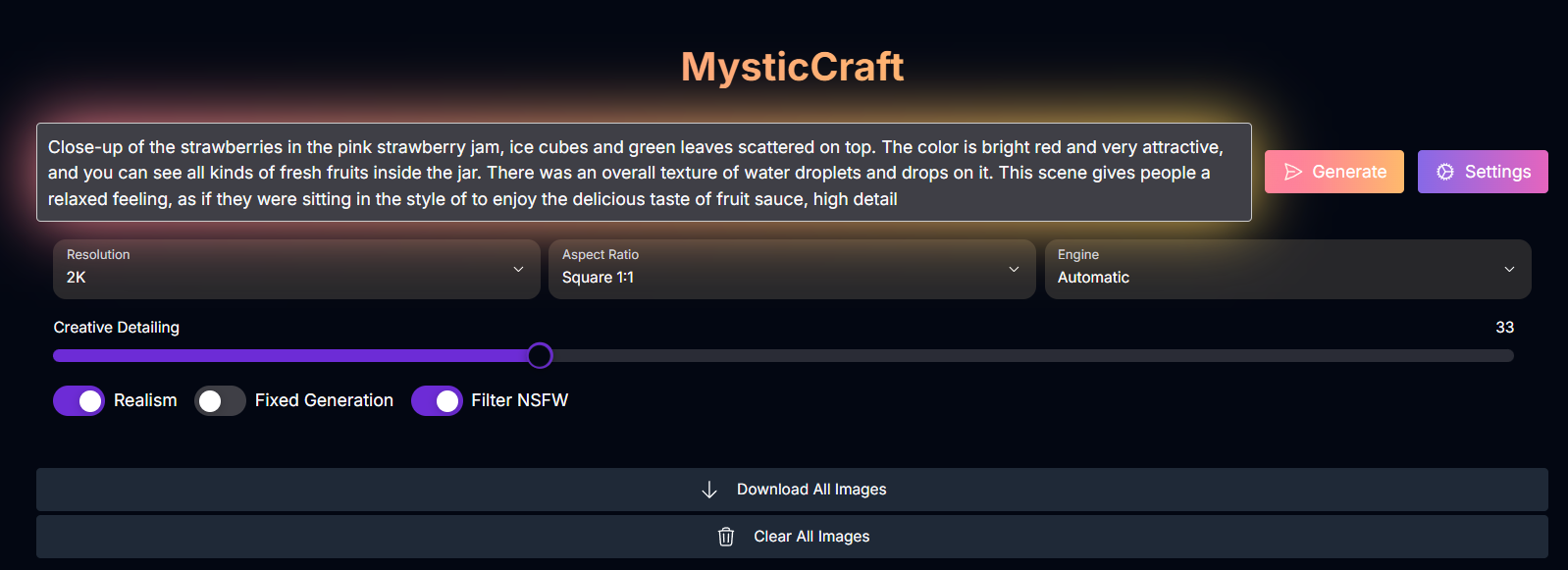 # MysticCraft: Unleash Hyper-Realistic AI Imagery
Step into a world of stunning realism with MysticCraft! Powered by Freepik's advanced Mystic model, generate breathtaking images with unparalleled detail and 2K/4K quality.
## Overview
MysticCraft is a premier AI image generation tool leveraging the power of **Freepik's Mystic model**. This model is renowned for producing some of the **most realistic images** available, excelling in rendering intricate details and lifelike textures. MysticCraft brings this capability to your fingertips, allowing you to generate visuals with stunning **2K and 4K quality**. Whether you're seeking photorealistic scenes, detailed portraits, or highly realistic artistic creations, MysticCraft provides the fidelity and control to achieve your vision.
Powered by the **Mystic model**, known for its lifelike image synthesis.
Generate images with **2K and 4K quality** for exceptional detail.
Fine-tune realism, detailing, and style with **intuitive settings**.
Choose from different **generation engines** for varied artistic outcomes.
## Visual Showcase
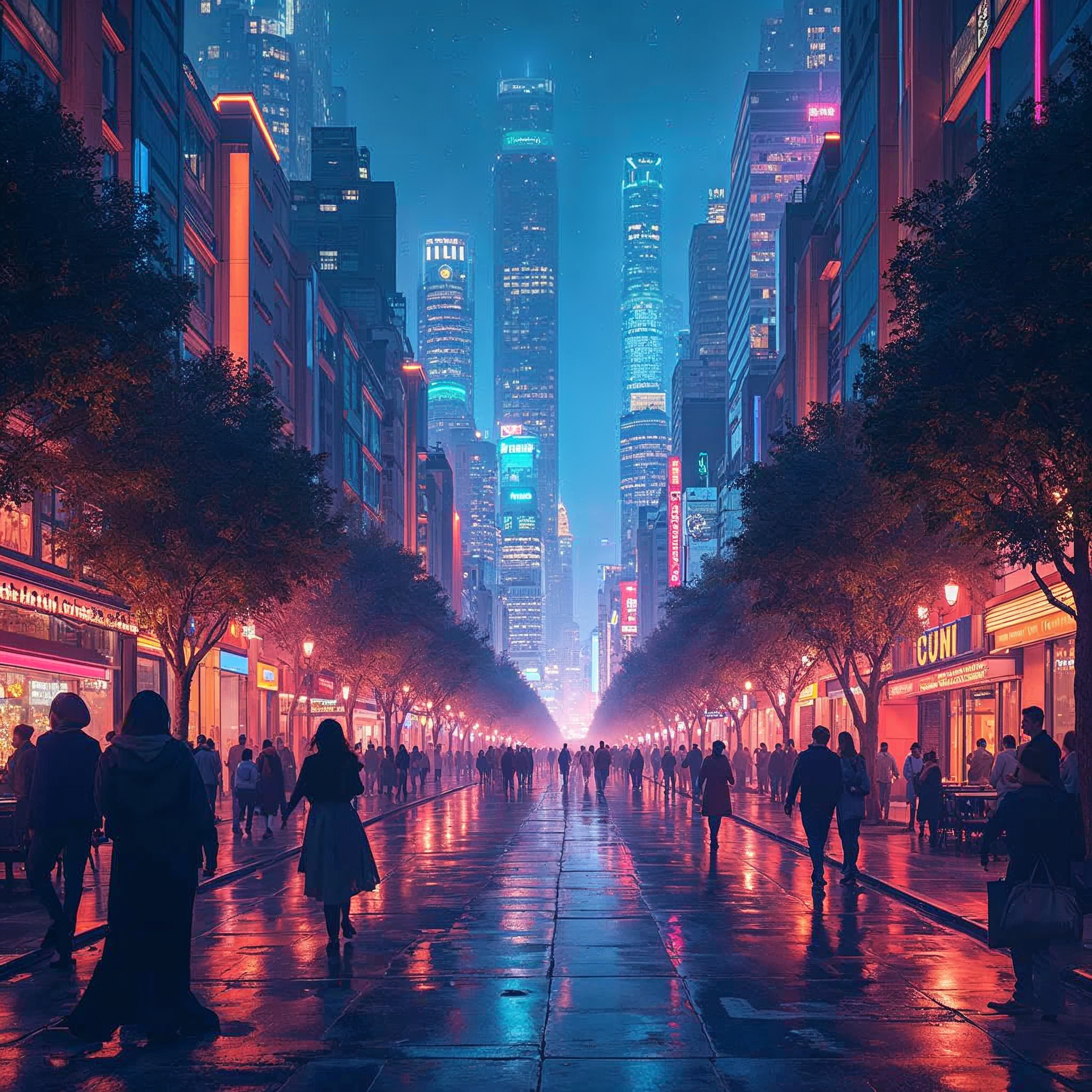
Behold the stunning realism and detail achievable with MysticCraft:
# MysticCraft: Unleash Hyper-Realistic AI Imagery
Step into a world of stunning realism with MysticCraft! Powered by Freepik's advanced Mystic model, generate breathtaking images with unparalleled detail and 2K/4K quality.
## Overview
MysticCraft is a premier AI image generation tool leveraging the power of **Freepik's Mystic model**. This model is renowned for producing some of the **most realistic images** available, excelling in rendering intricate details and lifelike textures. MysticCraft brings this capability to your fingertips, allowing you to generate visuals with stunning **2K and 4K quality**. Whether you're seeking photorealistic scenes, detailed portraits, or highly realistic artistic creations, MysticCraft provides the fidelity and control to achieve your vision.
Powered by the **Mystic model**, known for its lifelike image synthesis.
Generate images with **2K and 4K quality** for exceptional detail.
Fine-tune realism, detailing, and style with **intuitive settings**.
Choose from different **generation engines** for varied artistic outcomes.
## Visual Showcase
Behold the stunning realism and detail achievable with MysticCraft:
 ```text theme={null}
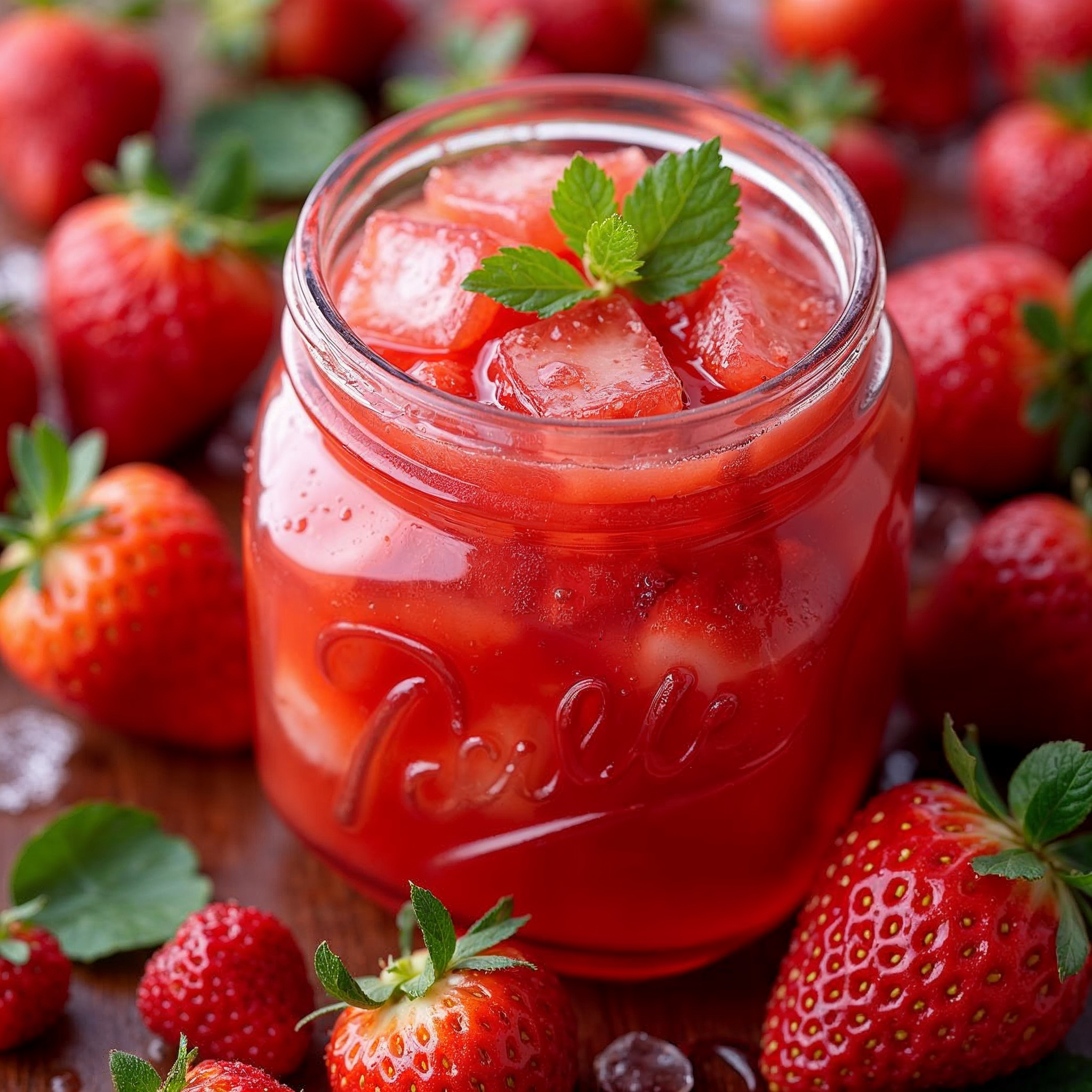
Close-up of the strawberries in the pink strawberry jam, ice cubes and green leaves scattered on top. The color is bright red and very attractive, and you can see all kinds of fresh fruits inside the jar. There was an overall texture of water droplets and drops on it. This scene gives people a relaxed feeling, as if they were sitting in the style of to enjoy the delicious taste of fruit sauce, high detail
```
```text theme={null}
Close-up of the strawberries in the pink strawberry jam, ice cubes and green leaves scattered on top. The color is bright red and very attractive, and you can see all kinds of fresh fruits inside the jar. There was an overall texture of water droplets and drops on it. This scene gives people a relaxed feeling, as if they were sitting in the style of to enjoy the delicious taste of fruit sauce, high detail
```
 ```text theme={null}
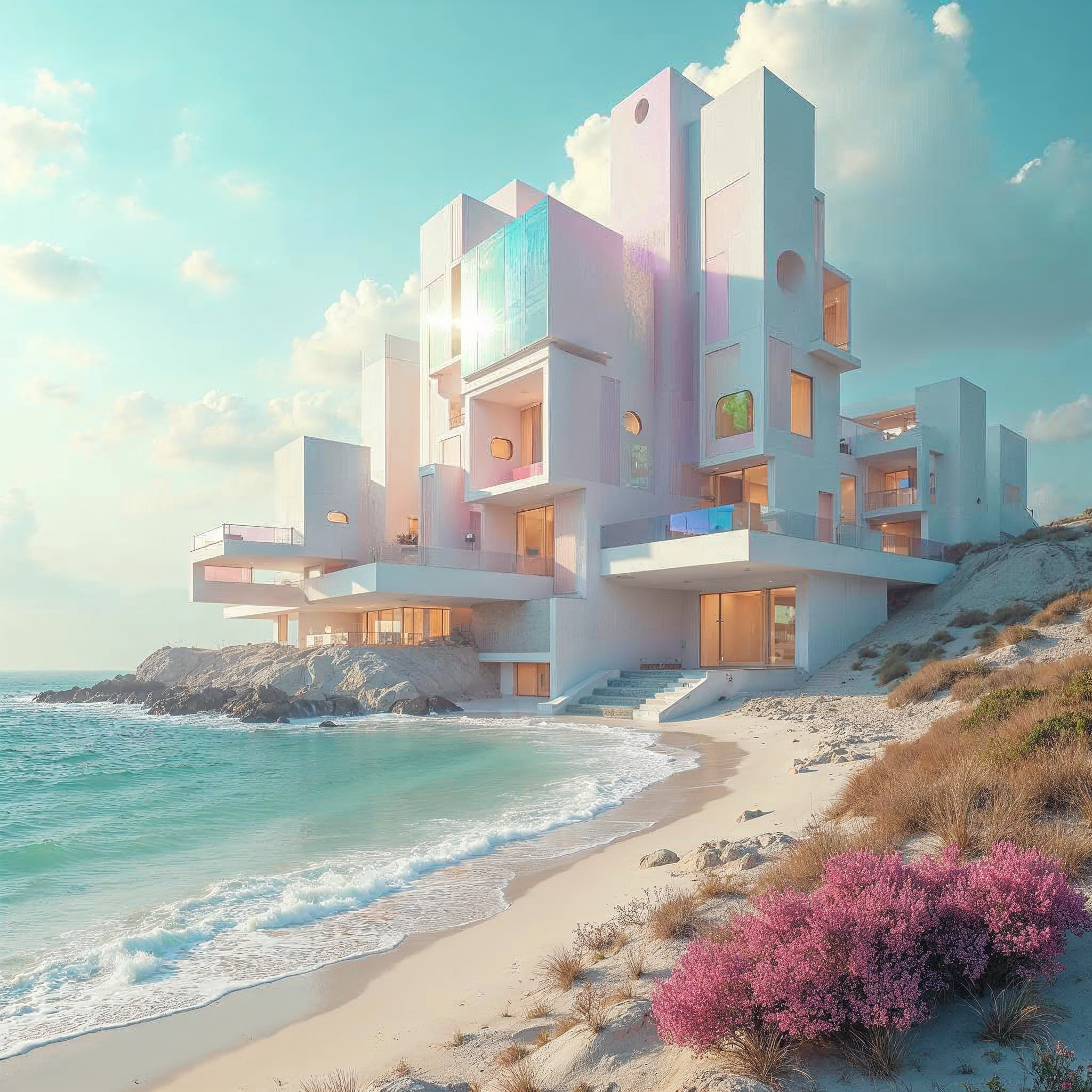
Surreal, geometric building complex nestled within a serene, wilderness beach landscape with a dreamlike ambiance, high detail, pastel, soft tones, iridescent style, bright and reflective atmosphere light effects, holographic background
```
```text theme={null}
Surreal, geometric building complex nestled within a serene, wilderness beach landscape with a dreamlike ambiance, high detail, pastel, soft tones, iridescent style, bright and reflective atmosphere light effects, holographic background
```
 ```text theme={null}
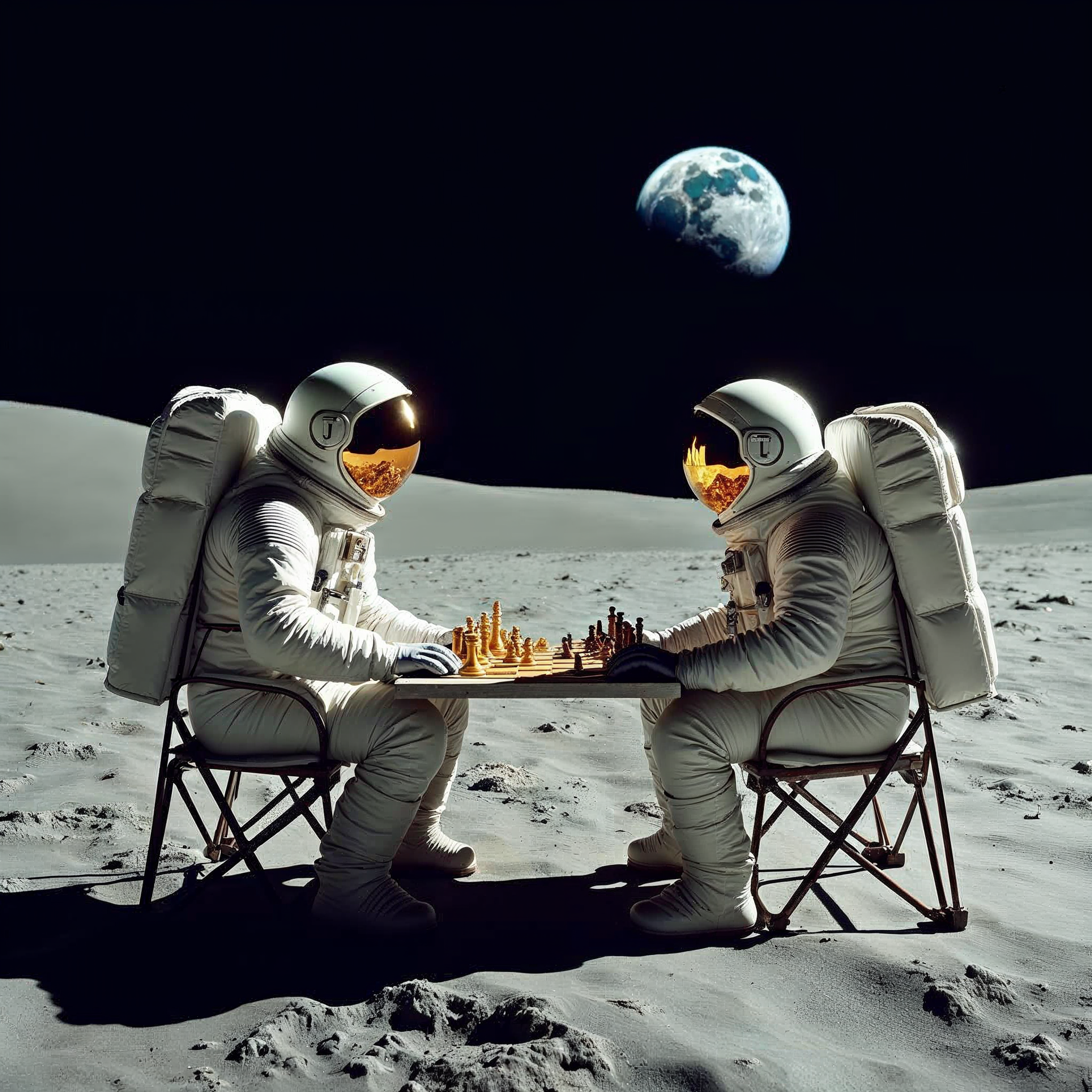
Two astronauts, fully suited, sit on foldable chairs on the surface of the moon, deeply engrossed in a game of chess. The Earth hangs in the black sky above them, and their visors reflect the chessboard, adding a touch of surrealism to this quiet, thoughtful moment far from home
```
```text theme={null}
Two astronauts, fully suited, sit on foldable chairs on the surface of the moon, deeply engrossed in a game of chess. The Earth hangs in the black sky above them, and their visors reflect the chessboard, adding a touch of surrealism to this quiet, thoughtful moment far from home
```
 ```text theme={null}
vibrant illustration of a city The colors are beautiful, the lighting is dynamic, and the overall scene has a cinematic, epic, and wide-shot feel, making it a true masterpiece
```
## How to Use MysticCraft
Follow these steps to generate stunningly realistic images with MysticCraft:
Provide a detailed text description of the image you want to create in the prompt input field.
Focus on describing the visual details, textures, lighting, and overall realism you desire.
Configure the generation parameters to fine-tune your output:
Select the output resolution: **2K** or **4K**.
Choose the desired shape for your image.
* Possible values: `Square 1:1`, `Classic 4:3`, `Widescreen 16:9`
Select a generation engine. Each engine has a unique style or focus.
* Possible values: `Automatic`, `Magnific Illusio`, `Magnific Sharpy`, `Magnific Sparkle`
Adjust a slider (0-100) to control the level of micro-detail and intricacy in the image.
Toggle a switch to enhance the overall realism of the generated image.
Toggle a switch for fixed generation (details may vary, often relates to reproducibility or consistency).
Toggle a switch to filter out potentially inappropriate content.
Click the "Generate" button. The AI will process your prompt and settings to create your image.
## Input Parameters and Options
Here are the detailed input parameters and options available in MysticCraft:
Your text description guiding the image creation.
The desired output resolution.
* Possible enum values: `2k`, `4k`
The desired aspect ratio for the output image.
* Possible enum values: `square_1_1`, `classic_4_3`, `widescreen_16_9`
Toggle to enhance the overall realism of the generated image. (Default: `true`).
Controls the level of micro-detail and intricacy in the image.
* Default: 33
* Range: 0-100
Selects the generation engine. Each engine has a unique style or focus.
* Default: `automatic`
* Possible enum values: `automatic`, `magnific_illusio`, `magnific_sharpy`, `magnific_sparkle`
Toggle for fixed generation (details may vary, often relates to reproducibility or consistency).
Toggle to filter out potentially inappropriate content. (Default: `true`).
## Mastering Prompts for MysticCraft
To achieve the highly realistic and detailed images MysticCraft is known for, focus on descriptive and specific prompts.
### Prompting Techniques:
Use keywords like "photorealistic," "ultra-realistic," "high detail," "sharp focus," "clear," and describe textures and materials.
Describe the lighting conditions precisely (e.g., "golden hour," "soft studio lighting," "dramatic dutch light," "caustics effect").
Including camera type, lens, aperture, or film type can sometimes influence the final look, especially for photorealistic styles.
*Example:* "shot on Canon EOS R5, 24mm f/2.8 wide-angle lens."
Use words that convey the desired feeling (e.g., "serene," "dreamlike," "intense," "cinematic").
Mention desired framing or perspective (e.g., "close-up," "wide-shot," "above view," "centered subject").
## Tips for Best Results
Craft prompts that guide the AI towards photorealistic outputs to leverage the Mystic model's strength.
Try the different generation engines to see which style best suits your prompt and desired outcome.
Fine-tune the Creative Detailing slider to control the level of intricate detail in your image.
Select 4K resolution for maximum detail and clarity in your generated images.
## Conclusion
MysticCraft provides access to Freepik's powerful Mystic model, enabling the creation of stunningly realistic and high-resolution images. By focusing on detailed and descriptive prompts and utilizing the available settings, you can unlock the full potential of this tool to generate visuals with exceptional realism and quality.
***
```text theme={null}
vibrant illustration of a city The colors are beautiful, the lighting is dynamic, and the overall scene has a cinematic, epic, and wide-shot feel, making it a true masterpiece
```
## How to Use MysticCraft
Follow these steps to generate stunningly realistic images with MysticCraft:
Provide a detailed text description of the image you want to create in the prompt input field.
Focus on describing the visual details, textures, lighting, and overall realism you desire.
Configure the generation parameters to fine-tune your output:
Select the output resolution: **2K** or **4K**.
Choose the desired shape for your image.
* Possible values: `Square 1:1`, `Classic 4:3`, `Widescreen 16:9`
Select a generation engine. Each engine has a unique style or focus.
* Possible values: `Automatic`, `Magnific Illusio`, `Magnific Sharpy`, `Magnific Sparkle`
Adjust a slider (0-100) to control the level of micro-detail and intricacy in the image.
Toggle a switch to enhance the overall realism of the generated image.
Toggle a switch for fixed generation (details may vary, often relates to reproducibility or consistency).
Toggle a switch to filter out potentially inappropriate content.
Click the "Generate" button. The AI will process your prompt and settings to create your image.
## Input Parameters and Options
Here are the detailed input parameters and options available in MysticCraft:
Your text description guiding the image creation.
The desired output resolution.
* Possible enum values: `2k`, `4k`
The desired aspect ratio for the output image.
* Possible enum values: `square_1_1`, `classic_4_3`, `widescreen_16_9`
Toggle to enhance the overall realism of the generated image. (Default: `true`).
Controls the level of micro-detail and intricacy in the image.
* Default: 33
* Range: 0-100
Selects the generation engine. Each engine has a unique style or focus.
* Default: `automatic`
* Possible enum values: `automatic`, `magnific_illusio`, `magnific_sharpy`, `magnific_sparkle`
Toggle for fixed generation (details may vary, often relates to reproducibility or consistency).
Toggle to filter out potentially inappropriate content. (Default: `true`).
## Mastering Prompts for MysticCraft
To achieve the highly realistic and detailed images MysticCraft is known for, focus on descriptive and specific prompts.
### Prompting Techniques:
Use keywords like "photorealistic," "ultra-realistic," "high detail," "sharp focus," "clear," and describe textures and materials.
Describe the lighting conditions precisely (e.g., "golden hour," "soft studio lighting," "dramatic dutch light," "caustics effect").
Including camera type, lens, aperture, or film type can sometimes influence the final look, especially for photorealistic styles.
*Example:* "shot on Canon EOS R5, 24mm f/2.8 wide-angle lens."
Use words that convey the desired feeling (e.g., "serene," "dreamlike," "intense," "cinematic").
Mention desired framing or perspective (e.g., "close-up," "wide-shot," "above view," "centered subject").
## Tips for Best Results
Craft prompts that guide the AI towards photorealistic outputs to leverage the Mystic model's strength.
Try the different generation engines to see which style best suits your prompt and desired outcome.
Fine-tune the Creative Detailing slider to control the level of intricate detail in your image.
Select 4K resolution for maximum detail and clarity in your generated images.
## Conclusion
MysticCraft provides access to Freepik's powerful Mystic model, enabling the creation of stunningly realistic and high-resolution images. By focusing on detailed and descriptive prompts and utilizing the available settings, you can unlock the full potential of this tool to generate visuals with exceptional realism and quality.
***