> ## Documentation Index
> Fetch the complete documentation index at: https://support.myapps.ai/llms.txt
> Use this file to discover all available pages before exploring further.
# Privacy & Data Handling
> Understand what stays on your iPad, what an AI request sends, and how to change permission.
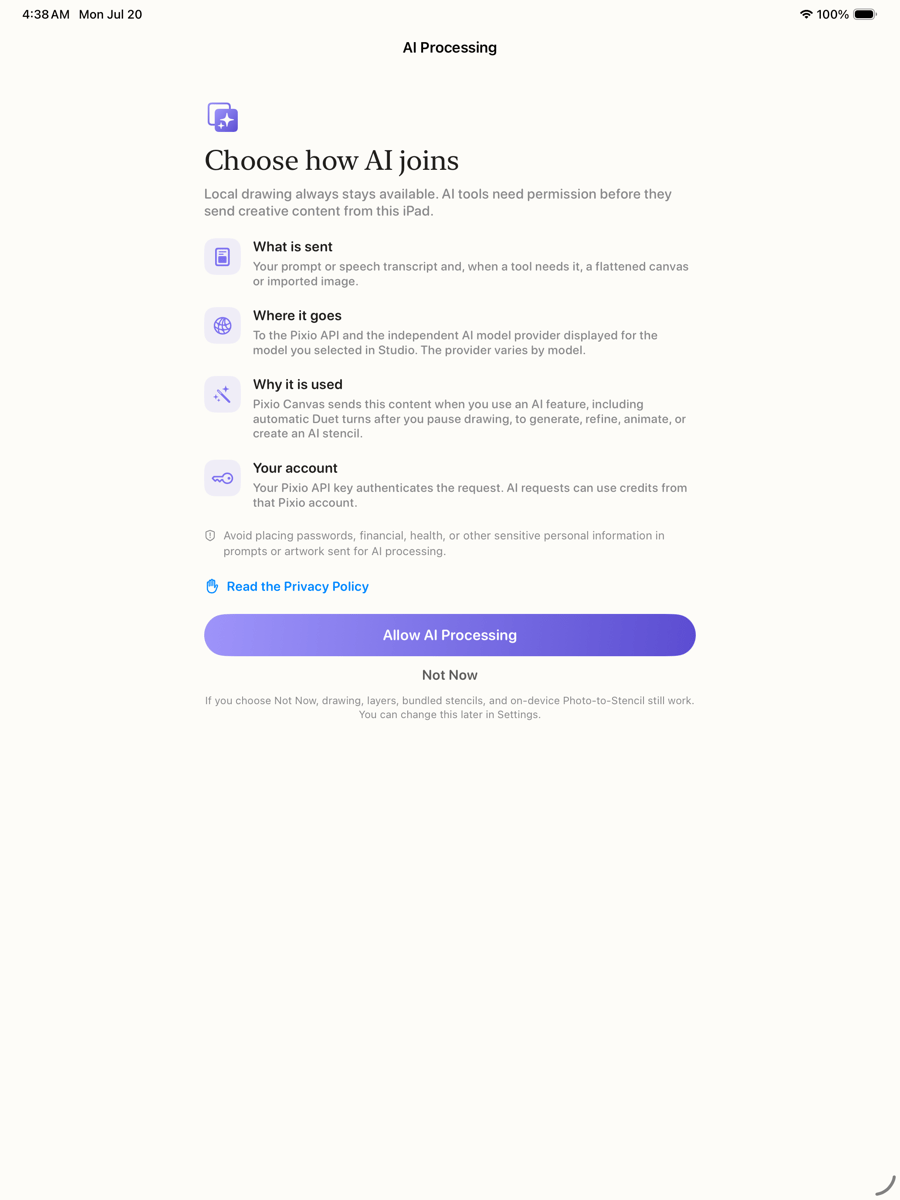
Pixio Canvas asks for explicit permission before sending creative content to Pixio or the independent AI provider serving the model selected in Studio. Local drawing remains available when you choose **Not Now**.
 ## What each action uses
| Action | What can leave the iPad | Destination |
| ---------------------------------------------- | ---------------------------------------------------------------------------------- | ------------------------------------------------------------- |
| Draw, erase, layers, undo, redo, local Library | Nothing for that action | Stays on the iPad |
| Bundled tracing guides | Nothing for that action | Stays on the iPad |
| Photo-to-Stencil | Nothing for conversion | Processed and saved on the iPad |
| Whisper or Duet refinement | Prompt or speech transcript and a flattened canvas or imported image when required | Pixio API and the provider serving the selected Refine model |
| Generate Stencil | Your subject description and stencil instructions | Pixio API and the provider serving the compatible image model |
| Animate | Canvas image and optional intent required by the selected model | Pixio API and the provider serving the Animate model |
| Pixio Library | Key-authenticated requests for that account's cloud assets | Pixio API |
The model provider varies with your live model selection. Provider handling and retention can vary, so review the [Pixio Privacy Policy](https://beta.pixio.myapps.ai/privacy-policy) before enabling AI processing.
## Your API key
The key is stored in the device Keychain, is not bundled with Pixio Canvas, and is not displayed again after saving. It is transmitted to Pixio when needed to authenticate a cloud request. AI requests can use credits from that key's Pixio account.
Never put a key in artwork, prompts, screenshots, email, shared notes, or public testing instructions.
## AI-processing permission
Open **Settings → AI Processing** to review the disclosure, allow processing, or withdraw permission.
* **Not Now** prevents new AI requests while local tools continue working.
* **Allow AI Processing** enables requests from Whisper, Duet, Generate Stencil, and Animate. In Duet, a request starts automatically after you pause drawing.
* Withdrawing permission cancels queued and locally tracked work. A request already accepted by a provider may still finish and may still use credits.
## Photos and voice
* Photo access is requested only when you explicitly import an image or save exported artwork.
* Pixio Canvas does not use the camera.
* Microphone and Speech permissions are requested only when you use optional voice intent.
* Dictation requires on-device recognition. Raw microphone audio is not sent to Pixio; the resulting text can become part of an AI request after permission.
## Remove data from the app
* Remove the stored API key in **Settings → Companion Key**.
* Delete individual canvases from the local Library.
* Delete individual entries from **Custom Stencils**.
* Use the red Clear button to clear the current canvas after confirmation.
Removing a key does not automatically delete local drawings, custom stencils, or existing server-side Pixio assets. For account or cloud-data requests, contact [Pixio Canvas support](mailto:nkukaj@mytsi.org) without including the key itself.
Pixio Canvas has no in-app public feed, messaging, social-sharing network, advertising, native account registration, in-app purchases, or purchase links. You can explicitly share an animation through Apple's system Share sheet.
## What each action uses
| Action | What can leave the iPad | Destination |
| ---------------------------------------------- | ---------------------------------------------------------------------------------- | ------------------------------------------------------------- |
| Draw, erase, layers, undo, redo, local Library | Nothing for that action | Stays on the iPad |
| Bundled tracing guides | Nothing for that action | Stays on the iPad |
| Photo-to-Stencil | Nothing for conversion | Processed and saved on the iPad |
| Whisper or Duet refinement | Prompt or speech transcript and a flattened canvas or imported image when required | Pixio API and the provider serving the selected Refine model |
| Generate Stencil | Your subject description and stencil instructions | Pixio API and the provider serving the compatible image model |
| Animate | Canvas image and optional intent required by the selected model | Pixio API and the provider serving the Animate model |
| Pixio Library | Key-authenticated requests for that account's cloud assets | Pixio API |
The model provider varies with your live model selection. Provider handling and retention can vary, so review the [Pixio Privacy Policy](https://beta.pixio.myapps.ai/privacy-policy) before enabling AI processing.
## Your API key
The key is stored in the device Keychain, is not bundled with Pixio Canvas, and is not displayed again after saving. It is transmitted to Pixio when needed to authenticate a cloud request. AI requests can use credits from that key's Pixio account.
Never put a key in artwork, prompts, screenshots, email, shared notes, or public testing instructions.
## AI-processing permission
Open **Settings → AI Processing** to review the disclosure, allow processing, or withdraw permission.
* **Not Now** prevents new AI requests while local tools continue working.
* **Allow AI Processing** enables requests from Whisper, Duet, Generate Stencil, and Animate. In Duet, a request starts automatically after you pause drawing.
* Withdrawing permission cancels queued and locally tracked work. A request already accepted by a provider may still finish and may still use credits.
## Photos and voice
* Photo access is requested only when you explicitly import an image or save exported artwork.
* Pixio Canvas does not use the camera.
* Microphone and Speech permissions are requested only when you use optional voice intent.
* Dictation requires on-device recognition. Raw microphone audio is not sent to Pixio; the resulting text can become part of an AI request after permission.
## Remove data from the app
* Remove the stored API key in **Settings → Companion Key**.
* Delete individual canvases from the local Library.
* Delete individual entries from **Custom Stencils**.
* Use the red Clear button to clear the current canvas after confirmation.
Removing a key does not automatically delete local drawings, custom stencils, or existing server-side Pixio assets. For account or cloud-data requests, contact [Pixio Canvas support](mailto:nkukaj@mytsi.org) without including the key itself.
Pixio Canvas has no in-app public feed, messaging, social-sharing network, advertising, native account registration, in-app purchases, or purchase links. You can explicitly share an animation through Apple's system Share sheet.