
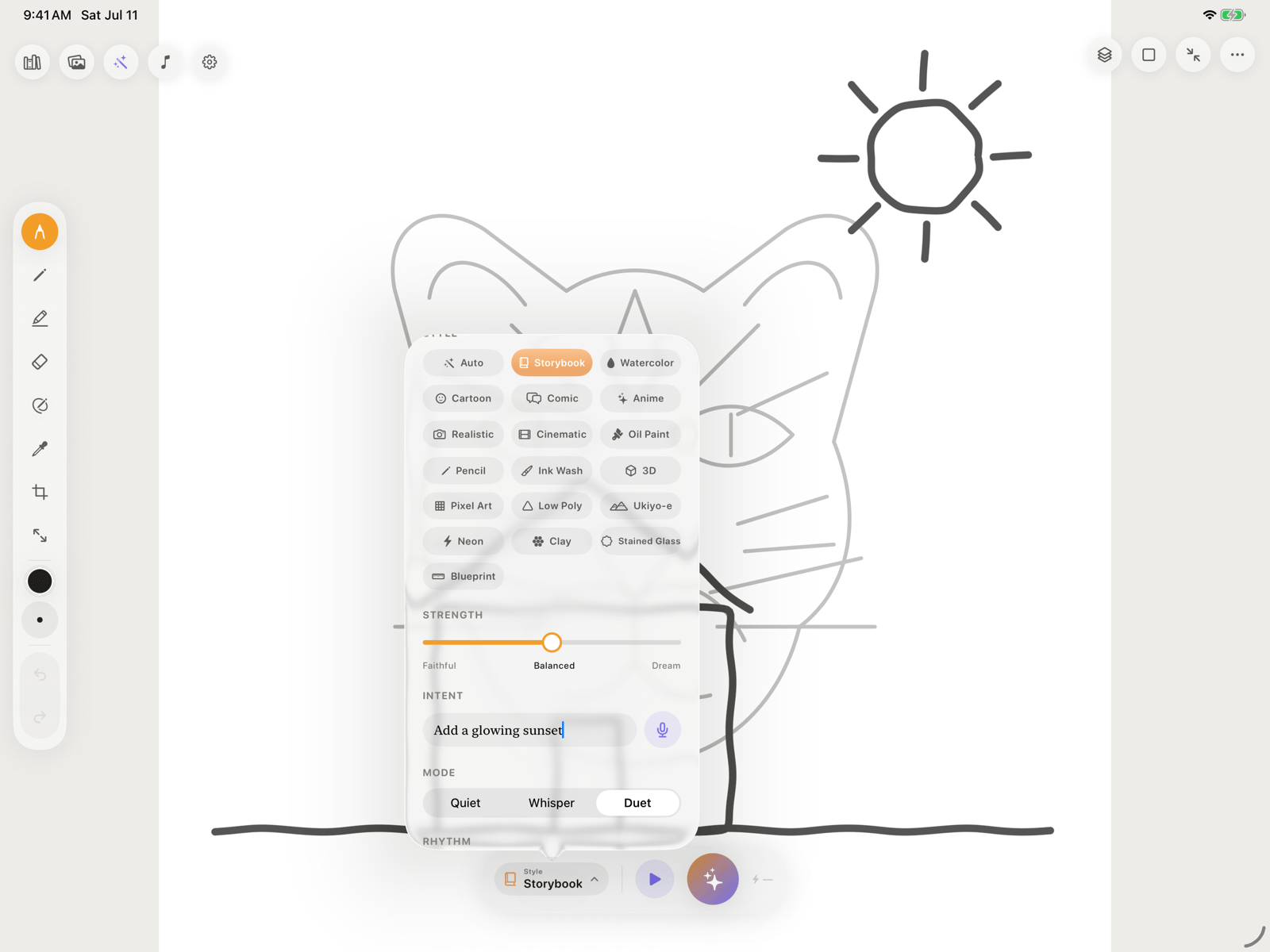
Whisper and Duet require a Pixio API key, network access, available credits, and permission under Settings → AI Processing.
If Settings → Manual volleys only is enabled, Duet will not start automatic turns. Use the Spark button or turn that setting off to restore pause-triggered responses.
Quiet
Use Quiet for uninterrupted drawing, offline practice, classroom exercises, or tracing without AI. Spark, Animate, and Generate Stencil appear inactive while Quiet is selected, but local tools, layers, bundled guides, and Photo-to-Stencil remain available.Whisper
Whisper gives you a manual checkpoint:1
Draw or import the starting artwork
Finish the portion you want the companion to see.
2
Choose a style and strength
Faithful preserves more of your marks. Moving toward Dream gives the model more freedom.
3
Add an optional intent
Type a direction such as “add a glowing sunset” or use the microphone when on-device dictation is available.
4
Tap Spark
Pixio Canvas snapshots the relevant artwork and starts one companion turn.
Duet
Duet is the continuous co-drawing mode. Draw, pause, and the companion takes a turn. Choose Flowing for a quicker rhythm or Patient when you want more time between marks and a response. You can continue drawing while a Duet request is processing. The companion result arrives as a separate layer below any newer ink, so it does not cover or replace the strokes you added while waiting.Styles, strength, and intent
- Style sets the visual direction, including Storybook, Watercolor, Comic, Pencil, and other presets.
- Strength balances preservation of your marks against creative freedom.
- Intent tells the companion what to add, change, preserve, or remove.
- Remove lets you mark an area you want removed when the selected model supports image editing.
- Animate turns suitable canvas artwork into a video with the selected Animate model.